
Customer story
“SocialBu lets us focus on what we love, building plugins and creating content, while keeping our social media humming.”
Katie · CEO, Barn2 Plugins
Read the Barn2 Plugins case studyPut a week of posts on the calendar in one sitting. Schedule updates for the accounts your customers follow, then get back to running your business.
Cancel anytime.
Plan your updates, adapt the creative for each channel, and follow the conversations your posts start.
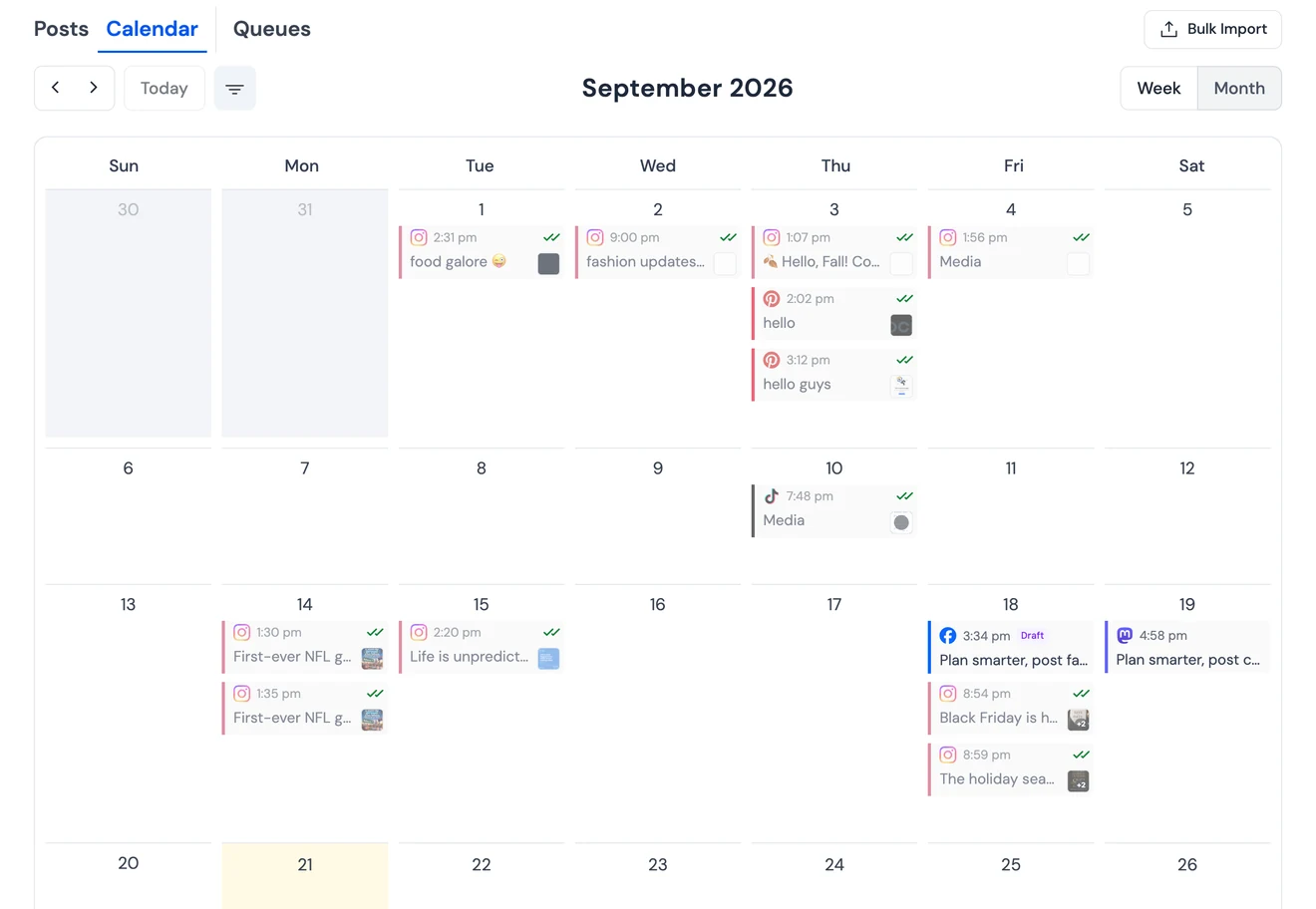
Schedule offers, new products, and reminders ahead of time. See what’s coming up across connected accounts and move a post when plans change.
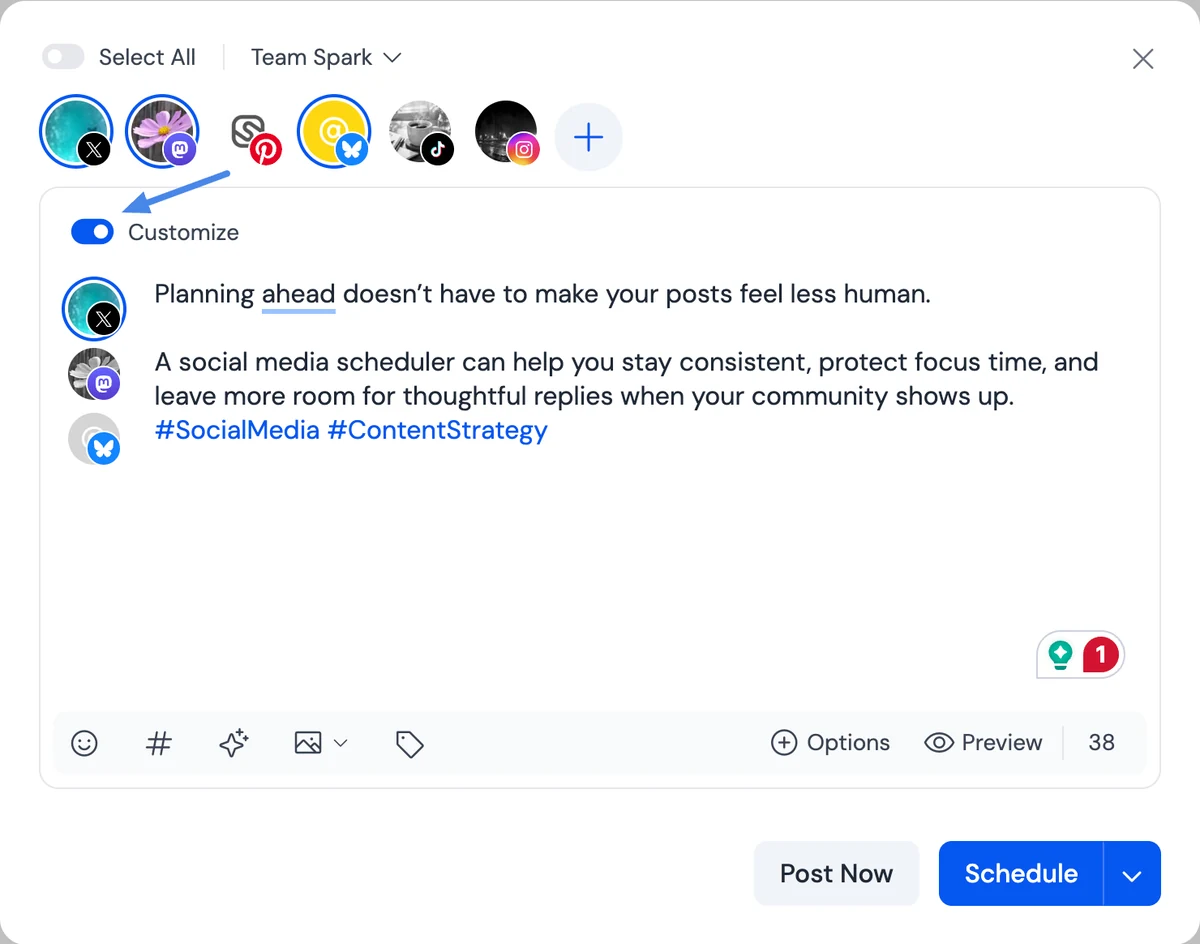
Give an Instagram post a photo-first caption and use the Facebook version for event details. Create both from the same composer and preview each before it goes live.
Bring supported comments, messages, and reviews together on plans with the social inbox. Follow up from the connected account your customer used.
Calendar and scheduling
Put opening hours, product updates, and event reminders on one calendar. Schedule the posts that are ready and keep unfinished ideas as drafts until the details are set.
A bakery can schedule a photo when weekend preorders open, a reminder before the cutoff, and a pickup update for Friday. Each version can use the copy and media that suit its destination.
Composer and AI
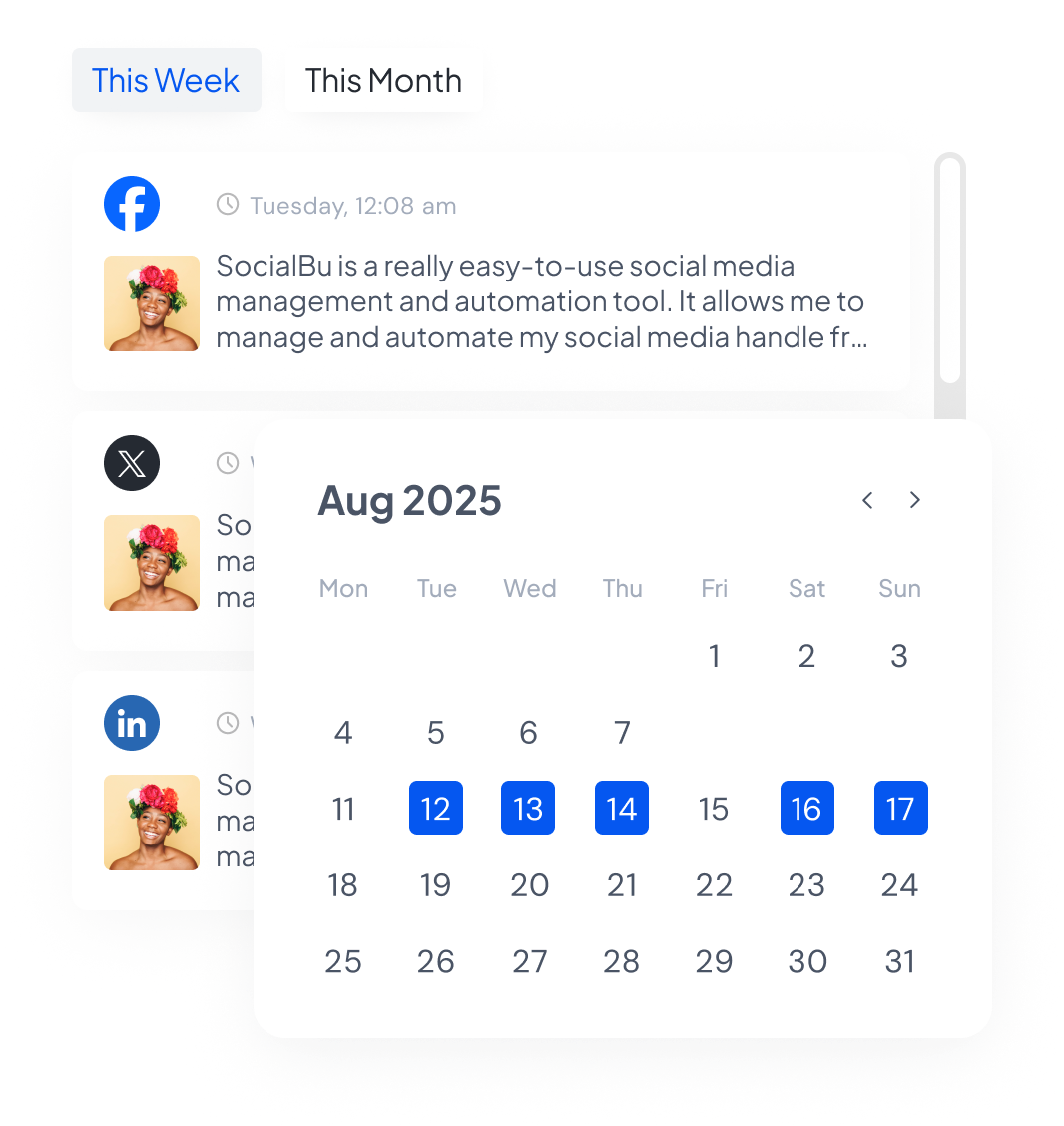
Write a product update once, then change the caption or media for each destination. Bring in photos from Google Drive or Dropbox, preview the result, and schedule from the composer.
Start a caption with SocialBu’s AI tools or the free Instagram caption generator. Add your prices, pickup details, or booking link in your own voice. If a colleague helps, team approvals give them a place to review on eligible plans.
Inbox and analytics
When an offer starts getting questions, use Respond to follow supported conversations across connected accounts. A shop can reply to questions about availability while the offer is still running. If the same question keeps coming up, turn the answer into the next post so customers can find it when they need it.
Use Analyze to compare available results for a product photo and a quick tutorial. See which formats people interact with and use that information when planning the next week.

Start with the accounts your customers use and a small batch of posts you can finish this week.
Bring in the channels where customers already find you. A local shop can start with a Facebook Page, a professional Instagram account, or a Google Business Profile location.
Prepare a few different updates in one session. A behind-the-scenes clip, a product photo, and a reminder for an upcoming event can each have their own place in the calendar.
Pick a time for each post and make sure related updates are in the right order. After publication, follow supported conversations and use available results to decide what to post next.
“SocialBu lets us focus on what we love, building plugins and creating content, while keeping our social media humming.”
Katie · CEO, Barn2 Plugins
Read the Barn2 Plugins case studyImport creative from Google Drive or Dropbox, connect workflows through Zapier, Make, or n8n, and use compatible AI assistants to prepare drafts through SocialBu MCP.



Try Free for up to 10 lifetime posts across 3 accounts. Choose a paid plan for ongoing publishing or team features.
$29 / month, billed monthly
For owners and solo marketers who publish regularly. Use a queue for recurring posts such as weekly class reminders, with room for one-off announcements on the calendar.
$79 / month, billed monthly
For small teams that share publishing, review, and replies. Bring in the person who knows the offer details to approve the post before it goes out.
Yes. The Free plan includes up to 3 connected accounts and 10 lifetime posts. The post limit is a total across your time on Free. Connecting X requires a paid plan.
The Starter plan supports up to 8 connected accounts and 750 posts per month. Count each profile or page you need to connect. Monthly post usage depends on how many destinations you publish to, so check the limits if you frequently share across several accounts.
Yes. Select the accounts in the composer, then customize each version for its destination. For example, a product announcement can go to Instagram and Facebook, with different captions and media. The formats and settings available depend on the account and network.
Yes. On a plan with team members, invite a colleague with their own login. Use team permissions to decide who can draft or approve posts. If you publish on your own, you can save a draft and return to it when prices, dates, and photos are confirmed.
The social inbox is available on plans that include Respond, such as Growth. The conversations you can see and respond to depend on the connected account and network. Check coverage for the channels your customers actually use.
Compare available post metrics over the same period in Analyze. Look at the response to different topics or formats for a connected account. The available metrics depend on the network and account type, and advanced analytics depend on your plan.
Your first paid subscription starts with a 7-day free trial, and you can cancel anytime. Try preparing and scheduling a few real posts, then check whether the calendar and supported account formats fit the way you work.
Cancel anytime. Free for 7 days.


