
Customer story
“The content calendar lets me see the big picture and schedule smarter, freeing me to focus on strategy.”
Donbosco Otunga · Marketing & Communications Lead, Lido Nation
Read the Lido Nation case studyPlan campaigns, get sign-off, and publish across client accounts from one place. Give every brand its own team and give your agency a clear view of what’s going live.
Cancel anytime.

Give each client’s accounts, approvals, and reporting a clear home as your roster grows.
Group profiles and Pages into client teams. Writers and reviewers get their own logins and access to the teams they work with.
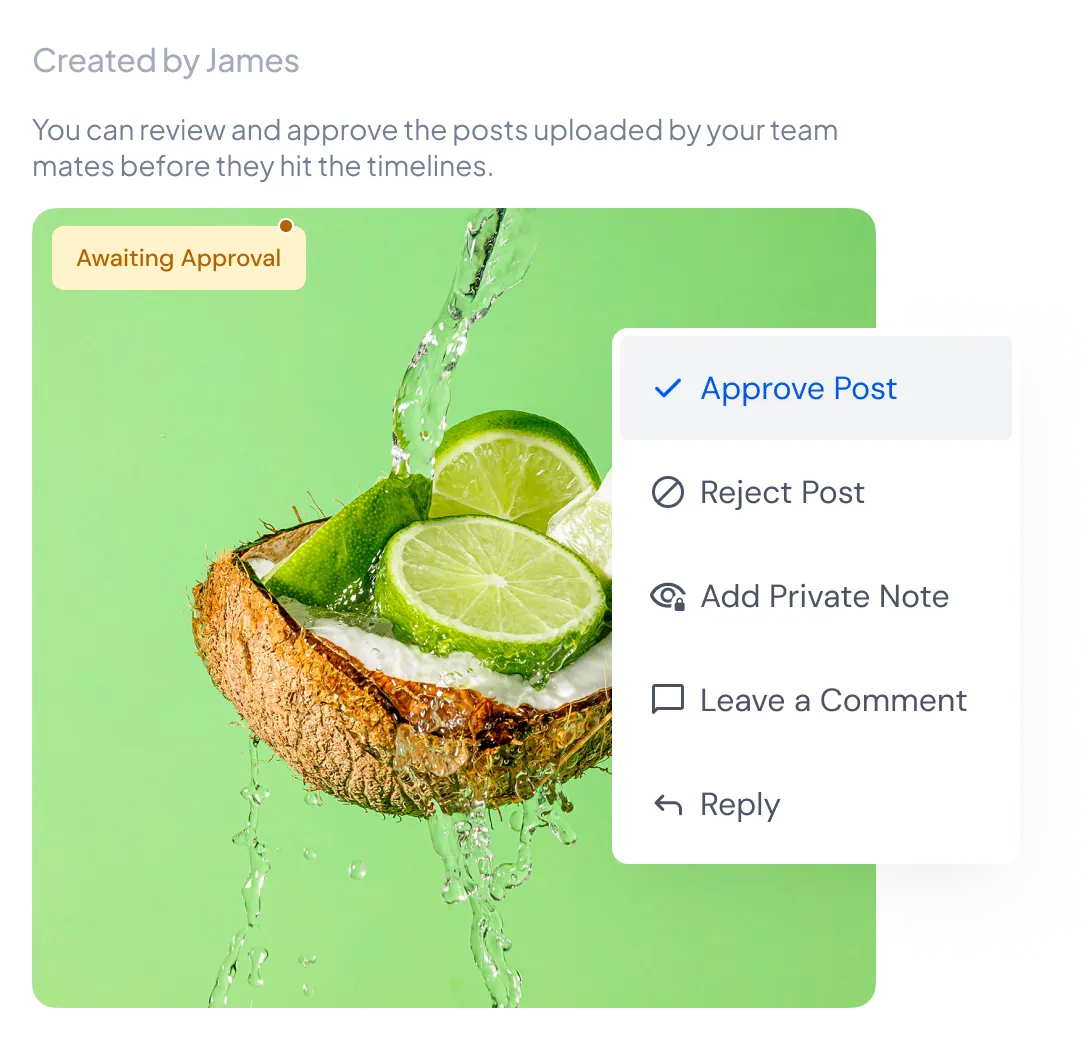
Put the caption, creative, account, and publishing time in front of the reviewer. A post awaiting approval is held from publishing until it’s approved.
Bring available post and account results into your client meetings. Use the publishing calendar and team reports to connect the work you delivered with the results you can see.
Teams and approvals
Set up a team for a brand, assign its accounts, and invite the colleagues and client contacts who need access. Give writers permission to prepare posts and give designated reviewers permission to approve them.
The reviewer sees the post in context, with the destination, creative, and timing together. When a launch date changes, the team can return to the post and see the latest version in SocialBu. A client contact can log in to review their team’s work using the permissions you set.
Calendar and bulk scheduling
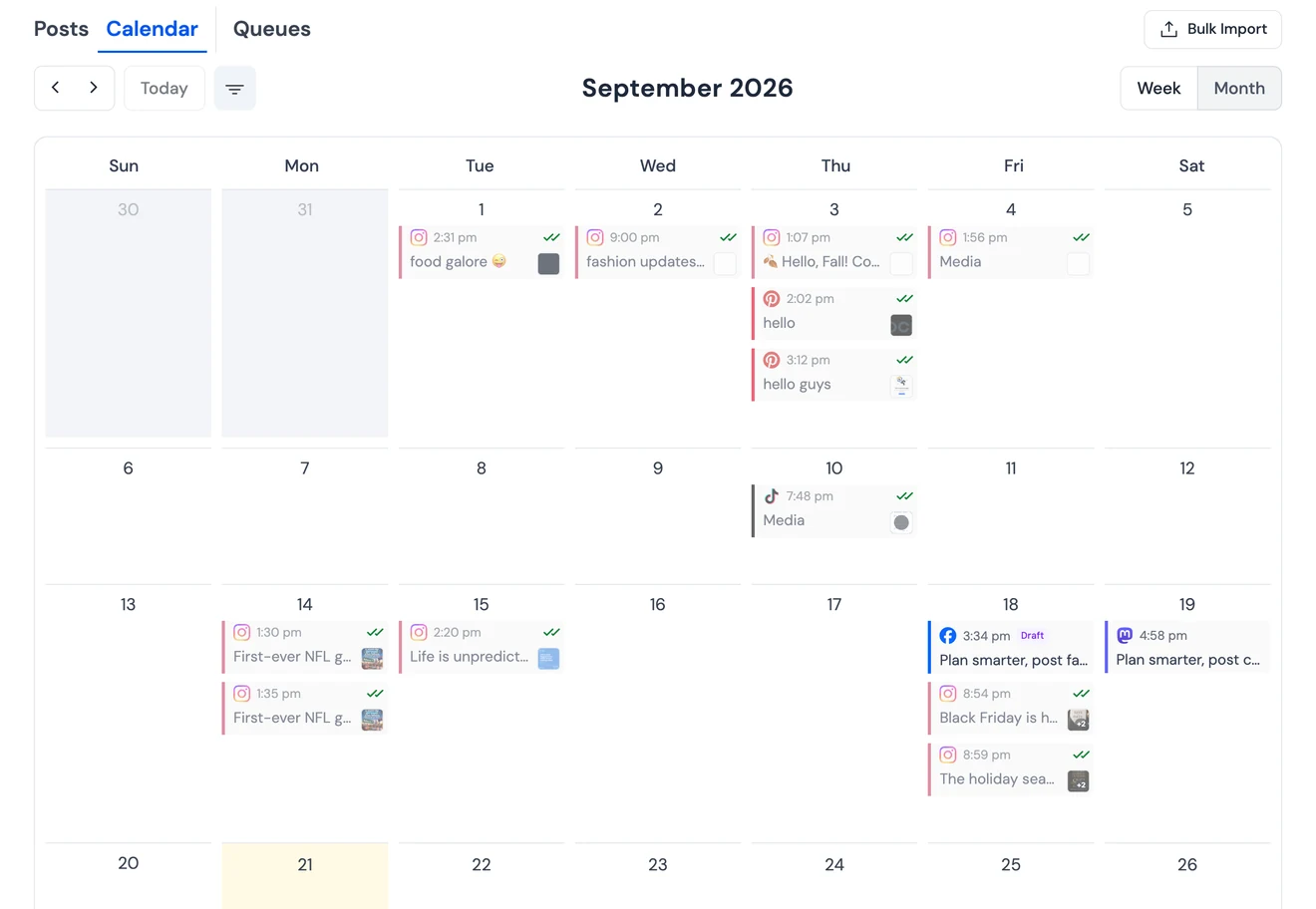
Bring a batch into SocialBu from a CSV, then see scheduled posts and drafts alongside the rest of the calendar. One launch can have a detailed LinkedIn announcement and an Instagram version that puts the visual first. See both in the calendar so the account manager can spot a crowded launch day or an unscheduled follow-up.
Pull creative from Google Drive or Dropbox. For a recurring series, set up weekly slots in a queue. Use AI tools or the LinkedIn caption generator for caption drafts and revise them in the client’s voice before review.
Inbox and reporting
Bring supported messages, comments, and reviews into Respond so the team can see where a reply is needed. Keep the conversation tied to the connected account while the campaign is live.
In Analyze, review the period that matters to the client. Compare available post performance and use the team report to show what was scheduled, published, or rejected.

Start with one client campaign and run it through the same workflow your team will use every week.
Connect the client’s profiles and Pages, invite writers and reviewers, and set their permissions. Keep the client’s accounts together so the team can select the right destinations in the composer.
Prepare the campaign in the calendar or import a CSV. Customize each version, send posts for review, and see upcoming publication dates together.
Let approved posts publish at their scheduled times. Follow supported conversations after launch and pull available results for the client recap.
“The content calendar lets me see the big picture and schedule smarter, freeing me to focus on strategy.”
Donbosco Otunga · Marketing & Communications Lead, Lido Nation
Read the Lido Nation case studyImport creative from Google Drive or Dropbox, connect workflows through Zapier, Make, or n8n, and use compatible AI assistants to prepare drafts through SocialBu MCP.



Bring publishing, approvals, supported inbox access, and advanced analytics together on Agency. Compare Growth for a smaller client roster.
Each profile or Page uses one account slot. A client with Instagram, TikTok, and a LinkedIn Page uses three slots.
$199 / month, billed monthly
Run separate client teams under one subscription and bring writers and reviewers into the teams where they work.
Count the connected social accounts and teams you need across your clients. The Agency plan includes up to 50 accounts and 20 teams, with up to 8 members per team. A client with four profiles uses four account slots.
Create a team for each client and assign its social accounts to that team. Invite people only to the teams they need and check the account assignments when onboarding a new client. An account can belong to more than one team.
Yes. Invite the client as a member of the relevant team and grant the Approve posts permission. They review posts in SocialBu. Agree on who gives final approval and leave time for revisions before the planned publishing date.
Yes. With team permissions, you can grant post creation and editing separately from post approval. Give each person access for the tasks they handle, and review their permissions if their responsibilities change.
Use Analyze to review available account, post, network, and team results for the relevant dates. Charts in the team report can be downloaded as PDF, PNG, or JPEG. Metrics depend on the platform, account type, and data returned.
SocialBu supports Instagram, Facebook, LinkedIn, TikTok, X, YouTube, Threads, Pinterest, Reddit, Bluesky, Mastodon, and Google Business Profile. Available formats vary. Instagram requires a professional account, and X requires a paid plan.
Your first paid subscription starts with a 7-day free trial. Use that time to connect a client account, run a post through review, and check the inbox and reporting coverage you need. You can cancel anytime.
Cancel anytime. Free for 7 days.


