Coordinate every channel
Plan video releases by connected channel and date from the same calendar.
Publish videos and Shorts
Set the title, description, tags, category, visibility, audience, thumbnail, and release time.
Keep up after publishing
Manage supported comments and compare available channel and video results.
What you can manage for YouTube in SocialBu
Available features depend on your plan, account type, and what YouTube allows for that account.
Publish videos and Shorts
Upload a supported video and add its title, description, tags, category, Public, Private, or Unlisted visibility, thumbnail, and Made for Kids setting.
Schedule one channel or many
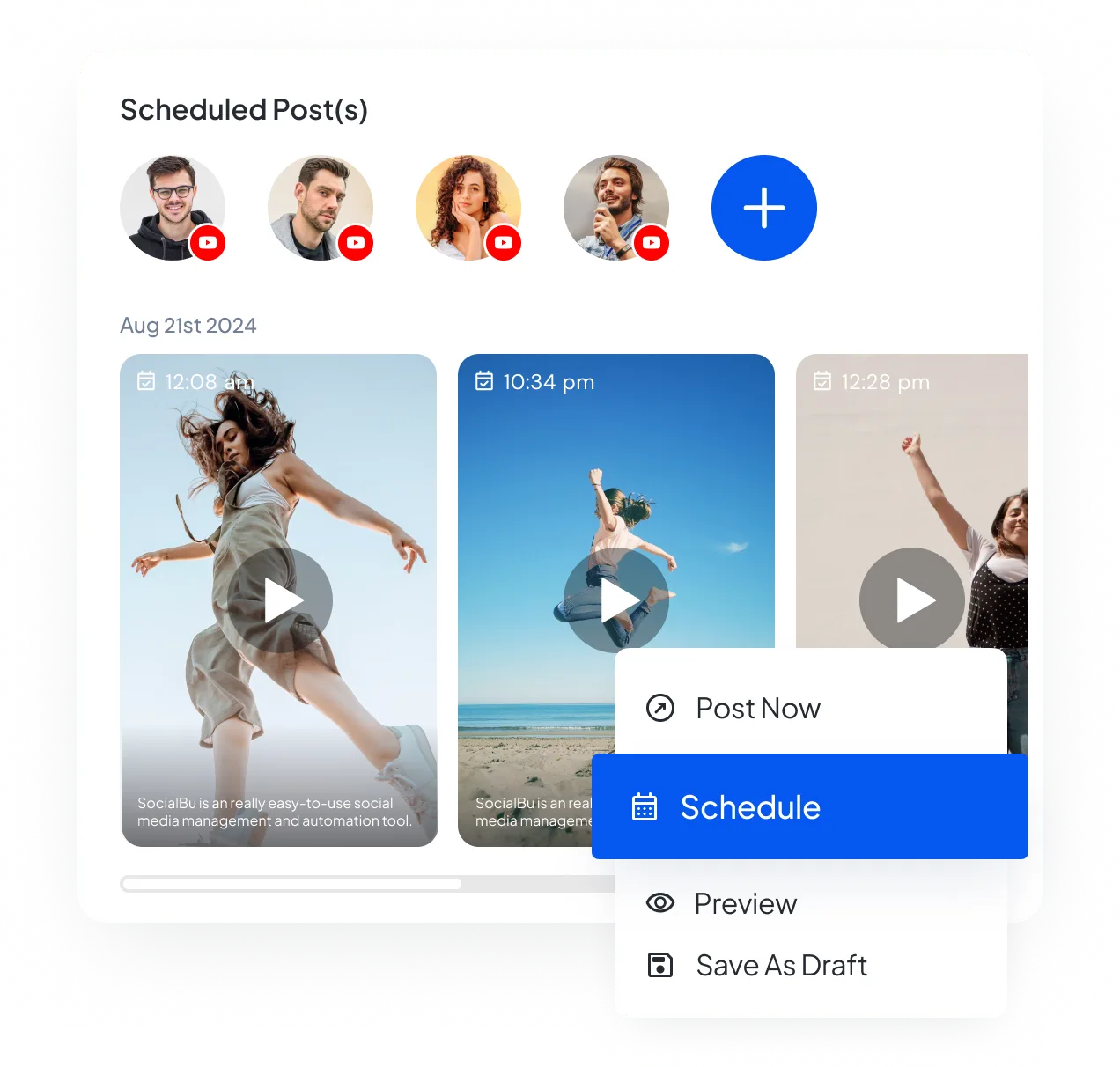
Publish now or choose a future time, customize content for each selected YouTube channel, and see every channel and date on the calendar.
Continue a description with AI autocomplete
Use AI autocomplete to continue the description in the composer. Availability depends on your plan.
Use approvals for team or client work
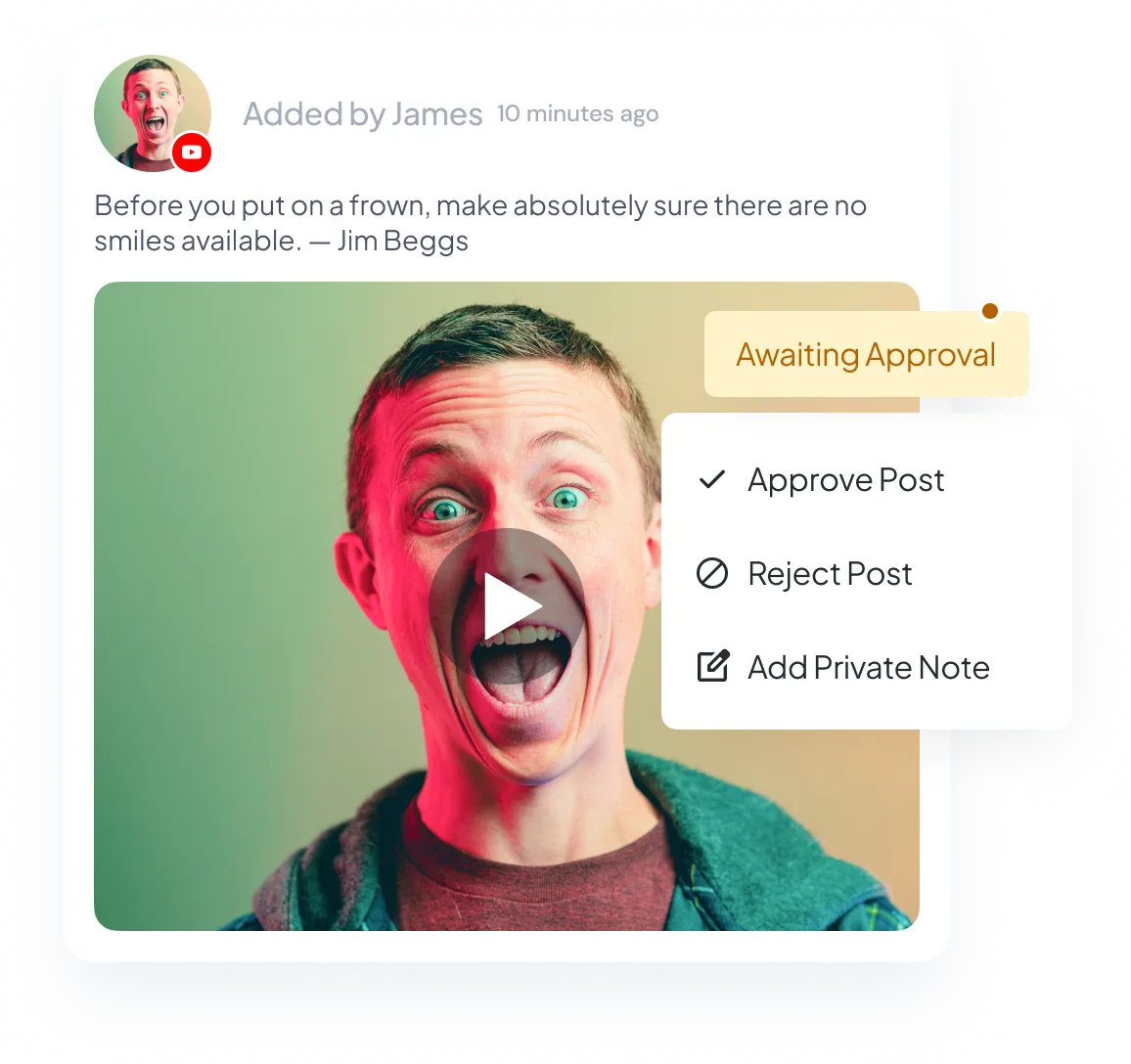
Publish directly when you work alone, or let an authorized teammate approve or reject the channel, video, title, description, tags, category, visibility, audience choice, thumbnail, and time.
Schedule videos in bulk
Import YouTube videos from CSV with their title, description, tags, category, visibility, thumbnail, Made for Kids choice, and publishing time.
Fill recurring release slots
Add YouTube videos to a publishing queue. Every queued post needs a supported video and complete YouTube details.
Manage YouTube comments
Use Respond to read, reply to, and like supported comments. You can also hide comments, mark them as spam, or delete them when YouTube allows it.
Find YouTube videos about topics you care about
Use Listen to track videos that match a keyword, mention, or topic you describe in your own words.
Compare channel and video results
Use Analyze for channel views, subscribers, video count, and the comment, like, dislike, and view totals YouTube returns for each video.
Important support details
- Every scheduled YouTube post requires a supported video.
- The channel owner remains responsible for choosing the correct visibility and Made for Kids classification.
- RSS automation cannot set all the required YouTube details listed above. Create each video post in Publish or use a publishing queue for recurring release slots.
Schedule the full YouTube upload
Add the video, title, description, tags, category, visibility, Made for Kids setting, and thumbnail. Choose the channel and set when the video should publish.
Let channel owners approve when needed
If a channel owner or teammate needs to approve a video, send it with the channel, title, description, category, visibility, audience setting, thumbnail, and publishing time included.
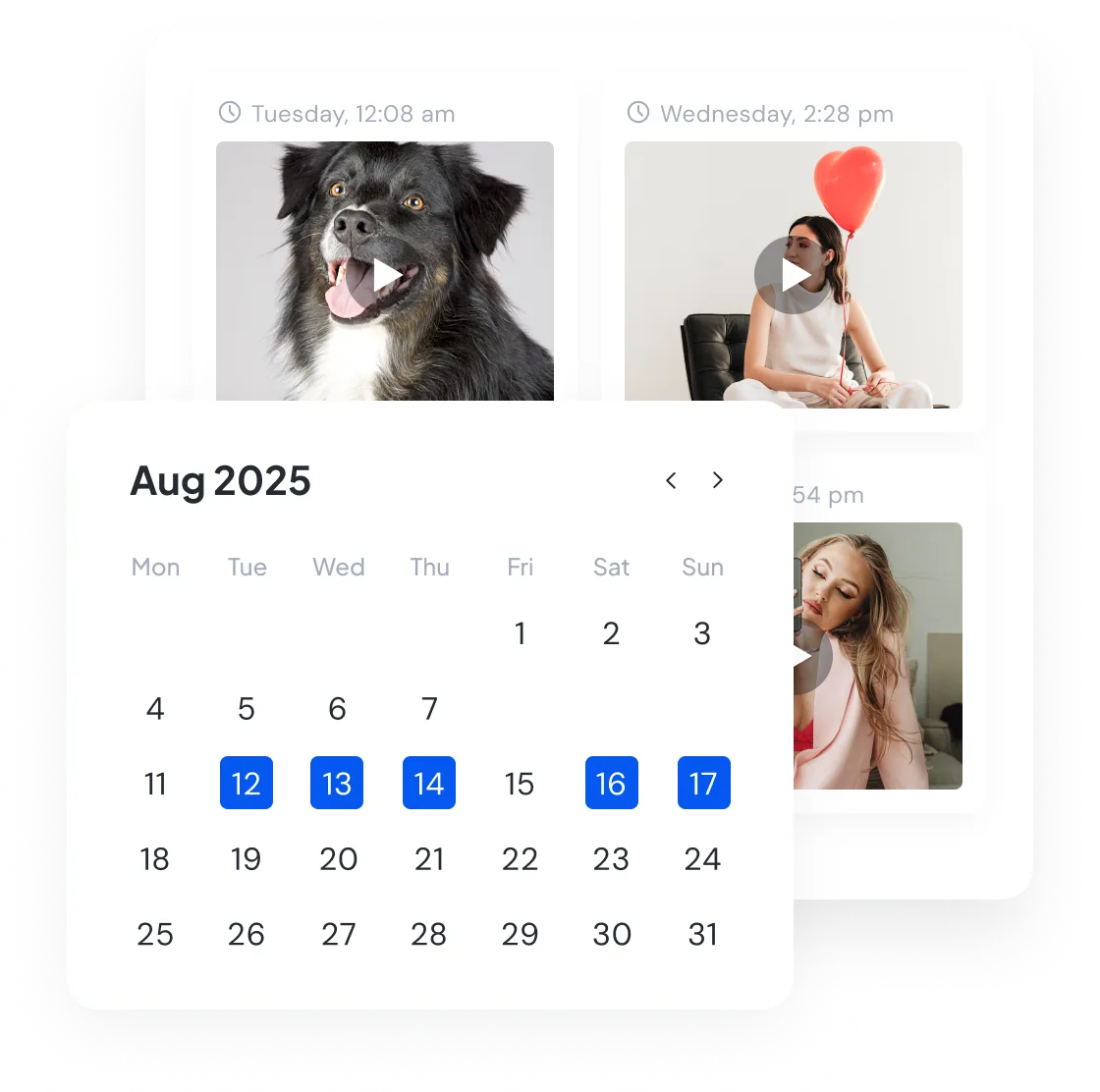
See videos, Shorts, and dates together
View scheduled and published videos by channel and date. See what has published and which video or Short is next across every connected channel.
Give Shorts their own release details
Mark the video as a Short, then set its channel, title, description, tags, category, visibility, audience choice, thumbnail, and publishing time.

Run every YouTube channel from the same calendar
Use Publish for videos and Shorts across every connected channel. CSV imports and publishing queues help with larger release plans and recurring time slots.
Create separate posts when a long-form video and a Short need different titles, descriptions, thumbnails, or release times.
The channel owner must choose the correct Public, Unlisted, or Private visibility and decide whether the video is Made for Kids. SocialBu provides these fields but does not make those decisions.
After publishing, use Respond for supported comments, Listen for relevant videos, and Analyze for available channel and video results.
Start scheduling YouTube posts
Manage YouTube from the same calendar as your other social accounts. Plan a few posts or a full campaign with the right title, description, visibility, audience setting, and thumbnail for each post.
Cancel anytime. Free for 7 days.