Growing on LinkedIn requires consistency, but creating and publishing posts manually every time can become time-consuming. That’s where learning how to schedule LinkedIn posts can make a difference.
LinkedIn’s built-in scheduler helps you plan posts in advance, while tools like SocialBu give you more flexibility to organize, schedule, and manage content across multiple platforms. However, scheduling alone isn’t enough.
A successful LinkedIn strategy also depends on knowing what to post, when to share it, and how to maintain a consistent publishing routine.
In this guide, you’ll learn how to schedule LinkedIn posts using LinkedIn’s native feature and SocialBu, plus tips to improve planning, timing, and consistency.
Quick Answer
To schedule a LinkedIn post, click the clock icon in the post composer and choose a date and time up to three months out. It’s free but limited to single posts, with no bulk uploads or analytics.
For a repeatable way to schedule LinkedIn posts across multiple platforms, third-party scheduling tools like SocialBu let you plan, schedule, and review performance from a single visual content calendar.

Why Should You Schedule LinkedIn Posts?
Scheduling LinkedIn posts simply means writing your content now and setting it to publish automatically at a future date and time instead of hitting “Post” the moment you finish writing.
Instead of reacting to your feed each morning wondering what to say, you sit down once and line up several days or weeks of LinkedIn posts that go live without you touching your phone again.
This is the core idea behind every LinkedIn post scheduler, whether it’s built into LinkedIn itself or run through an outside app.
Why Consistency Beats Spontaneity for Reach?
The case for learning how to schedule LinkedIn posts isn’t really about convenience, though that’s a nice side effect. It’s about how posting consistency affects your visibility.
LinkedIn’s own engagement patterns show that pages that post consistently see roughly twice as many weekly interactions as pages that post sporadically.
Also, around 40% of visitors engage with a given page every week, which means gaps in your posting calendar are gaps in the conversations you could otherwise be part of.
Consistency is also one of the biggest levers behind LinkedIn growth, since accounts that show up reliably tend to compound their reach far faster than ones that post in bursts.
There’s also a practical, team-based reason to plan ahead: scheduling LinkedIn posts lets you align content with campaigns, product launches, or seasonal moments in advance, rather than scrambling to write something relevant on the day it’s needed.
LinkedIn Page vs. Personal Profile Scheduling
One thing worth understanding before you start is that scheduling on a LinkedIn page vs. a personal profile isn’t identical.
- A personal profile is about you, your voice, your experience, your professional relationships. LinkedIn allows individuals to schedule posts within a fairly short lead-time window.
Before you start posting consistently, it’s worth making sure your profile itself makes a strong first impression; an AI LinkedIn bio generator can help you put together a stronger summary in minutes if yours hasn’t been updated in a while.
- A company page, on the other hand, represents a business, and only users with content admin or super admin access can create and schedule Page posts, with a slightly longer minimum lead time.
Both paths let you schedule posts on LinkedIn for free, but the permissions, minimum windows, and available post types differ slightly, which matters if you’re managing both as part of a broader content strategy/thought leadership plan.

Does Scheduling Hurt LinkedIn Reach?
This is the question that stops many people from bothering with a LinkedIn scheduler in the first place. The worry that LinkedIn’s algorithm can somehow tell a post was scheduled and quietly buries it. There’s no evidence that’s true.
LinkedIn doesn’t penalize a post for the mechanism used to publish it. What it actually weighs is what happens after the post goes live:
- How long people spend reading it
- Whether they comment meaningfully
- And whether you show up consistently over time
What the Data Actually Shows?
The data on posting cadence points the opposite direction. Buffer’s analysis of more than 2 million LinkedIn posts across 94,000+ accounts found that moving from posting once a week to posting 2-5 times a week produced a measurable lift in both reach and engagement rate.
The Early-Engagement Window Still Matters
What does affect reach is how the post performs once it’s live, and that’s where scheduling can actually work against you if it’s treated as “set it and forget it.”
LinkedIn algorithm in 2026 weighs dwell time heavily and gives extra distribution to posts that gather strong interaction within their first hour, before pushing them out to second- and third-degree connections.
A scheduled post you never revisit to reply to comments loses that early momentum just as easily as a manually published one would.
The practical takeaway: Schedule the writing and publishing, but keep the first 30-60 minutes after the post goes live on your calendar too.
Check our full breakdown of what actually moves the needle in what counts as a strong LinkedIn engagement rate if you want to benchmark your own numbers against industry averages.
Before You Schedule: Build a LinkedIn Posting Strategy
A LinkedIn scheduling tool only amplifies whatever plan you feed into it. If you queue up ten generic posts, you’ll get ten LinkedIn scheduled posts published right on time, but they will still be forgettable.
So before you touch a calendar, it’s worth settling four things.
1. Define Your Content Strategy and Thought Leadership Pillars
Pick three to five recurring themes you can credibly speak to, i.e., industry commentary, behind-the-scenes lessons, case studies, hot takes, how-tos.
A clear content strategy/thought leadership plan stops you from staring at a blank composer every session, because each scheduling batch becomes “write one post per pillar” instead of “think of something to say.”
If putting the words together is the part that slows you down, our guide on how to write LinkedIn posts walks through structuring hooks, body copy, and calls to action that actually get read.
2. Set a Realistic Posting Cadence
You don’t need to post daily to see gains. Buffer’s data above show that the biggest jump in performance comes simply from moving from once a week to 2-5 times a week.
That’s the range most individuals and Company Pages should aim for before considering anything more aggressive.
If you want a broader view across other platforms too, our guide to the best time to post on LinkedIn and other networks, best time to post on social media, breaks down peak engagement windows by network.
3. Choose Formats: Carousel/Document Posts, Video, and Text
Not all post types earn equal attention. According to the same Buffer study, images generate roughly 72% more engagement than text-only posts, video earns about 84% more, and carousel posts outperform everything, generating hundreds of percent more engagement than plain text.
Build a rotation rather than defaulting to text every time, and check the ideal LinkedIn post size and image dimensions before you batch-create visuals so nothing gets cropped awkwardly after it’s scheduled.
4. Map Out Your Content Calendar
Once your pillars, posting rhythm, and formats are set, drop them into a content calendar; even a simple spreadsheet will do to start.
This is where scheduling earns its keep: you’re not guessing at 8 AM which post to publish; you already decided last week, and your draft posts/queue is sitting ready to go.
How to Schedule LinkedIn Posts Natively
LinkedIn has had a built-in scheduler for a while now, and it works for both personal profiles and Company Pages.
Here’s exactly how to schedule a post on LinkedIn using the tool LinkedIn gives you for free.
Scheduling from a Personal Profile
Here is how to schedule on LinkedIn from a personal profile:
1. Click Start a post from your LinkedIn homepage.
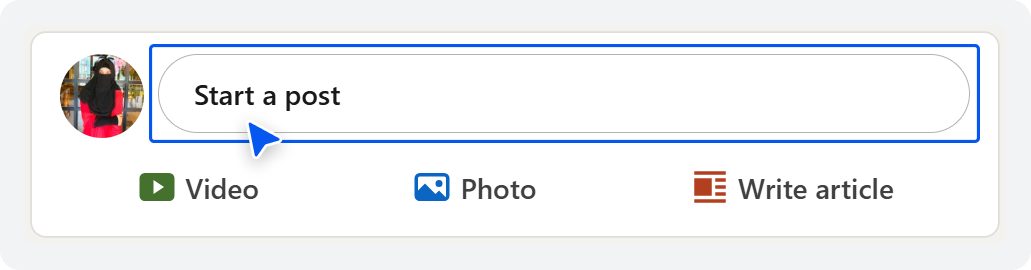
2. Write your caption, and add any image, document, or video.
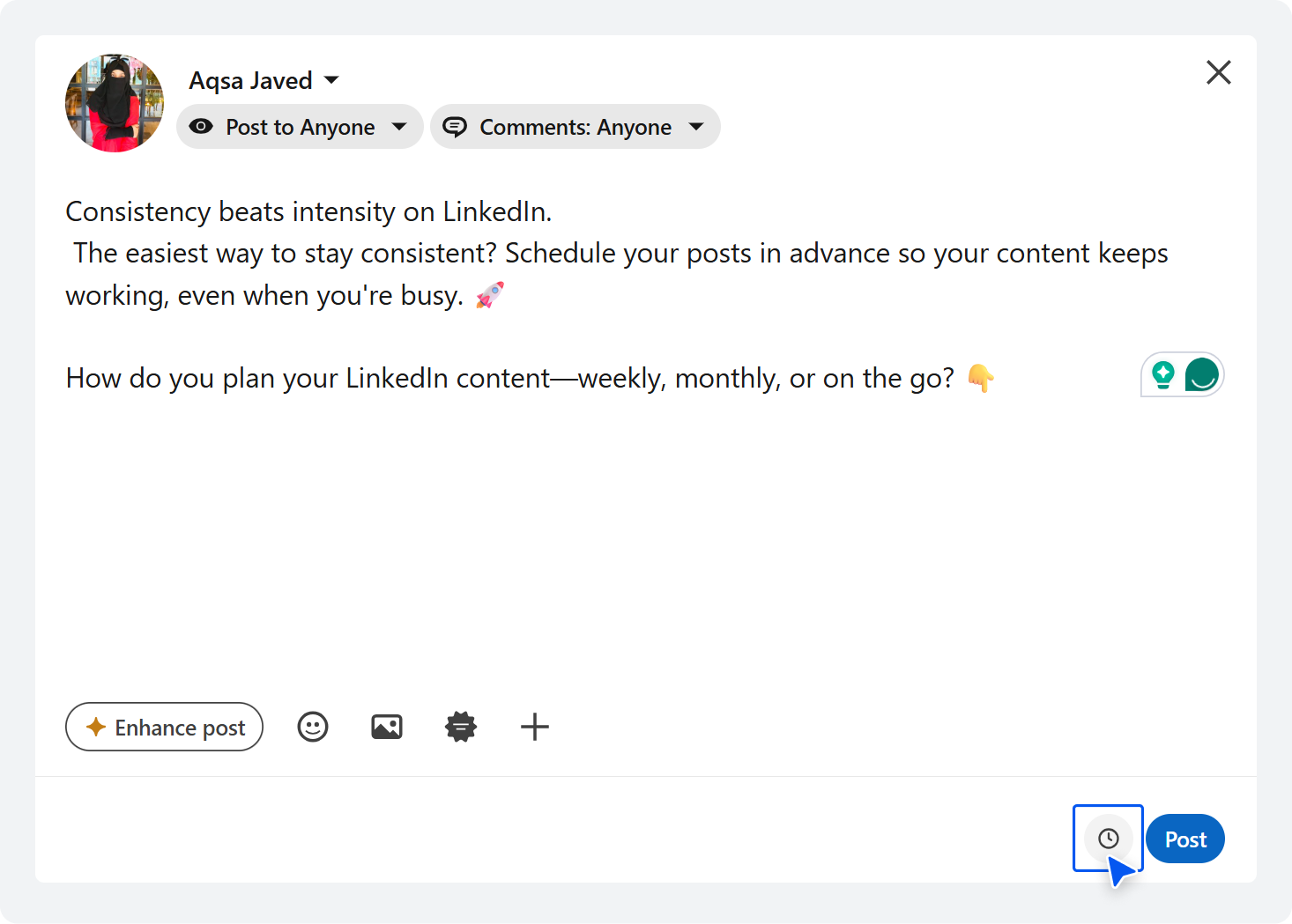
3. Instead of clicking Post, click the clock icon in the bottom-right corner of the composer.
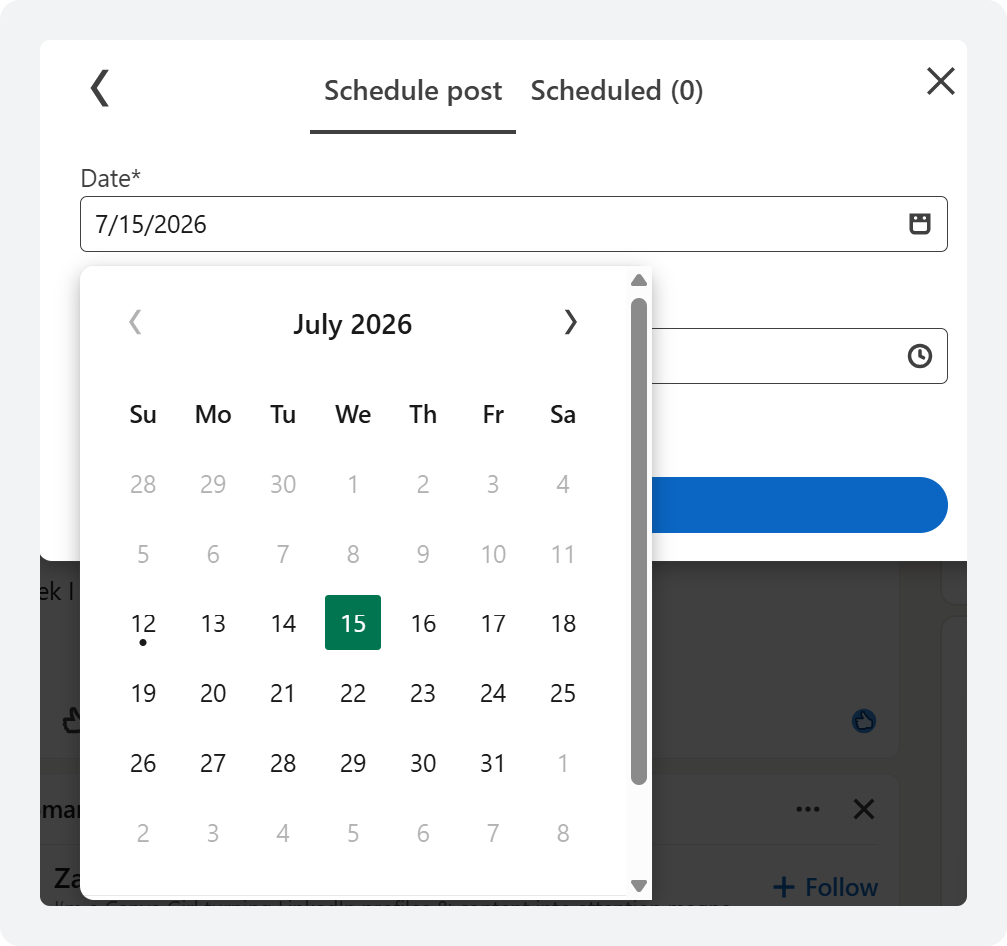
4. Choose a date and time, anywhere between 10 minutes and 3 months from now.
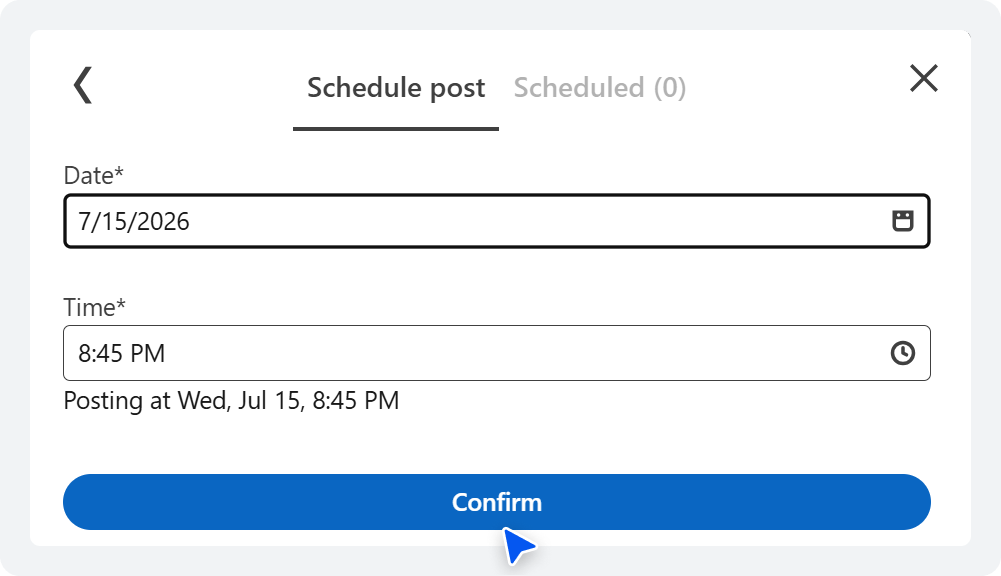
5. Click Confirm. You’ll see a confirmation, and the post is added to your scheduled queue.
Scheduling from a Company Page
If you own a LinkedIn Company Page or are managing one, here are the steps you need to follow to schedule a post from it.
- From your Page’s admin view, go to Page posts and click Start a post.
- Draft your content in the preview window.
- Click the clock icon to open the scheduling dialog.
- Select a date and time; Pages allow scheduling between 1 hour and 3 months ahead. Click Confirm.
Managing Your Draft Posts and Queue
Once you’ve scheduled a few posts, click the clock icon again from the composer to open View all scheduled posts.
From here, you can review your entire draft posts or queue, open any post to edit its text, media, or timing, or delete it outright before it goes live.
This view is also the fastest way to sanity-check that you haven’t accidentally scheduled two posts too close together.
One detail worth flagging: according to LinkedIn’s own Help Center, all scheduled times are standardized in UTC relative to your location, so double-check the displayed time if you’re scheduling for an audience in a different time zone.
Limitations of LinkedIn’s Native Scheduler
The native LinkedIn scheduler is genuinely useful for the occasional post, but it wasn’t built for anyone managing a real content calendar.
A few limits show up quickly.
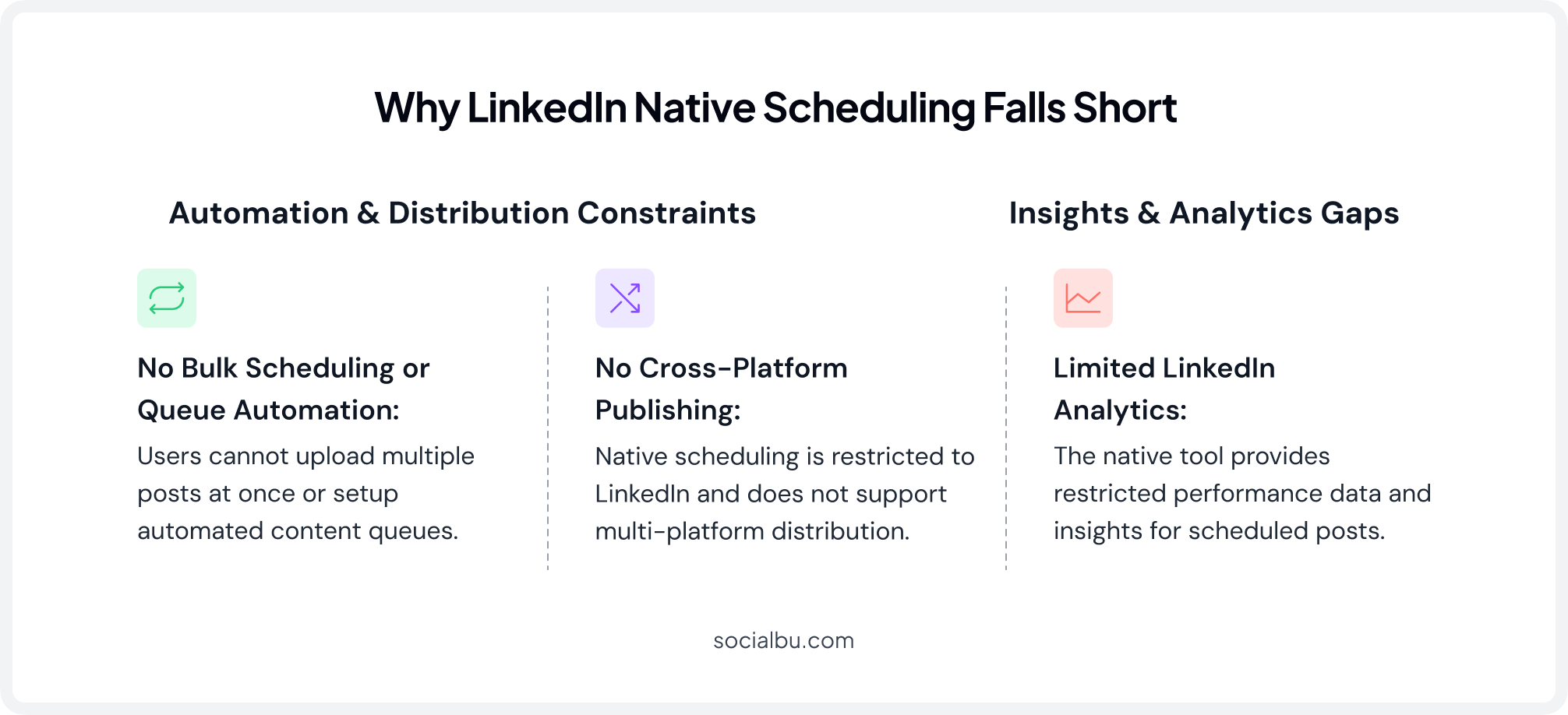
1. No Bulk Scheduling or Queue Automation
Every post has to be created and scheduled one at a time. There’s no way to unload a week’s worth of content in one sitting, and no recurring queue slots to drop new posts into automatically.
2. No Cross-Platform Publishing
If you also post to Instagram, X, Facebook, or TikTok, you’re repeating the entire process separately on each app. LinkedIn’s tool only manages LinkedIn.
3. Limited LinkedIn Analytics
You can see basic post-level stats, but there’s no unified reporting, no way to compare formats or time slots side by side, and no historical trend view.
Real LinkedIn analytics, the kind that tells you whether Tuesday mornings actually outperform Thursday afternoons for your audience, requires exporting data manually or using an outside tool.
Beyond these three, a few smaller gaps are worth knowing:
- Some post types can’t be scheduled at all
- There’s no content recycling for evergreen posts that performed well
- And there’s no built-in approval step for teams that need a second pair of eyes before something goes live.
Hit a Wall with LinkedIn’s Native Scheduler?
SocialBu lets you plan, batch, and schedule LinkedIn content alongside every other platform you manage.
How to Schedule LinkedIn Posts with SocialBu
SocialBu is a social media management platform built around the idea that scheduling LinkedIn posts shouldn’t mean bouncing between five different apps.
Here’s the basic workflow:
Step 1: Connect Your LinkedIn Account
Connect your LinkedIn profile or Company Page to your SocialBu account.
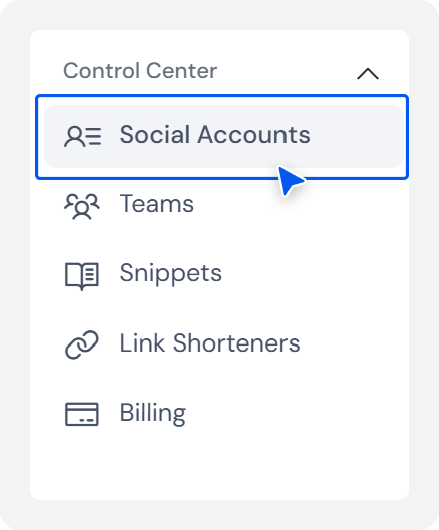
1. For this, click the arrow next to Control Center and select “Social Accounts.”
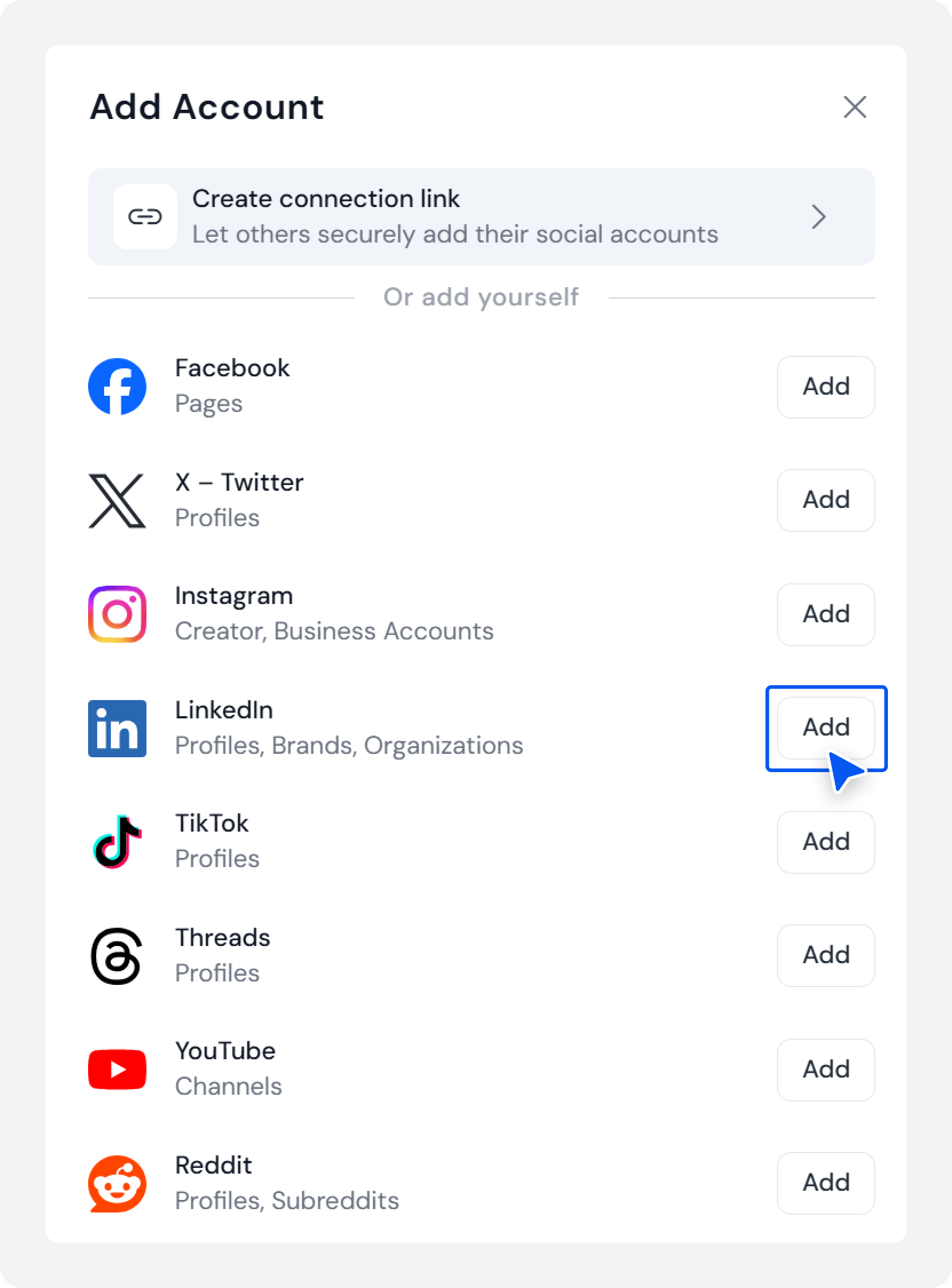
2. Choose “Add Account” at the top and select “Add” next to LinkedIn, and authorize to connect your LinkedIn account to SocialBu.
Step 2: Create and Queue Posts
Now that you’ve connected your LinkedIn profile to SocialBu, it’s time to create and queue posts. For this:
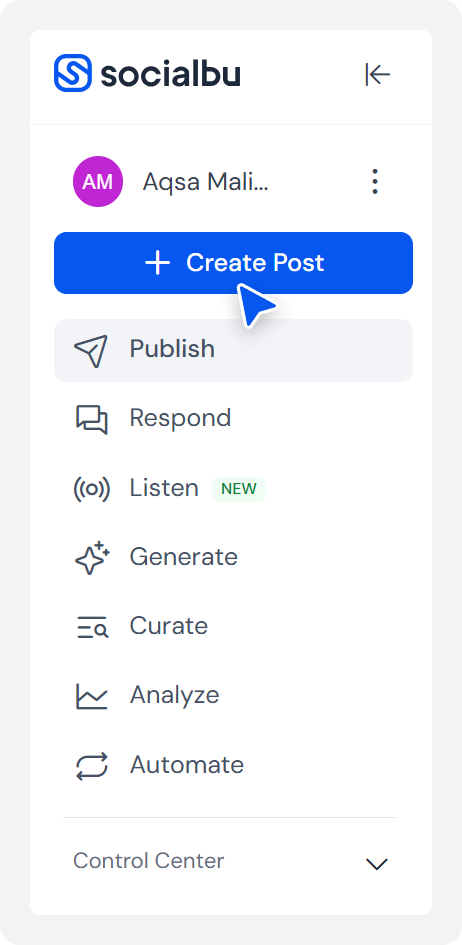
1. Click “Create Post” on the dashboard. Write your caption, or use SocialBu’s built-in AI post generator to draft a first version from a topic or keyword.
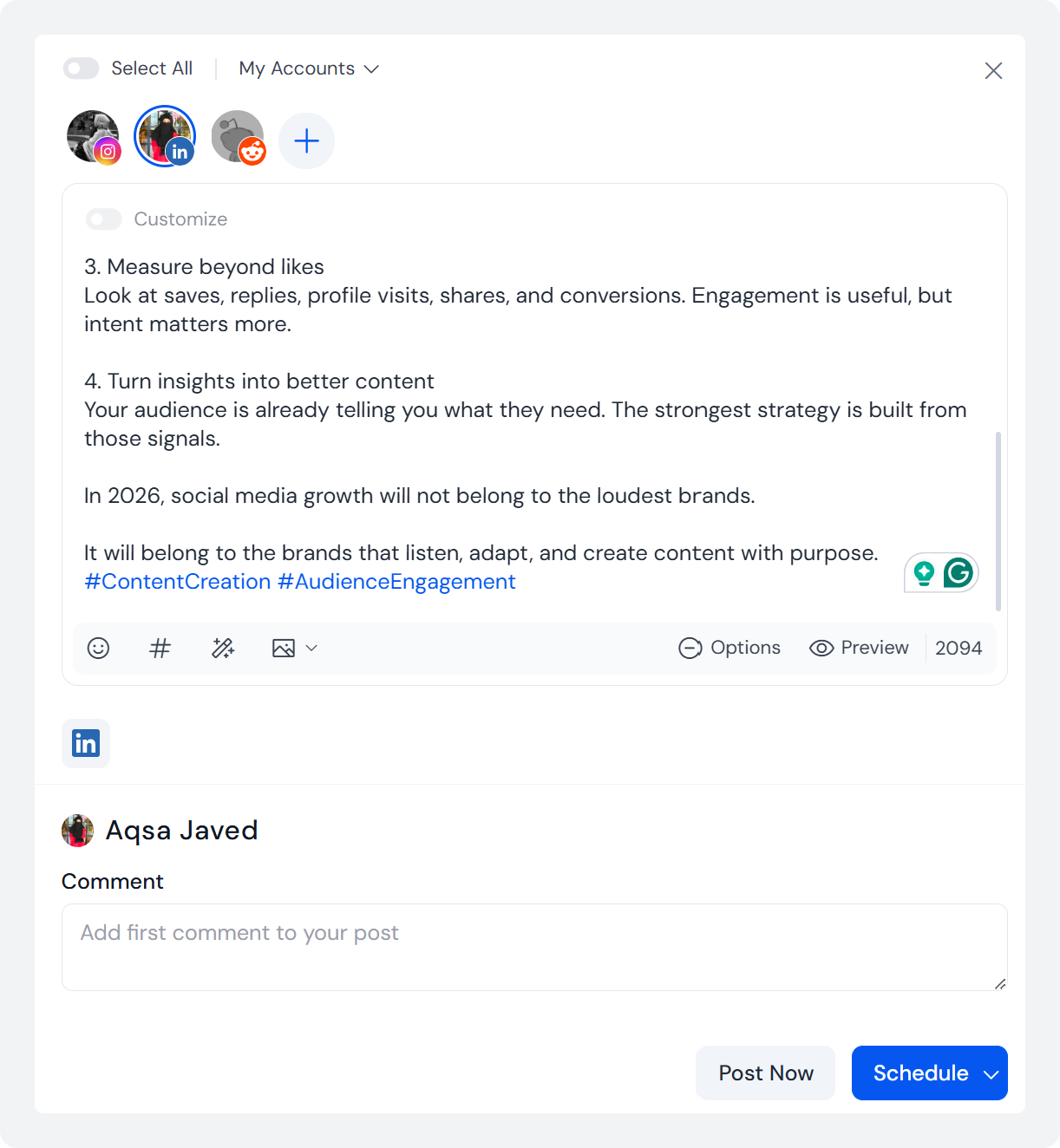
2. Add media, hashtags, and links, then use the preview option to see exactly how the post will render on LinkedIn before it’s live.
3. Pick a specific date and time, or drop it into a recurring queue slot if you’ve set up preferred posting times.
4. Confirm the schedule. Your post now shows up on SocialBu’s visual content calendar alongside everything else you have planned, across every connected platform.
Step 3: Review Your Content
Because the calendar view shows every network in one place, it’s much easier to spot gaps in your week or notice that you’ve accidentally scheduled three text-only posts in a row when your mix should include carousel/document post updates.
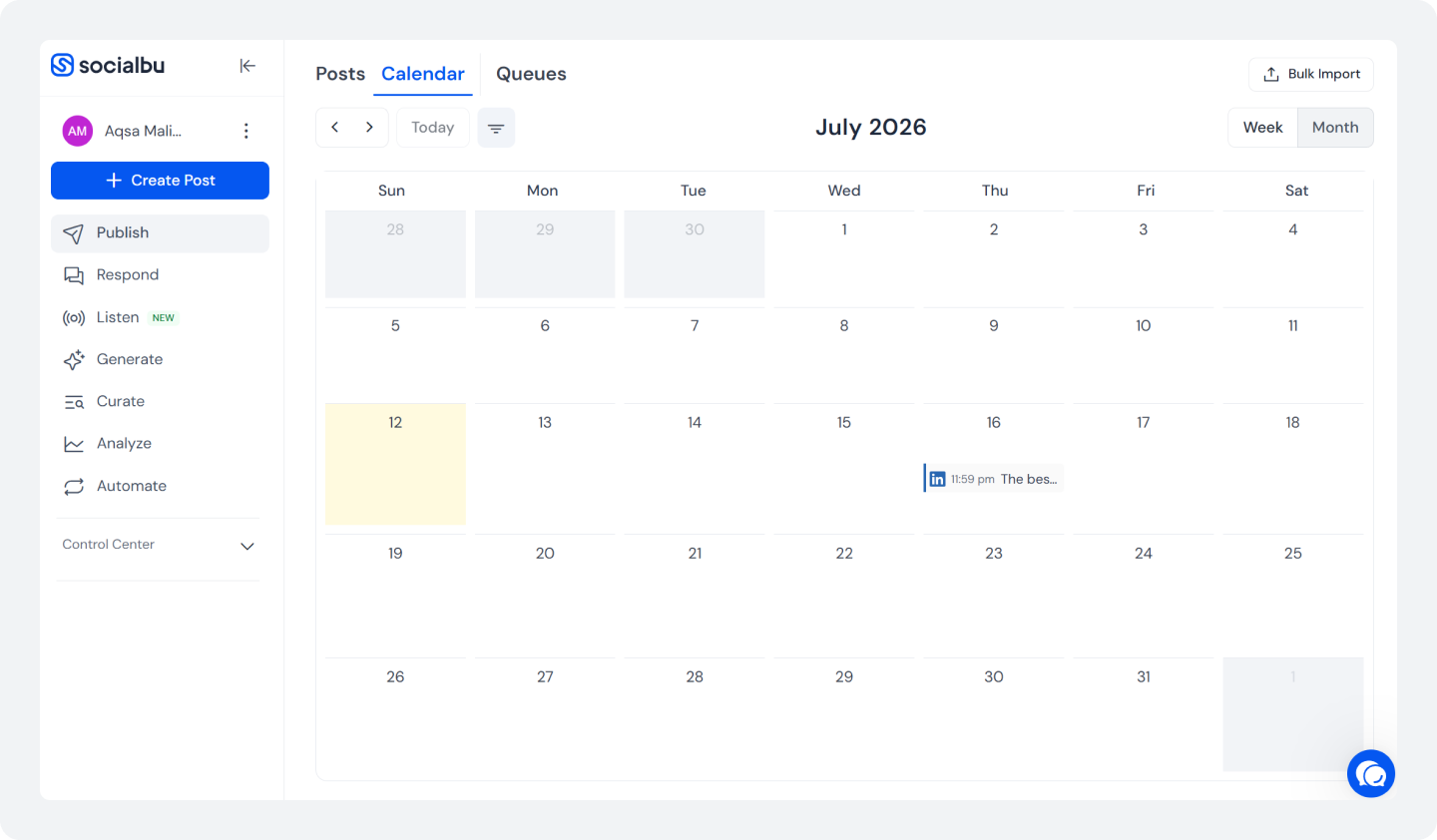
It’s also where you’ll catch scheduling conflicts before they happen, rather than after a post has already gone out at the wrong time.
Beyond Scheduling: What You Can Do with SocialBu
Scheduling is the entry point, but it’s a small part of what a full social media management platform covers once your LinkedIn presence starts to grow.
1. Bulk Scheduling and Content Recycling
Upload and schedule a batch of posts at once instead of creating them one by one, and automatically re-queue evergreen, high-performing posts so they keep earning impressions without manual re-entry.
2. Unified Analytics and Reach Tracking
Track impressions, engagement rate/reach, and follower growth over time, and compare which formats and time slots are actually working. Our guide on how to track social media publishing performance covers the KPIs worth watching.
3. Team Workflows and Automation
Route drafts through a review step before they publish; useful for larger marketing teams and agencies. Reply to comments and messages across LinkedIn and your other connected platforms across a single unified inbox.
Also, automatically turn new blog posts or website updates into ready-to-schedule social content with RSS-to-social automation.
If you’re currently comparing schedulers, it’s also worth reading how SocialBu stacks up against other tools, our breakdowns of Buffer alternatives, and the best free social media schedulers can interest you.
Best Practices for Scheduling LinkedIn Posts
If this is your first time scheduling LinkedIn posts, here are a few best practices you should stick to.
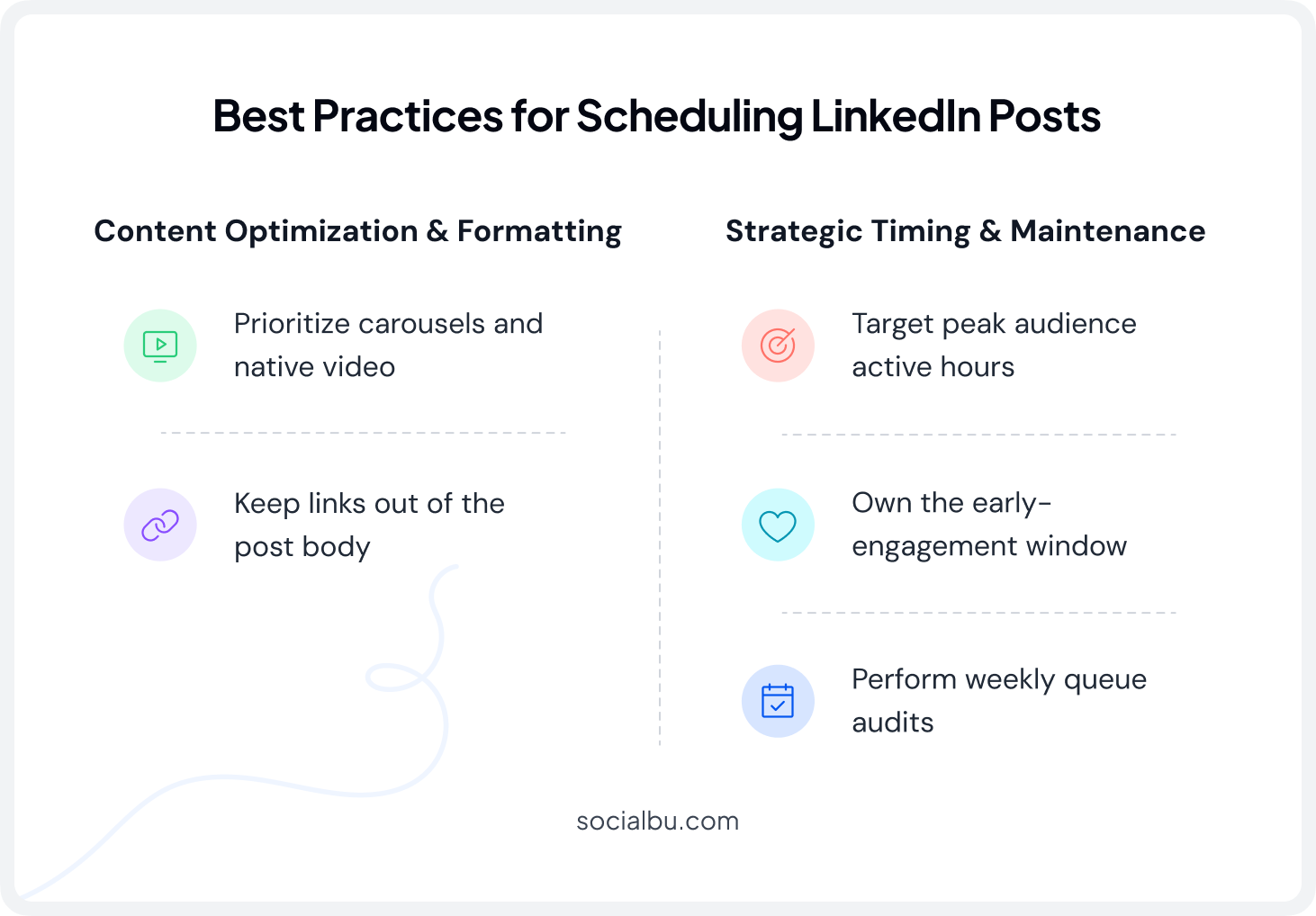
1. Schedule During Your Audience’s Active Hours
LinkedIn usage is concentrated around business hours, and the best time to post on LinkedIn tends to be weekday mornings, roughly Tuesday through Thursday, 8-11 AM. Use overtime analytics to fine-tune this for your specific followers rather than relying on generic benchmarks alone.
2. Block Time for the Early-Engagement Window
Since LinkedIn’s algorithm rewards posts that gather strong interaction quickly, treat the 30-60 minutes after a scheduled post goes live as protected time to reply to early comments, even if the writing happened days earlier.
3. Favor Carousel or Document Posts and Native Video
Formats that keep people on the platform longer tend to be rewarded with more distribution. Multi-side carousel/document posts and native video consistently outperform plain text and external links in engagement studies.
4. Keep Links Out of the Post Body
Posts containing outbound links see meaningfully reduced reach because LinkedIn’s algorithm favors content that keeps users on-platform.
If you need to share a link, drop it in the first comment instead of the caption. And if you do use hyperlinks, follow solid best practices for hyperlinks in LinkedIn posts to avoid looking spammy.
5. Review Your Queue Weekly, Don’t “Set and Forget” for Months
A draft posts/queue you check weekly can react to trending conversations, industry news, or underperforming posts. A queue you fill once a quarter and ignore tends to feel stale by week three, and stale content undermines the exact posting consistency you were trying to build in the first place.
It’s also worth revisiting periodically how to get more followers on LinkedIn, since your scheduling cadence and your growth tactics should evolve together as your audience changes.
Common LinkedIn Scheduling Mistakes That Reduce Reach
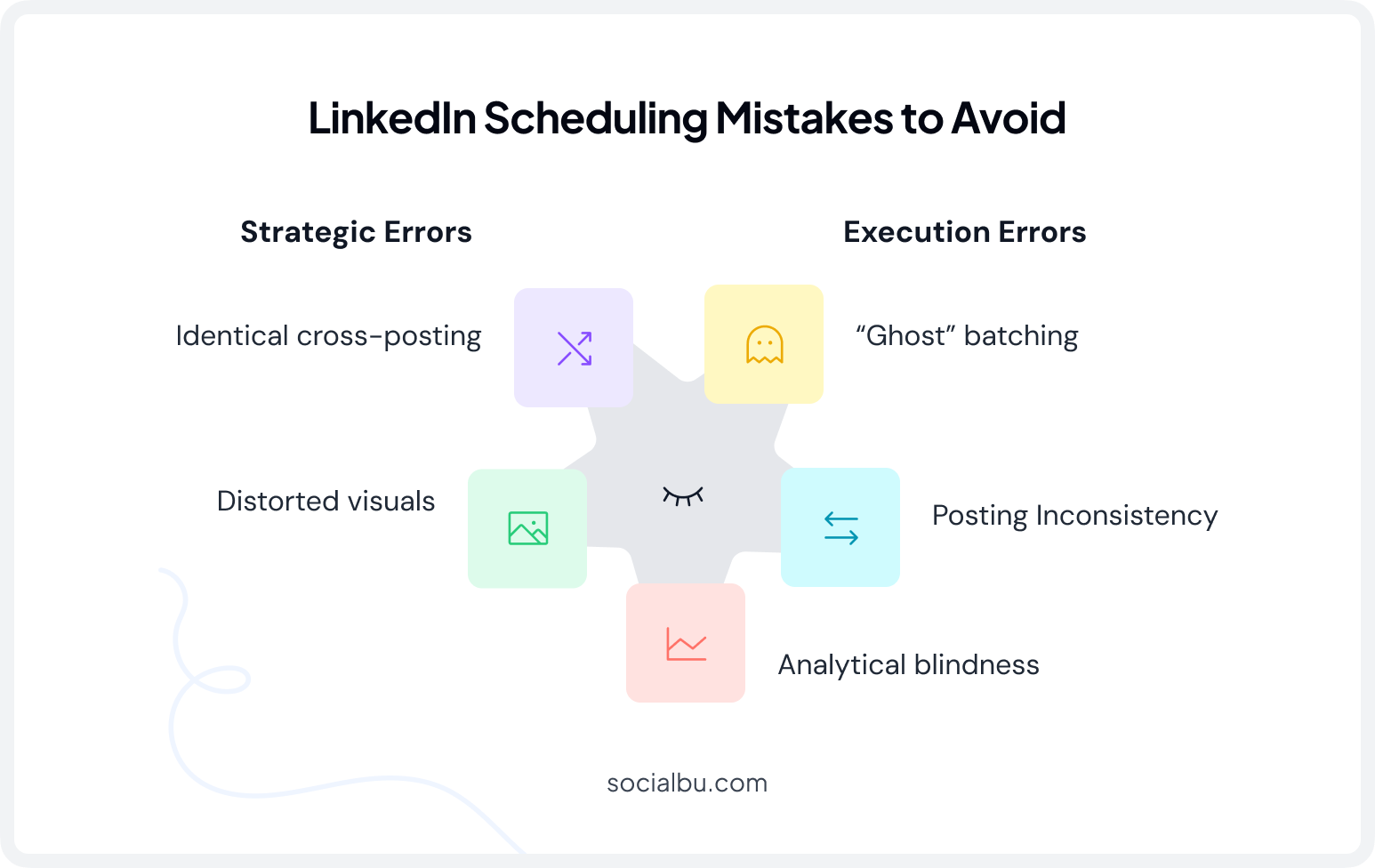
Here are a few common LinkedIn scheduling mistakes that significantly reduce your reach if you commit them. A few are strategy mistakes, while others are execution mistakes. Here’s a brief overview of some of them for you.
Strategy Mistakes
Some of the strategy mistakes are as follows:
1. Batch-scheduling months of content and disappearing
Without replying to comments, even well-timed scheduled posts on LinkedIn lost the early engagement momentum the algorithm rewards.
2. Posting too infrequently to build momentum
A single post a week rarely gives LinkedIn’s algorithm enough signal to recognize you as an active account.
3. Never checking analytics
Without reviewing which times, topics, and formats perform, your scheduling calendar just repeats whatever worked (or didn’t) last month.
Execution Mistakes
Here are some execution mistakes you should avoid while scheduling LinkedIn posts.
1. Cross-posting identical content without adapting it
A caption written for Instagram rarely reads naturally on LinkedIn; tone, length, and formatting expectations differ.
2. Ignoring image dimensions
Scheduling a graphic sized for another platform often results in awkward cropping on LinkedIn.
Fix All Five In One Place!
SocialBu’s calendar view, analytics dashboard, and post preview catch most of these mistakes before you hit schedule.
LinkedIn Native Scheduler vs. SocialBu
Here’s how the native LinkedIn scheduler compares against a dedicated LinkedIn scheduling tool for anyone managing more than the occasional post.
What Each Tool Covers
LinkedIn Native Scheduler | SocialBu |
Free, built directly into LinkedIn | Free plan available, paid plans for scale |
One post scheduled at a time | Bulk scheduling across batches of posts |
LinkedIn only; no other platforms | LinkedIn, Facebook, Twitter, Facebook, TikTok and more from one calendar |
Basic post-level stats only | Cross-platform analytics and performance reports |
No content recycling or queues | Post recycling for evergreen content |
No team approval workflows | Team approval workflows built in |
No AI writing assistance | AI post generator and content suggestions |
Which Should You Use?
If you only post to LinkedIn once in a while, the native scheduler is genuinely enough. If you’re managing a consistent multi-platform content calendar, tracking engagement and reach across networks, or coordinating a team, a social media management platform built for the job can save you hours every week.
Conclusion
Scheduling LinkedIn posts is about creating a system that helps you maintain consistency. While LinkedIn’s native scheduler works for basic scheduling, it quickly becomes limiting when you’re managing a content calendar, multiple platforms, or performance tracking.
The key to better reach is simple: post consistently, focus on a few core content pillars, experiment with formats like carousels or videos, and engage with your audience soon after publishing.
If you want a more streamlined workflow, SocialBu lets you schedule LinkedIn posts, manage multiple social channels, and track performance from one dashboard, making it easier to stay consistent and grow your presence.
FAQs
Q: How many posts can you schedule on LinkedIn at once?
A: LinkedIn’s native scheduler doesn’t set a hard cap on the total number of scheduled posts, but it only lets you create and schedule one post at a time; there’s no bulk upload. Third-party scheduling tools like SocialBu allow batch scheduling of many posts in a single session.
Q: Do scheduled LinkedIn posts get less engagement than posts published live?
A: No. There is no evidence LinkedIn’s algorithm penalizes a post for being scheduled. Reach depends on engagement quality, posting consistency, and interaction with the LinkedIn algorithm after publishing, not on the tool used to publish.
Q: How far in advance can you schedule a LinkedIn post?
A: Both personal profiles and Company pages allow scheduling up to 3 months in advance. Profiles have a minimum lead time of 10 minutes, while Pages require at least 1 hour.
Q: Can you edit or delete a scheduled LinkedIn post before it goes live?
A: Yes. You can view your LinkedIn scheduled posts, then edit the text, media, or schedule, or delete the post entirely, any time before it publishes.
Q: How often should you post on LinkedIn to stay consistent without overposting?
A: Data from an analysis of over 2 million LinkedIn posts indicate that posting 2-5 times a week is the sweet spot for most accounts, balancing meaningful reach gains with a sustainable pipeline.
Q: Can you schedule LinkedIn carousel or document posts, or only text/image posts?
A: Carousel/document posts, single images, and video posts can generally be scheduled, both natively and with third-party tools. Polls, events, jobs, service posts, and multi-photo reshares cannot be scheduled.
Build your LinkedIn Consistency!
Plan, schedule, and track your LinkedIn content, along with content across other social platforms, from one calendar with SocialBu.