If you want to schedule TikTok posts in advance, you have two options: use TikTok Studio for free or a scheduling tool like SocialBu for more flexibility and automation. The right choice depends on whether you need basic scheduling or a complete content planning workflow.
Scheduling your content in advance helps you stay consistent, post at the best times, and avoid the effort of publishing manually every day.
In this guide, you’ll learn how to schedule TikTok posts on desktop and mobile, compare TikTok Studio with third-party schedulers, and find the best method for your content workflow.
So, let’s go into detail.
Quick Answer: How Do You Schedule TikTok Posts?
You can schedule TikTok posts for free using TikTok Studio or third-party scheduling tools. All you have to do is: upload your video, add your caption and hashtags, choose a publishing date and time, and then save the schedule.
While TikTok offers free native scheduling with some limitations, social media scheduling tools like SocialBu let you plan content further ahead, manage multiple accounts, and automate publishing.

Can You Schedule TikTok Posts for Free?
Yes, you can schedule TikTok posts for free. To schedule TikTok posts, you’ll need a Creator or Business account. Personal accounts don’t have access to this feature.
TikTok offers a native TikTok scheduler for free through TikTok Studio. And you can schedule up to 10 days in advance. However, it’s not the only option to schedule TikTok posts.
You can also use third-party TikTok scheduling tools like SocialBu to schedule posts in advance and access additional features.
TikTok Studio works well for basic scheduling. However, third-party social media scheduling tools offer more flexibility, especially if you manage multiple social media accounts or publish across different platforms.
How to Schedule TikTok Posts Using TikTok Studio on Desktop
This is TikTok’s official native scheduler for scheduling TikTok posts. It’s built into your TikTok account (on the web), and you do not need a third-party signup. No need to connect your account to another app.
It lets eligible users upload videos, choose a publishing date and time, and schedule posts in advance.
The fix is simple.
Go to Settings → Manage Account → Switch to Creator/Business Account. Your videos don’t disappear. Your followers don’t disappear. Everything stays the same. You just unlock the scheduling feature.
Now, follow these steps to schedule posts on TikTok Studio from your desktop.
Step 1: Log in to Your TikTok Account on a Web Browser
Go to TikTok in your web browser and sign in to your account. Once you’re logged in, you’ll see your main dashboard.
Step 2: Upload Your Video
Click the ‘Upload’ button from the left-side menu. The TikTok Studio dashboard will open.
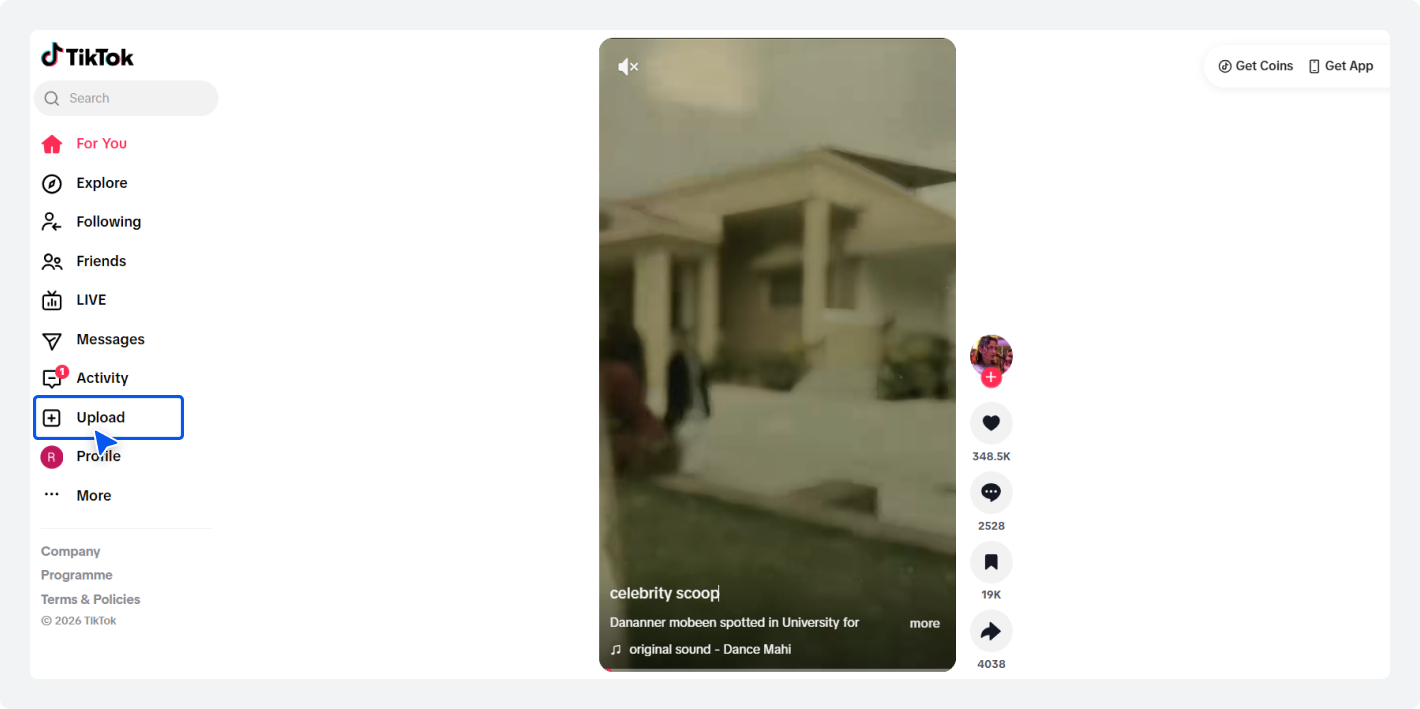
Now, click on ‘Select video’ to select your video file from your computer.
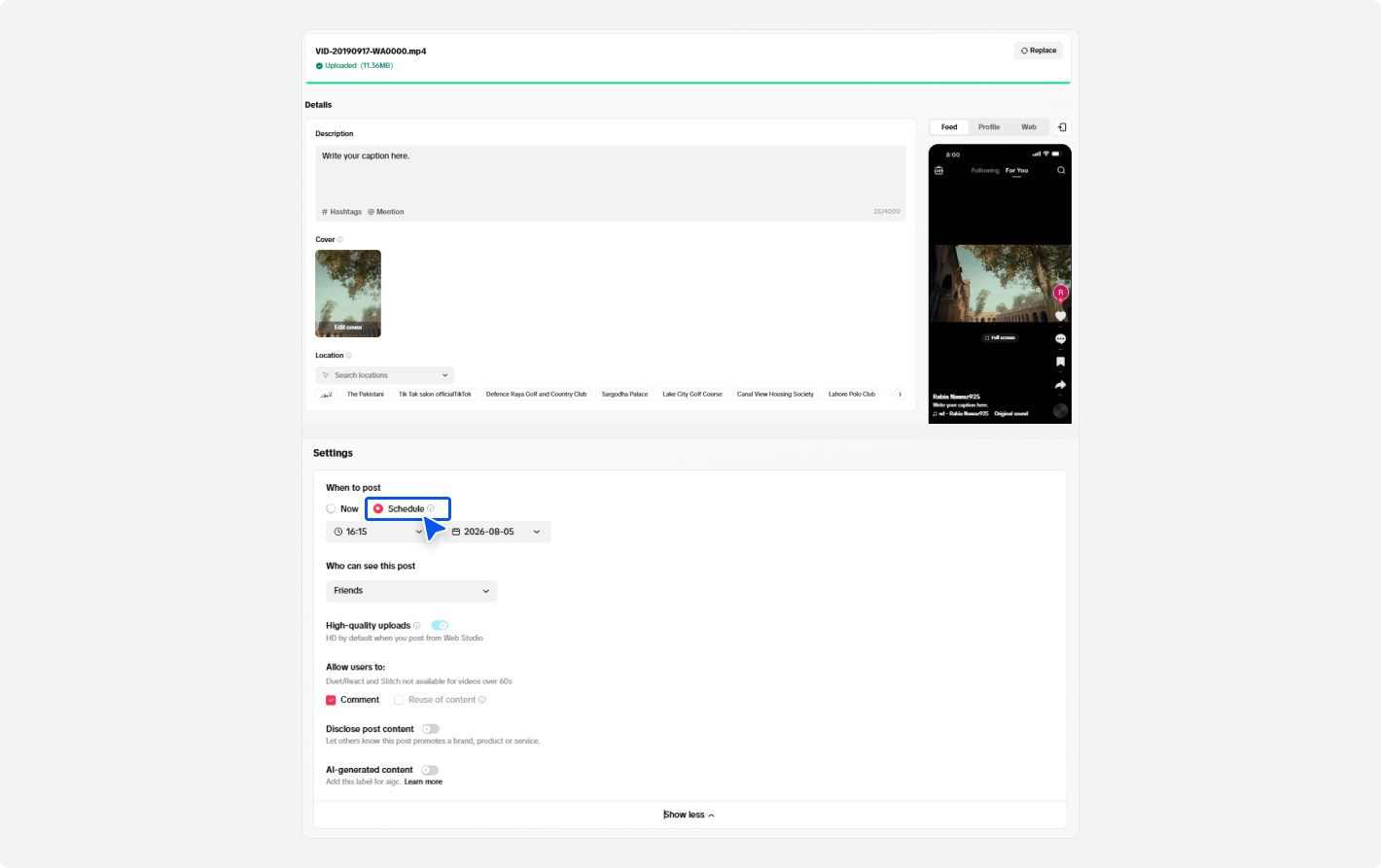
A preview appears, showing how it looks on Feed, your profile, and the Web. Check it.
Make sure the important parts of your video aren’t hidden by TikTok’s interface (captions at bottom, buttons on right side).
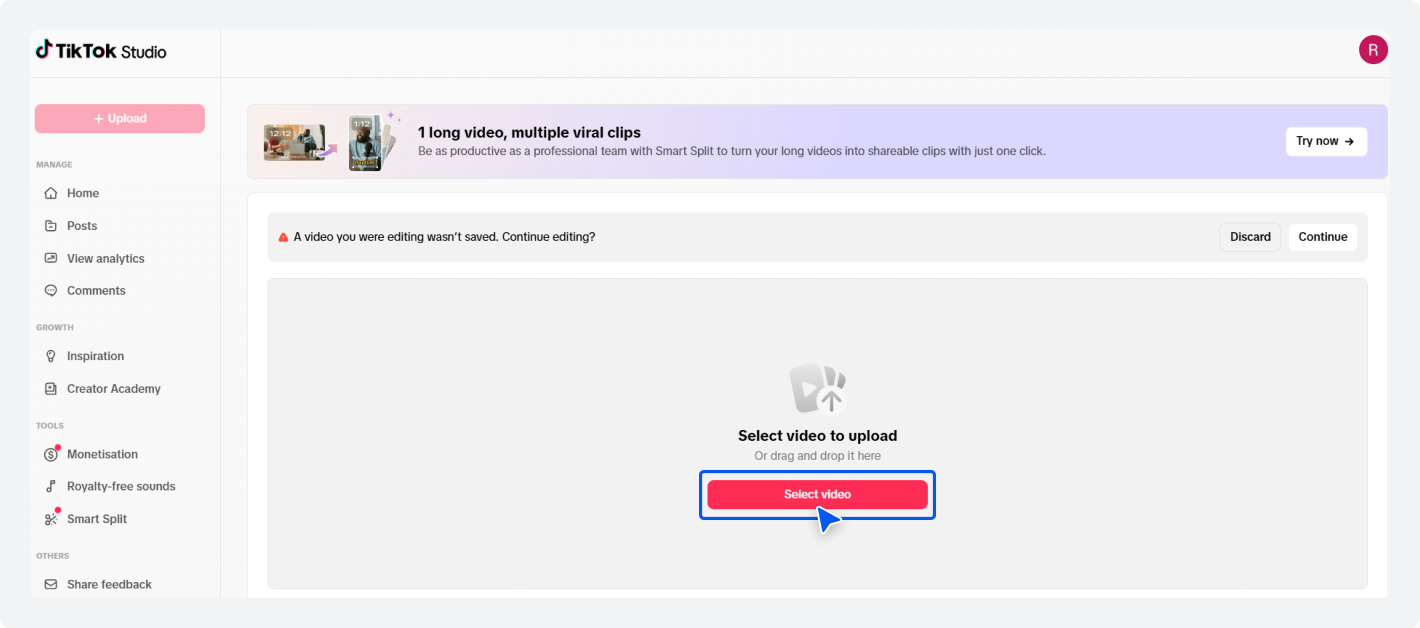
Step 3: Write Your Caption and Set Options
Write your caption (up to 2,200 characters).
Add trending hashtags. Add your location.
Pick a cover image (TikTok picks one automatically, but you can choose your best frame).
Scroll down to find ‘Settings’ and toggle these options:
- Schedule button
- Select your date and time
- Select who can view your video
- Allow comments? (Yes or No)
- Allow Duets? (Yes or No)
- Allow Stitches? (Yes or No)
- Disclose AI-generated content? (Yes or No)
- Disclose branded content? (Yes or No)
- Music copyright check
- And content check lite
Moreover, you can edit your TikTok video, add sounds/music, and add text over it.
TikTok uses your computer’s time zone, not your account’s location.
So, if your computer is set to Pacific Time but you want to post at 3 PM Eastern, and you’re in California, your post will be off by 3 hours.
So, double-check your settings before confirming.
Your computer’s time zone mismatch is the #1 reason scheduled posts go live at the wrong time.
Step 4: Confirm and Watch It Appear
Click ‘Schedule.’
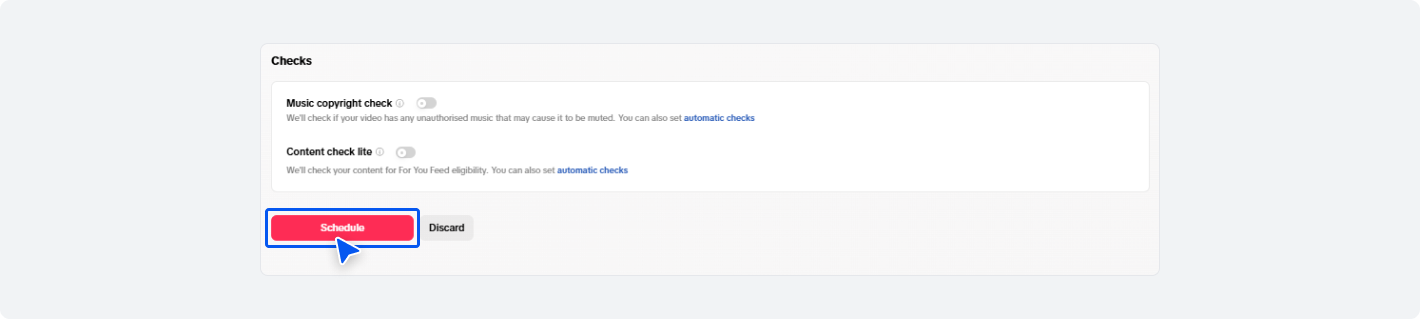
Your post moves from Draft status to Scheduled status.
You can see it in the ‘Posts‘ section of your profile and TikTok Studio, both on tiktok.com and in the mobile app.
TikTok sends you a notification when the post goes live.
What Happens Next
At the scheduled time, TikTok automatically publishes your video.
It appears on your feed like any other post. The algorithm treats it the same as a manually posted video (if engagement is strong in the first 10 minutes).
You can’t edit the caption, hashtags, or time after scheduling. If you need to change something, delete the scheduled post and re-upload it.
The best solution? Use a social media scheduling tool to schedule TikTok posts without any limitations.
Here is how to do it.
How to Schedule TikTok Posts on Desktop Using SocialBu
TikTok’s native scheduler offers limited scheduling and does not support multi-account or cross-platform posting.
SocialBu is a more flexible TikTok scheduler that makes it easy to schedule TikTok posts across multiple accounts from a single dashboard.
It allows you to manage multiple social media accounts, schedule content across platforms, organize your posts with a visual drag-and-drop content calendar, collaborate with your team, and make edits after scheduling without switching between different tools.
Moreover, you can also use the AI writing tools to generate captions, ideas, or hashtags, or improve content.
Here is what you’ll need to do before you start TikTok posts automatically with SocialBu:
- Convert your personal TikTok account into a business or creator account
- Sign up for SocialBu’s free plan, which lets you connect up to 3 social media accounts
- If you want more advanced features such as AI-powered automation and analytics, SocialBu also offers a 7-day free trial on all paid plans. Sign up for the one that suits your needs.
- You will be prompted to connect your TikTok account to SocialBu as soon as you sign up for SocialBu. However, you can do that later on too via ‘Add accounts.’
- Have your video ready to upload.
Step 1: Log In to Your SocialBu Account
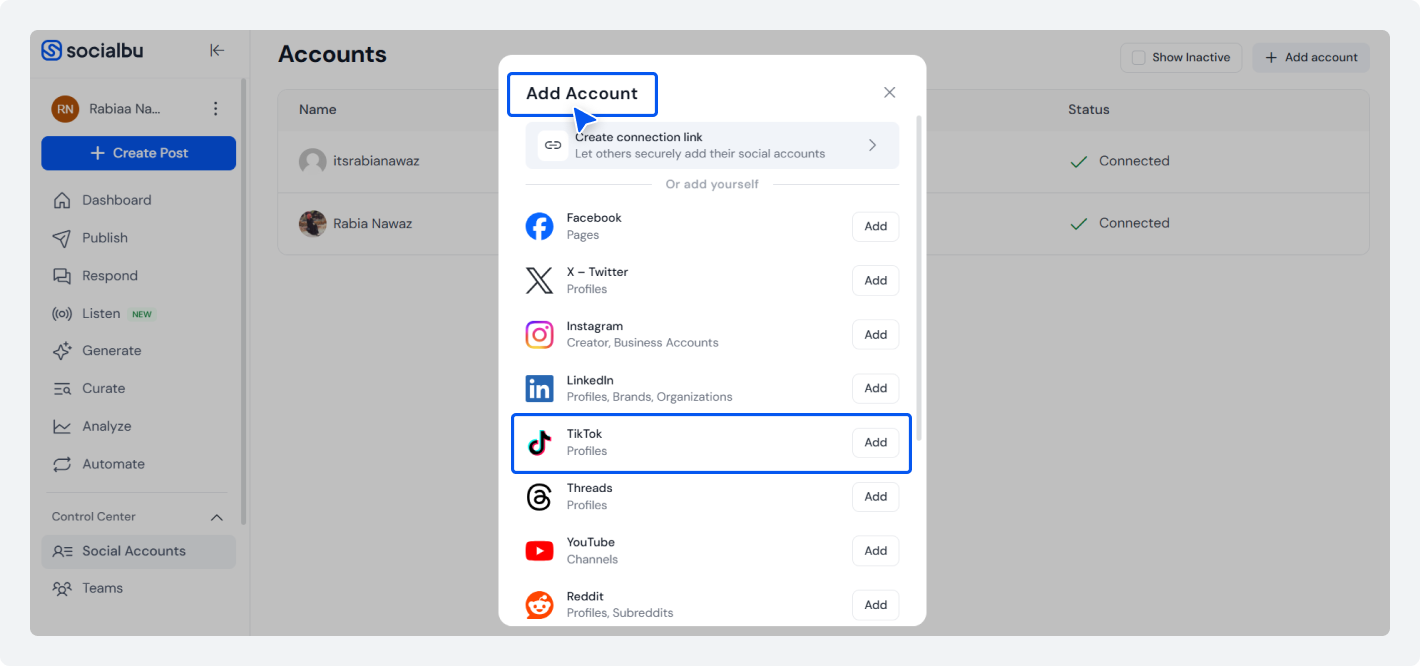
Log in to your SocialBu account. From the left-side menu, scroll down to the Control Center, and click on ‘Social Account.’
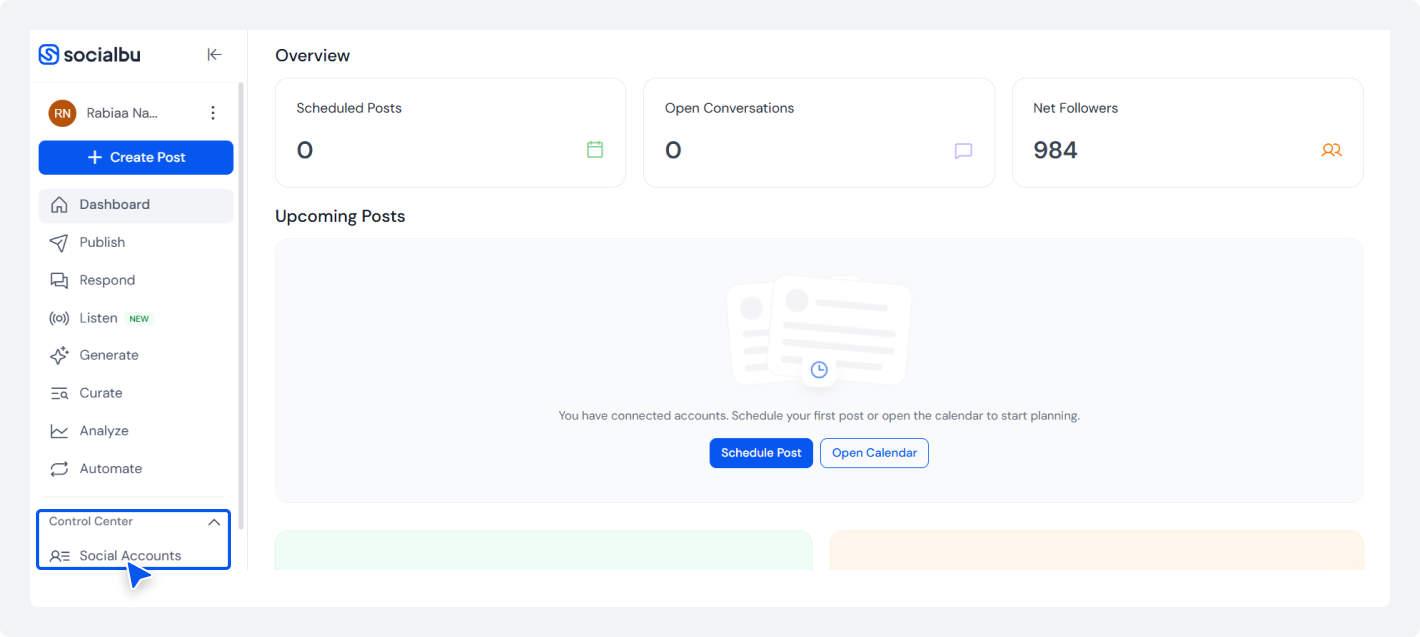
Here you’ll find the option to connect your TikTok account and other social media accounts.
Tap on the ‘Add Accounts’ section from the top right corner, select TikTok, and add your credentials.
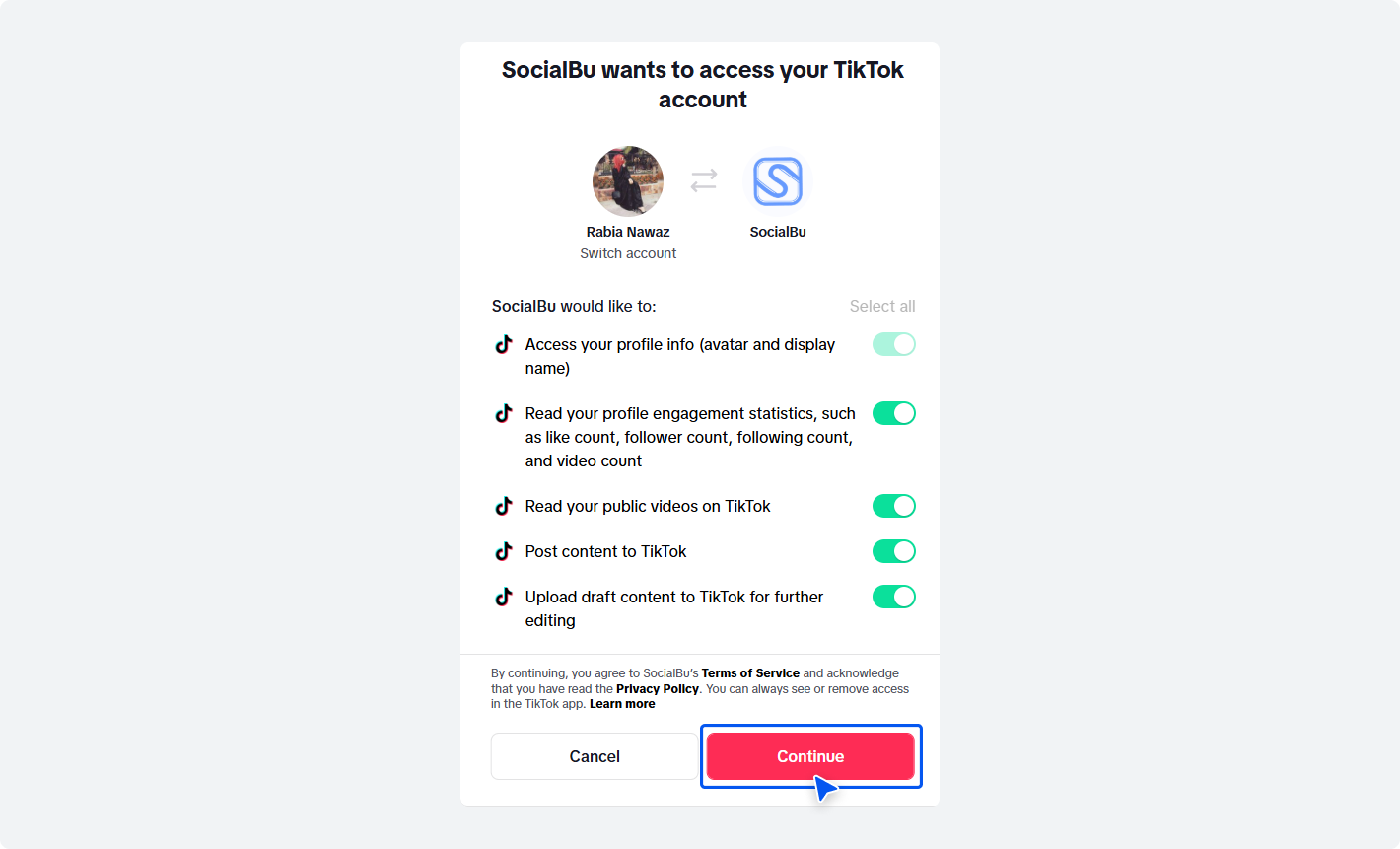
SocialBu will ask for permission to access your TikTok account.
Confirm by clicking ‘Continue.’
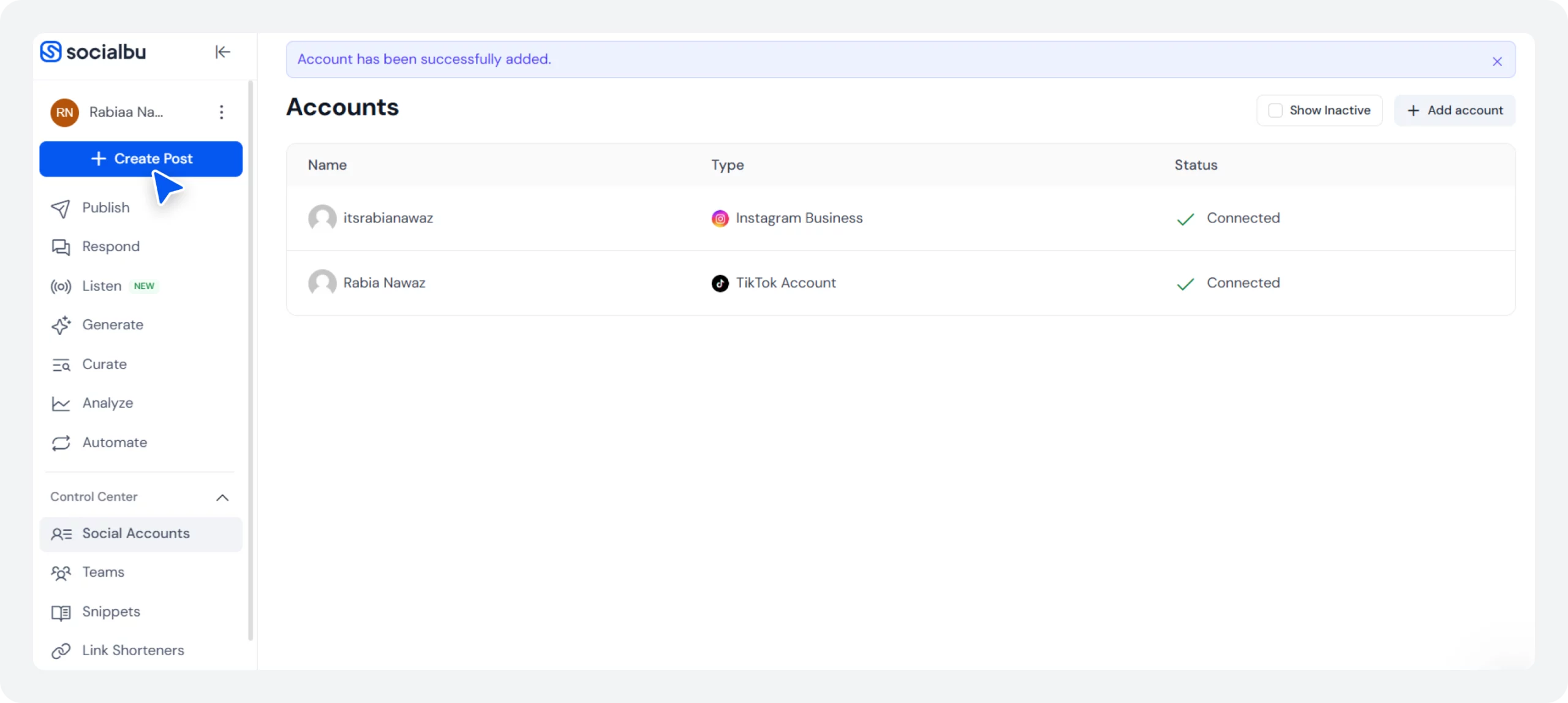
And you have successfully connected your TikTok Account to SocialBu.
Step 2: Create a New Post
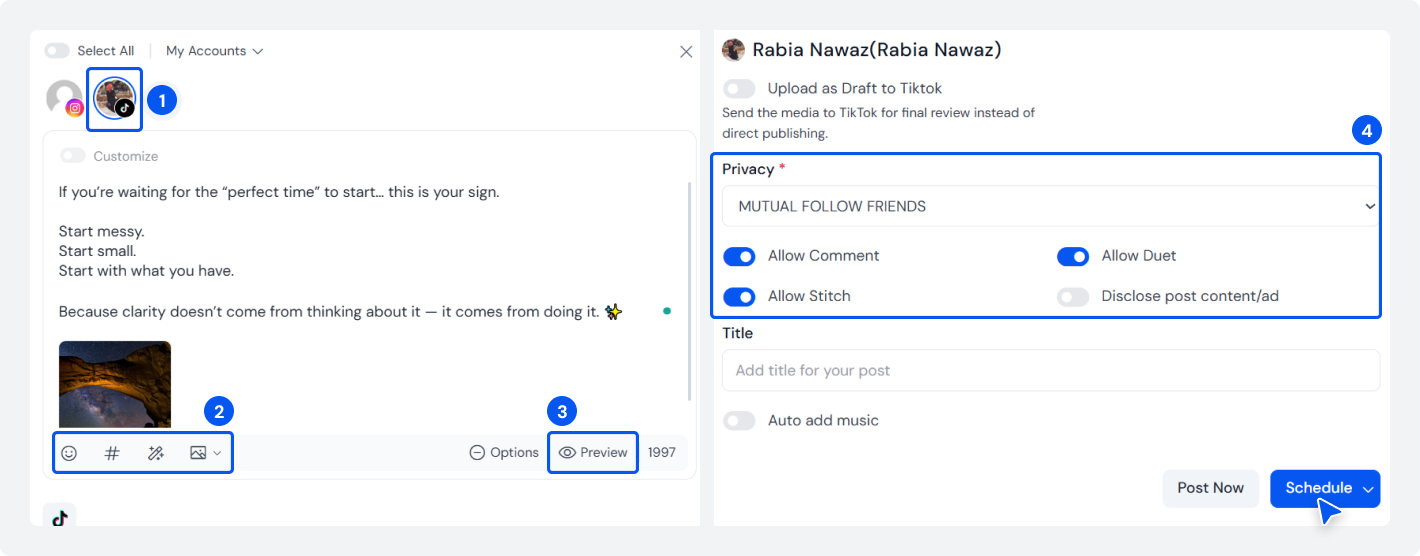
Now, from the dashboard, click ‘+Create Post’ from the left-hand corner and select your connected TikTok account from the top menu.
You can also select other connected social media accounts to cross-post your TikTok content on other social media accounts.
Step 3: Upload Your Video
Upload the TikTok video you want to publish. Write your caption or autocomplete with SocialBu AI composer and add hashtags.
You can preview your content on the right side by clicking on the ‘Preview’ option before scheduling it to make sure everything looks right.
Toggle the other options on, such as who can view the content, comments, Stitch, Duet, and more.
Add your post title. You can post your TikTok post immediately by selecting the ‘Post Now’ option or schedule it for later.
Once all settings are set, click the ‘Schedule’ button.
Step 4: Choose Your Publishing Date and Time
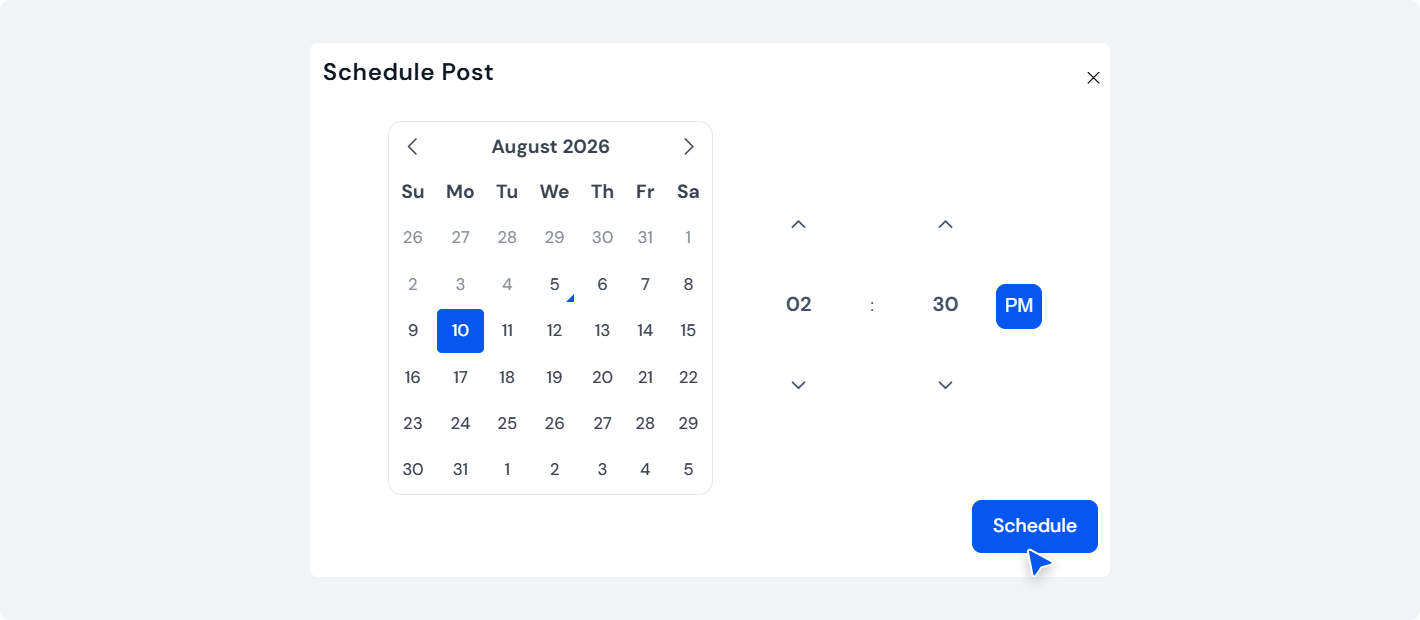
Now, select the date and time you want your TikTok post to go live.
Confirm the scheduling by clicking on the ‘Schedule‘ button. Your TikTok post will be automatically published at the selected time.
And it’s done. You have successfully scheduled your next TikTok post via SocialBu.
You can also view your upcoming posts in SocialBu’s Content Calendar to avoid scheduling conflicts and maintain a consistent posting schedule.
Need to make changes later? Unlike TikTok’s native scheduler, SocialBu lets you edit scheduled posts before they go live, making it easier to update captions or adjust your publishing schedule.
Grow Your TikTok Account With SocialBu
Schedule your TikTok posts, manage your content calendar, and publish to multiple accounts from one unified dashboard.
Can You Schedule TikTok Posts on Your Phone?
Yes, you can schedule TikTok posts on your phone, as it’s a flexible and quick way to schedule. There are two ways to do it:
- Using the TikTok Studio app.
- Using the SocialBu app.
The official TikTok app lets you create, edit, and publish videos, but it doesn’t support native post scheduling. To schedule TikTok posts on mobile, you’ll need to use the TikTok Studio app or a third-party TikTok scheduling app like SocialBu.
The right option depends on your workflow.
How to Schedule TikTok Posts on Mobile Using the TikTok Studio App
The TikTok Studio app lets creators manage their content and, for eligible accounts, schedule posts directly from their mobile devices. To use this feature, you’ll need a Creator or Business account.
- First Step: Download and sign in to the TikTok Studio app using your TikTok account.
- Second Step: Tap the ‘Upload’ button and select the TikTok video you want to schedule.
- Third Step: Write your caption, add relevant hashtags, and review your post details.
- Final Step: Select ‘Schedule,’ then choose your preferred publishing date and time for your TikTok post to go live.
Your TikTok post will be published automatically at your selected time.
Remember, the TikTok Studio mobile app has the same limitations as the desktop version. It’s best suited for basic scheduling. You cannot edit posts after scheduling, and you can schedule posts up to 10 days in advance.
Moreover, it doesn’t offer features like bulk scheduling, cross-platform publishing, team collaboration, or a full content calendar. If you manage multiple accounts or social channels, you’ll likely need a dedicated TikTok scheduling tool.
How to Schedule TikTok Posts on Mobile Using the SocialBu App
If you want more flexibility and to schedule on the go without your computer, the SocialBu app lets you schedule TikTok posts on mobile. It allows you to manage multiple social media accounts and automate your publishing workflow from one place.
Step 1: Install the SocialBu app on your mobile device.
Now, open the SocialBu app and log in to your account. Connect your TikTok account if you haven’t already.
Step 2: Tap the ‘+” icon from the top right corner and select your connected TikTok account.
Step 3: Choose the TikTok video from your device and upload it.
Write your caption, add hashtags, and emojis, or use SocialBu’s AI Writing Assistant to generate or improve your copy.
Step 4: Toggle the settings on and click on ‘Schedule’ to choose when you want your TikTok post to go live.
Select your date and time, and hit the ‘Schedule’ button.
And it’s done.
SocialBu will automatically publish your TikTok post at the scheduled time while keeping it visible in your Content Calendar for easy management. This is the easiest way to schedule TikTok posts when you’re short on time or busy with your friends enjoying social time.

Where Do the Native TikTok Video Schedulers Fall Short?
TikTok Studio is free. It also has constraints that you’ll hit fast if you’re serious about posting on TikTok.
1. The 10-Day TikTok Posts Scheduling Limit
With the native TikTok scheduler, you can schedule up to 10 days in advance. No further.
This isn’t a technical limit. It’s intentional. TikTok wants you to stay current with trends, not batch schedule three months of content.
So if you want to schedule a whole month in advance, native TikTok won’t work. Use a third-party TikTok scheduling tool to schedule content in advance for months.
2. Can’t Edit TikTok Posts After Scheduling
Once you schedule your post on TikTok Studio, you can’t change the caption, hashtags, cover image, or time.
You have to delete the scheduled post and re-upload. This means triple-check everything before you hit schedule.
3. No Cross-Platform Scheduling
With TikTok Studio, you can only post to TikTok.
If you want to post the same video to Instagram Reels, YouTube Shorts, and TikTok in one upload, you need a third-party tool, and SocialBu does it pretty well.
4. No Mobile Scheduling (via TikTok Native App)
You can’t schedule your TikTok posts directly from the TikTok mobile app itself.
5. Photo Carousels Can’t Be Scheduled Natively
If you make carousel posts (slideshows), TikTok Studio doesn’t support scheduling them yet.
Only third-party social media management tools can schedule carousels.
TikTok Studio vs. Third-Party TikTok Scheduling Tools: What’s the Difference?
TikTok Studio is a good starting option if you only need to schedule TikTok posts for free and manage a single account.
However, if you’re creating content regularly or managing multiple social media accounts, a dedicated TikTok scheduling tool offers more flexibility and saves time.
Feature | TikTok Studio | SocialBu |
Mobile scheduling | Limited | Yes |
Desktop | Yes | Yes |
Multiple TikTok accounts | No (individual) | Yes |
Advanced scheduling | Up to 10 days ahead | Up to 30 days or months ahead |
Content calendar | Basic | Advanced |
Analytics | Basic | Advanced |
Team collaboration | No | Yes |
Cross-platform publishing | No | Yes |
Bulk scheduling | No | Yes |
Best for | Individual creators | Marketers, agencies, and creators managing multiple platforms |
Why isn’t My Scheduled TikTok Post Publishing? Common Problems and Fixes
Even when you now know how to schedule TikTok posts, you may run into issues that prevent your content from publishing as expected.
Here are the most common TikTok scheduling problems and how to fix them.
1. Scheduled TikTok Post Isn’t Publishing
This usually happens due to upload errors, account issues, or unsupported video settings. Check that your account is active, your internet connection is stable, and your video meets TikTok’s upload requirements before scheduling it again.
2. Can’t Find the Schedule Button
The Schedule option is available only for Creator and Business accounts that use TikTok Studio. If you’re using a personal account or the TikTok mobile app, you may not see the native scheduling feature.
3. Can’t Edit a Scheduled TikTok Post
TikTok doesn’t let you edit a scheduled post after it’s been saved. If you need to update the caption, hashtags, or publishing time, you’ll need to delete the scheduled post and create a new one.
4. Video is Stuck Processing
Large files, unsupported formats, or a slow internet connection can delay processing. Wait a few minutes, then refresh the page. If the issue continues, re-export your video and upload it again.
5. Account Disconnected
If you’re using a third-party TikTok scheduling tool, your TikTok account connection may have expired. Reconnect your account before your scheduled publishing time to avoid failed posts.
6. Incorrect Time Zone
An incorrect time zone can cause your TikTok posts to be published at the wrong time. Double-check your TikTok or scheduling tool’s time zone settings before scheduling your content.
7. Music isn’t Available
Some licensed sounds can’t be used in scheduled posts because of TikTok’s music licensing restrictions. If this happens, choose a different sound or use TikTok’s Commercial Music Library if you’re using a Business account.
Wrap Up
Scheduling your TikTok content in advance helps you stay consistent, save time, and publish when your audience is most likely to engage.
Whether you choose TikTok Studio for basic scheduling or a dedicated TikTok scheduling tool for more advanced features, planning can make managing your content much easier.
If you’re ready to streamline your workflow, the next step is to create a content plan, schedule your upcoming videos, and review your performance regularly to refine your posting strategy.
As your content needs grow, sign up for the SocialBu free plan that lets you manage TikTok alongside your other social media channels from one place.
Schedule your posts. Show up for engagement. And let the algorithm do its job.
Manage Your TikTok Content More Efficiently
Plan your content, schedule TikTok posts, and cross-post across multiple social media platforms with SocialBu.
Frequently Asked Questions
Q: How do you schedule a TikTok post?
A: To schedule a TikTok post, upload your video through TikTok Studio or a TikTok scheduling tool, add your caption and hashtags, choose a publishing date and time, and save the schedule. You’ll need a Creator or Business account to use TikTok’s native scheduling feature.
Q: Can you schedule TikTok posts for free?
A. Yes, you can schedule TikTok posts for free using TikTok Studio if you have a Creator or Business account. If you need advanced features like a content calendar, cross-platform scheduling, or team collaboration, you can use a third-party tool like SocialBu, which offers a free plan and trial on paid plans.
Q: Can you schedule TikTok posts on mobile?
A: You can’t directly schedule TikTok posts on the TikTok mobile app. But you can use the TikTok Studio app or a third-party TikTok scheduling app.
Q: How far in advance can you schedule a TikTok post?
A: TikTok Studio lets eligible accounts schedule TikTok posts from 15 minutes to up to 10 days in advance. If you need more flexibility for long-term content planning, a third-party scheduler like SocialBu can help you organize your publishing calendar more efficiently.
Q: How do you schedule TikTok posts from drafts?
A: You can’t schedule TikTok posts directly from drafts. Export the draft video to your device first, then upload it to TikTok Studio or a third-party scheduler to set a publishing date and time.
Q: What’s the best time to post on TikTok?
A: The best time to post on TikTok depends on when your audience is most active. Check your TikTok analytics to identify audience peak engagement and active times, then schedule your posts accordingly to maximize reach.
Q. Can you schedule multiple TikTok posts at once?
A: TikTok Studio supports scheduling individual posts but not bulk scheduling. If you want to schedule multiple TikTok posts at once, use a third-party scheduling tool like SocialBu for bulk scheduling and a visual content calendar.
Q. Why isn’t my scheduled TikTok post publishing?
A: A scheduled TikTok post may fail to publish due to account issues, upload errors, unsupported content, a time zone mismatch, or changes made after scheduling. Review your scheduled posts, confirm your account type and permissions, and ensure your video meets TikTok’s publishing requirements before scheduling again.