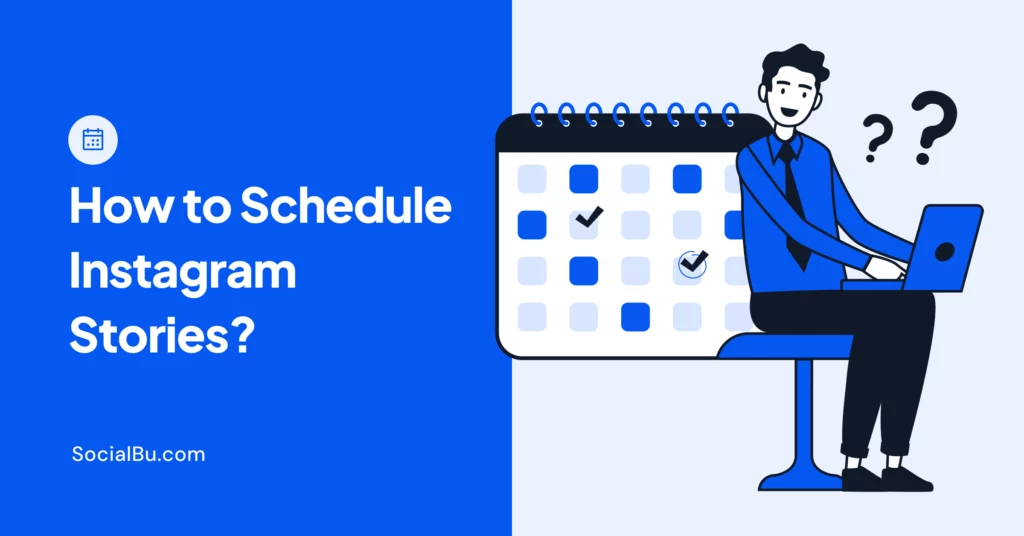
Posting Instagram Stories consistently sounds simple until you’re stuck uploading content multiple times a day, missing peak engagement hours, or hurrying to post during busy workdays. For creators, businesses, and social media managers, manual Story posting quickly becomes time-consuming and unreliable.
The good news? You can schedule Instagram Stories ahead of time using Meta Business Suite (Meta’s official tool) on desktop or mobile. You can also use third-party tools, such as SocialBu. And if you want to auto-publish Instagram stories, then whether a tool can auto-publish a Story (vs. sending a reminder) depends on your Instagram account type and the tool’s Instagram publishing access.
In this guide, you’ll learn how to schedule Instagram Stories step by step, explore the best tools for Story scheduling, and discover best practices to maximize reach and engagement. Ensure your Instagram Stories go live at the exact moment your audience is most active, even when you’re offline.
Before You Start: Quick Checklist
Before you try to schedule Instagram Stories, do these 3 things first:
- Make sure your Instagram is connected to Meta Business Suite (that’s where the native scheduler is).
- Open Meta Business Suite → Planner (this is where Story scheduling happens on desktop).
- If you’re on your phone, use the Meta Business Suite mobile app to create and schedule Stories.

Why You Should Schedule Instagram Stories?
Now let’s talk about why scheduling Instagram stories actually matters. Because it’s not just about convenience, scheduling can completely change how you manage your content and show up online.
1. It Saves Time and Energy
Posting stories manually every single day can get tiring fast. When you schedule Instagram stories, you can create multiple stories at once and set them to go live later. This saves you time and helps you avoid the daily pressure of thinking about what to post. Plus, when you plan ahead, your stories have more purpose and make a real impact.
2. You Can Stay Consistent Without the Daily Struggle
If you want to grow and increase followers on Instagram, you have to be consistent. But life happens, and it’s easy to miss a day or two. Scheduling Instagram posts helps you stick to a regular story routine without needing to be on your phone all the time. Even when you are busy, your content still shows up for your followers.
3. Helps to Reach More People at the Right Time
Your audience is not always online when you are. That is why timing matters for your posts. When you schedule Instagram posts to go live during peak hours, you are more likely to reach a bigger audience and get more engagement. It is one of the easiest ways to boost visibility.
4. You Can Create Better Content with a Clear Plan
Scheduling Instagram stories gives you space to think ahead. You can plan your content around themes, campaigns, or product launches. You can also mix up different formats like videos, polls, or Q&A stickers. This leads to stories that are more interesting, more on-brand, and more effective.
5. It Reduces Stress, and You Stay in Control
Trying to come up with last-minute content is stressful and often leads to rushed posts. When you schedule a story on Instagram in advance, you avoid that panic and stay in control. Everything is ready to go, even if you are in a meeting or taking a break.
6. You Can Track What Works
Some scheduling tools also let you check how your scheduled Instagram stories perform. You can see which types of content get more views and reactions. This helps you improve your strategy over time and post stories that your audience actually enjoys.
 Also Read: Tips to Get More Views on Facebook Reels to grow your brand’s visibility on Facebook.
Do You Need a Business or Creator Account to Schedule Instagram Stories?
If you want to schedule Instagram Stories in advance instead of posting them manually every time, the type of Instagram account you use matters.
As of 2026, personal Instagram accounts are often not supported for scheduling or auto-publishing through many official and third-party workflows. It means you’ll get the most reliable scheduling options with an Instagram Professional account (Business or Creator) connected to a Facebook Page.
What Account Type Works Best for Instagram Story Scheduling?
Before you learn how to schedule Instagram stories in 2026, here are some points related to account types to look at:
- Personal account: This account is often not eligible for auto-publishing and may not be compatible with some Instagram story schedulers in 2026.
- Creator account: It can work for scheduling in some setups, but auto-publishing Stories may be restricted by the Instagram story scheduler tool and Instagram’s publishing limits.
- Business account: This is the safest option if your goal is to auto-publish Stories (not reminders), because Story publishing is commonly limited to Business accounts in publishing integrations.
So if you want to schedule Instagram stories in 2026, here are the next steps for you:
- If you’re still on a personal Instagram account, switch to a Professional account first. Here’s how to do it:
Go to your Settings → Account → Switch to Professional Account → Choose Business or Creator.
Once that’s done, connect your Instagram to a Facebook Page to get access to scheduling features in tools like Meta Business Suite and SocialBu.
💡 Quick Tip: If your Instagram is connected to a Facebook Page, you can schedule Stories in Meta Business Suite (desktop or mobile). Many third-party schedulers can’t connect personal Instagram accounts, and Instagram’s publishing rules often limit auto-publishing Stories.
But SocialBu allows you to schedule and auto-publish Instagram stories.
Can You Schedule Instagram Stories in 2026?
Yes. In 2026, you can schedule Instagram Stories in advance using Meta Business Suite or third-party Instagram story schedulers like SocialBu, which support planned and automated Story publishing for professional accounts.
Now, let’s look at how to schedule Instagram stories; the two most reliable ways to schedule Instagram Stories step by step.
Method 1: Schedule Instagram Stories Using Meta Business Suite
Yes, you can schedule Instagram Stories using Meta Business Suite, and it works on both desktop and mobile. Meta Business Suite schedules Stories across your Facebook Page and Instagram account, so make sure your Instagram is connected to the Page you manage.
Let’s look at how to schedule an Instagram story using Meta Business on both desktop and mobile:
Option A: How to Schedule Instagram Stories in Meta Business Suite on Desktop
Meta Business Suite helps you schedule Instagram stories in 2026. This method is perfect if you’re working from your laptop or want a full-screen view while planning your content.
Here is how to schedule Instagram stories on desktop in 2026 using Meta Business Suite:
- Log in to Meta Business Suite from your computer and go to Planner
- Choose the “Create Story” option.
- Go to the first field called “Share to,” and select your Instagram or Facebook page.
- Click “Add photo/video” to upload your image or video for the story. Make sure it’s the right size and format.
- Add text, emojis, or stickers to make your Instagram story more fun and engaging. You can edit your story from the Edit option.
- Instead of clicking “Publish Story,” click the dropdown arrow and select ‘Schedule’ to schedule your Instagram story in advance. Choose the exact date and time you want your story to go live.
- Head to Posts and Stories > Stories > Scheduled to double-check everything. From here, you can reschedule, post early, or delete the story if needed.
And it’s done, that’s how you schedule Instagram stories directly from your desktop using Meta Business Suite in 2026.
💡 Tips:
- Meta will suggest times when your followers are most active; use them to boost engagement.
- You can cancel or reschedule before the Story goes live.
Option B: How to Schedule Instagram Stories in Meta Business Suite on Mobile?
Meta Suite also supports scheduling posts and Stories from the Meta Business Suite mobile experience. If you’re on the go, you can still schedule a story on Instagram using the Meta Business Suite app on your phone.
Here’s how to schedule Instagram stories on mobile 2026 using Meta Business Suite:
1. Install the Meta Business Suite app from the App Store or Google Play Store. Log in using your Instagram account.
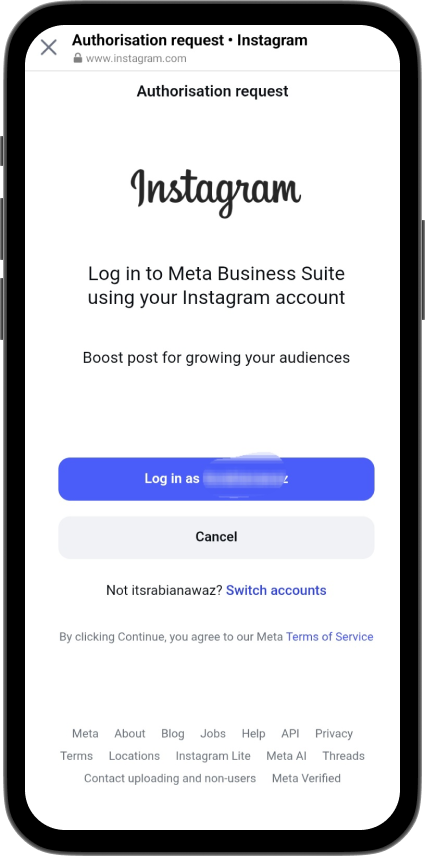
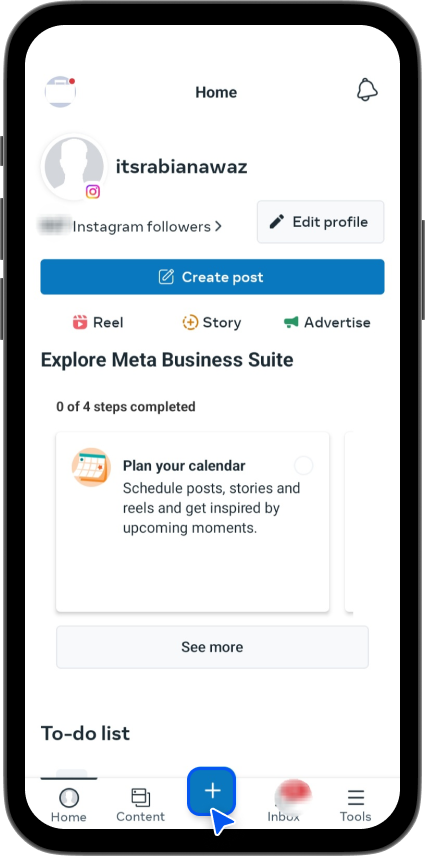
2. Tap the plus (+) icon.
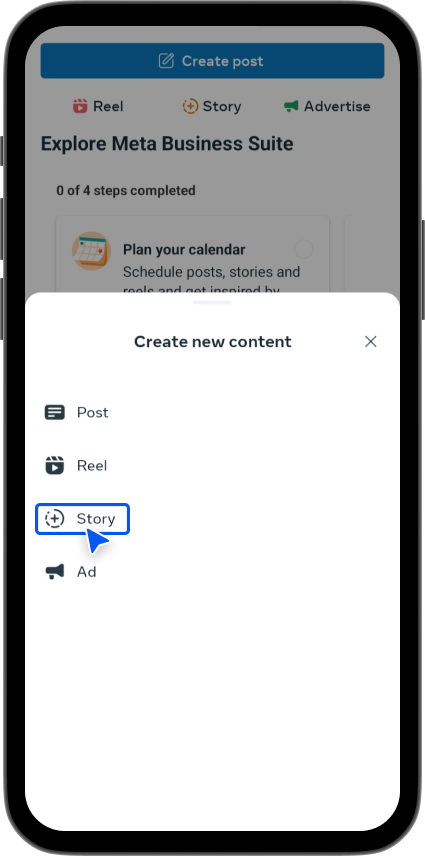
3. Now select ‘Create Story’.
4. Now upload your story photo or video from your phone’s gallery.
5. Add text, effects, links, music, or other elements to enhance your story before scheduling it.
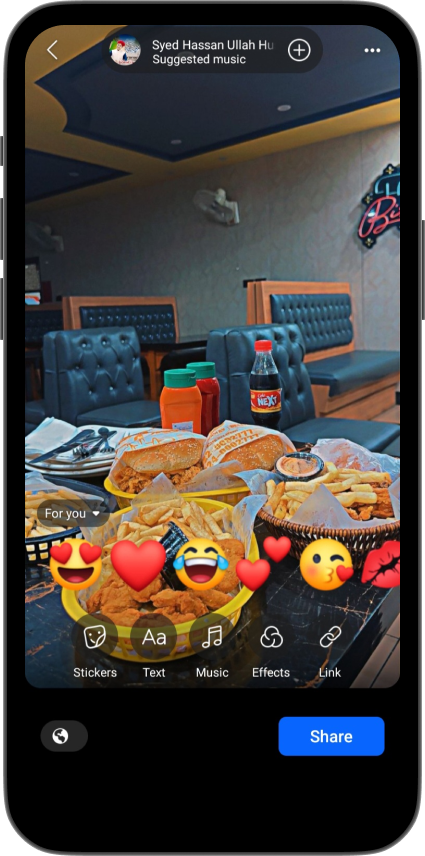
6. Tap ‘Share’, then choose the ‘Schedule for later’ option instead of posting immediately.
7. Pick your desired date and time, and hit the ‘Schedule’ button, and it’s done. Your Instagram story has been scheduled successfully.
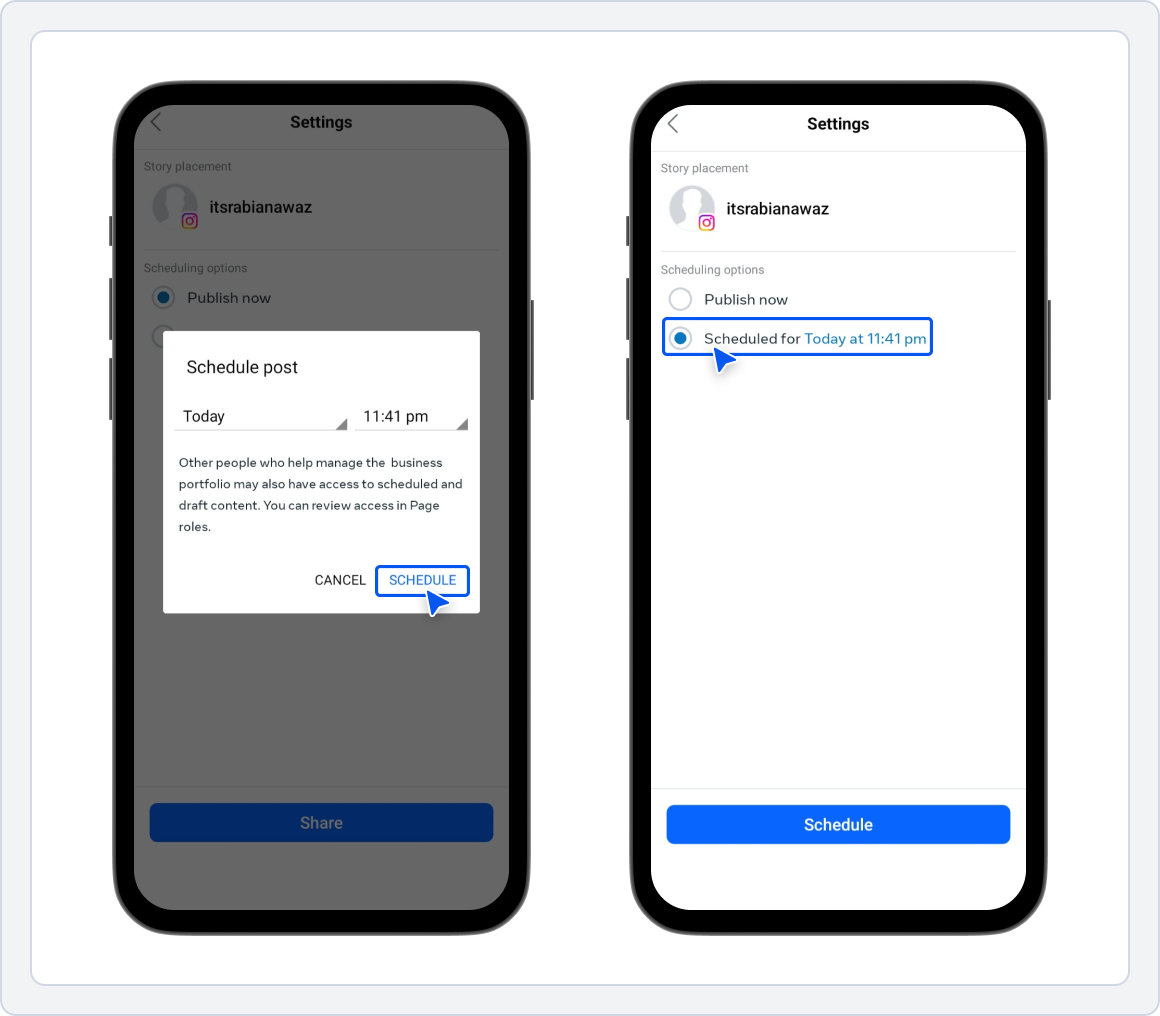
8. Once scheduled, you can view, reschedule, or delete your scheduled story from the tools bar under the ‘Planner’ tab.
And that’s how to schedule Instagram stories using Meta Business Suite. It’s quick, simple, and saves you from rushing to post on time.
Method 2: Schedule Instagram Stories with SocialBu
Another easy and reliable way to schedule Instagram stories in 2026 is via SocialBu.
SocialBu is an all-in-one social media management tool that lets you schedule Instagram stories, posts, and more from a single dashboard. It helps you stay consistent, save time, and avoid the stress of posting manually every day.
Here’s how to schedule multi-slide Instagram stories using SocialBu:
1. First, log in to your SocialBu account.
Go to the Accounts section and click ‘Add Account’. Choose Instagram from the list and follow the prompts to connect your account.
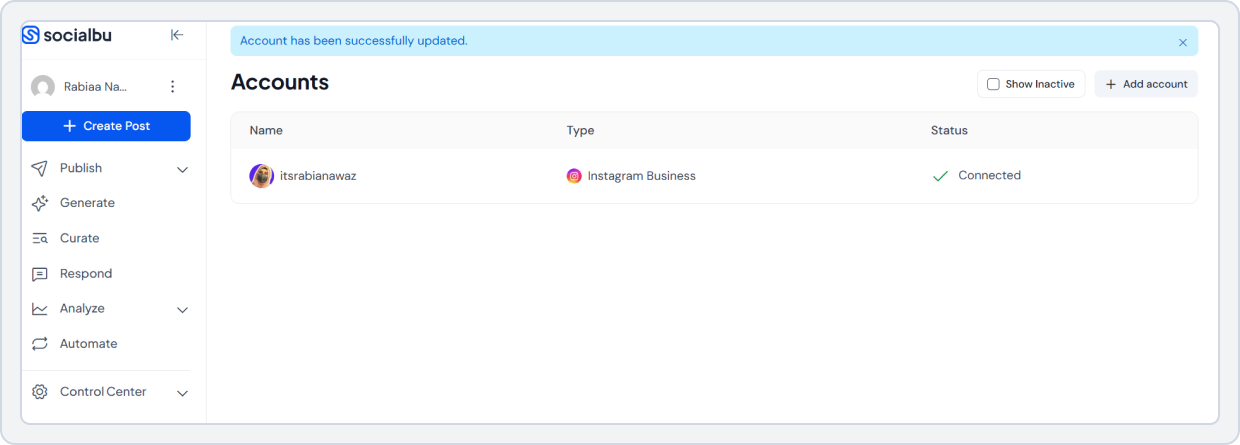
Make sure you are using an Instagram Business profile. Scheduling Instagram Stories is only available for business accounts, not personal ones.
2. Click the “+ Create Post” button on your dashboard. Select your Instagram account. Upload the image or video you want to share in your story.
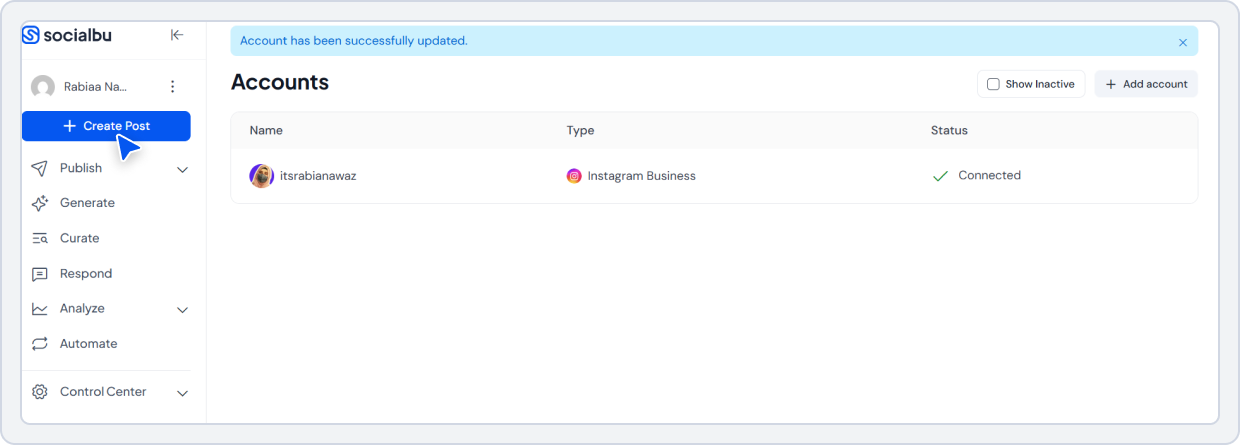
You can also add text, overlays, or other design elements to customize your story.
3. Now, it’s time to schedule your Instagram story to post automatically on Instagram. Select Instagram as the platform of your choice from the list of platforms.
4. Click Options, and select ‘Post as Story’. Then pick the exact date and time you want your story to go live.
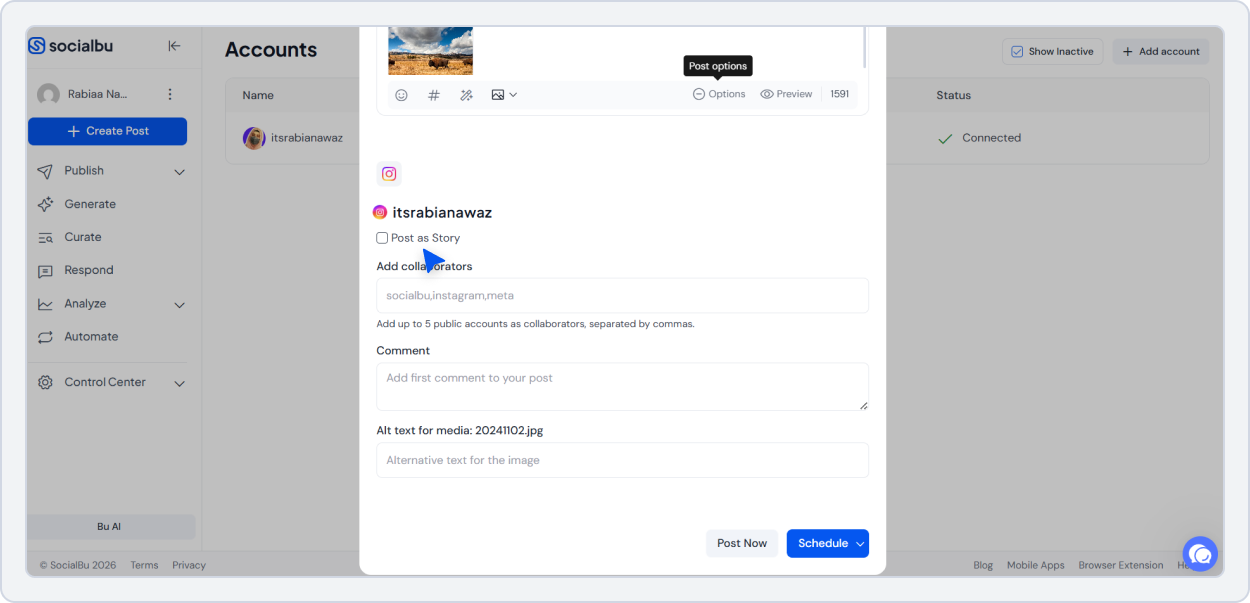
5. Once you’ve selected your time, double-check everything. Review your content, ensure the date and time are correct, and hit ‘Schedule’.
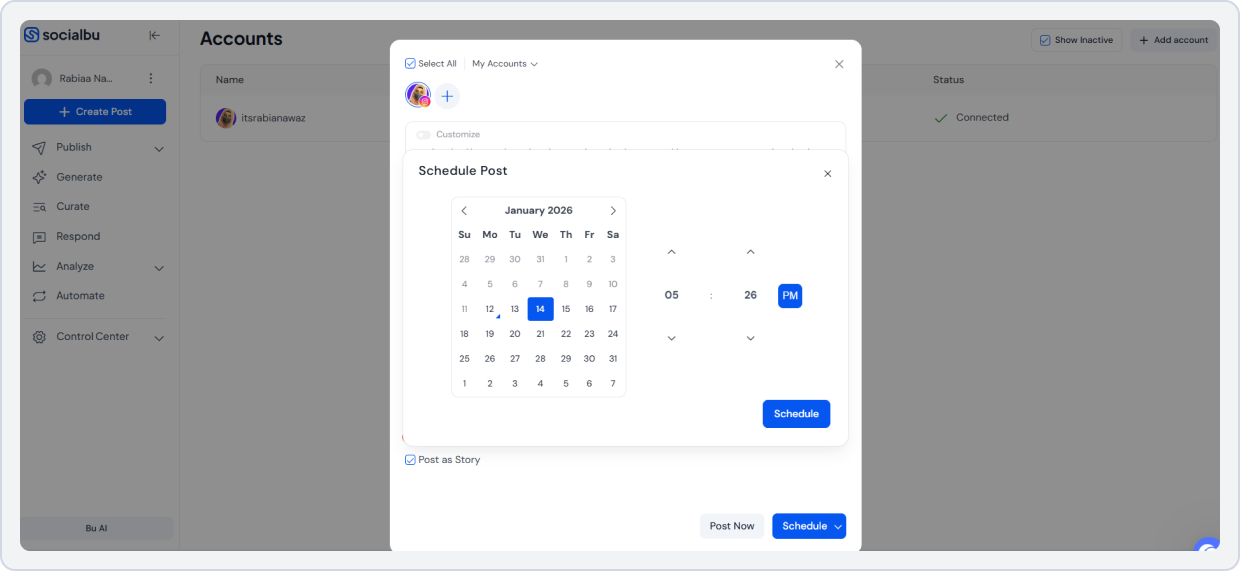
6. Your scheduled Instagram story will appear in your SocialBu calendar, ready to auto-post Instagram stories at the perfect time.
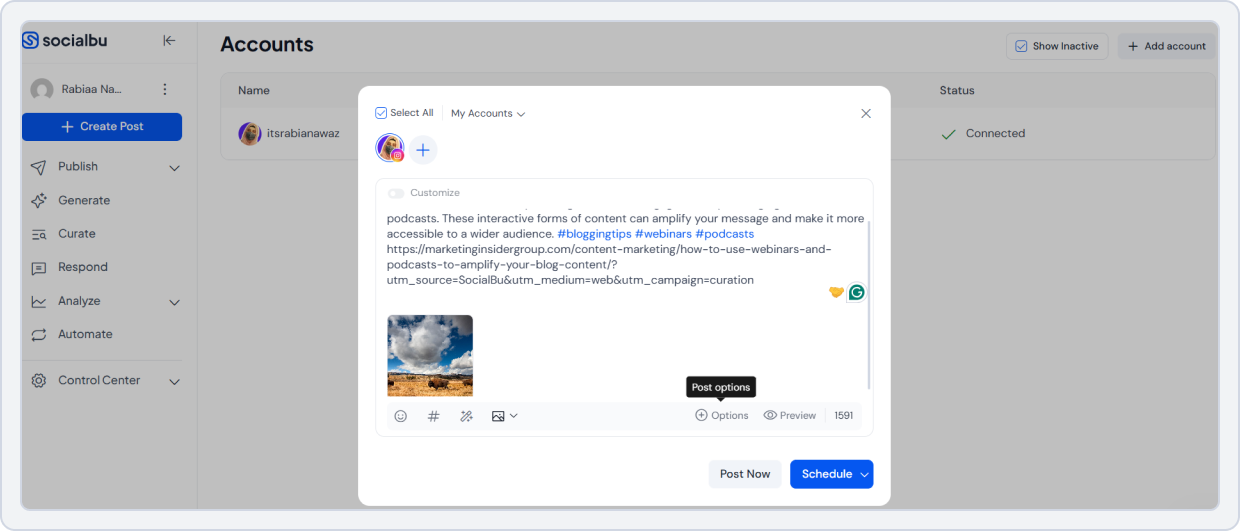
And you’re done! You have successfully scheduled Instagram Stories to auto-publish with SocialBu.
💡 Pro Tip: SocialBu also supports bulk scheduling. You can upload multiple images or videos at once and schedule them in a single step.
Schedule Your Instagram Stories with SocialBu!
Automate posts, engage smarter, and grow faster – all with SocialBu. Simplify your workflow with SocialBu’s all-in-one automation tools.
Cheers, you have just learned how to schedule Instagram stories in 2026 using Meta Business Suite and SocialBu, both on desktop and mobile.
Your next step is to use any of the methods above to schedule stories on Instagram and enjoy auto-posted Instagram stories on the go.
How to Schedule Multi-Slide Instagram Stories
Here is how you can schedule multi-slide Instagram stories using SocialBu:
- Make sure your Instagram account is set to Business or Creator, and that it is connected to a Facebook Page.
- Go to your SocialBu dashboard and connect your Instagram account.
- Go to ‘Add Account’ and select Instagram as your platform.
- Click ‘Publish’, then ‘Bulk Import’ and upload all images or videos for your Story in a CSV file.
- Preview the Story thread and adjust the order, captions, or visuals for each slide if needed.
- Choose when you want the Story sequence to go live.
- Click Schedule. Your multi-slide Instagram Story will auto-publish in the order you selected at the selected time.
Important Note: Native tools like Meta Business Suite allow Story scheduling but offer limited control over multi-slide Story threads, which is why an Instagram story scheduler like SocialBu is better suited for campaigns and social media managers.
Native Scheduler vs. SocialBu: Which One’s Better?
Now that you know how to schedule Instagram stories using both Meta Business Suite and SocialBu, let’s compare these two methods to see which one really makes scheduling Instagram stories easier and more effective.
1. Platform Flexibility
Meta Business Suite is a helpful tool if you’re only managing Facebook and Instagram. It lets you schedule Instagram stories for free directly from your desktop or mobile, which is great for basic needs. However, if you’re managing multiple social media platforms or want a single dashboard to control them all, SocialBu offers a smoother experience.
2. Story Scheduling Features
With Meta Business Suite, you can upload a story and set a time for it to go live, but that’s pretty much it. The customization options are limited, and managing multi-slide stories (or threads) isn’t very flexible. On the other hand, SocialBu lets you schedule story threads on Instagram with ease, add content, and even customize each slide before scheduling.
3. Ease of Use
The interface also makes a difference. Meta’s dashboard can feel a bit overwhelming, especially if you’re new to content scheduling. In contrast, SocialBu keeps things clean and user-friendly. You don’t have to click through several menus just to schedule an Instagram story in 2026. Everything with SocialBu is simple and to the point.
4. Managing Multiple Accounts
Another key difference is platform support. While Meta Business Suite is limited to Facebook and Instagram, SocialBu lets you manage Instagram alongside platforms like Twitter (X), LinkedIn, Bluesky, Threads, Pinterest, and TikTok. If you’re trying to stay active across all socials, SocialBu saves you from switching between multiple tools.
5. Analytics and Insights
Analytics also play a big role. Meta provides significant insights, but they are limited to Facebook and Instagram. SocialBu, on the other hand, offers in-depth analytics across all supported platforms, including performance tracking for your scheduled Instagram stories.
Meta Business Suite vs. SocialBu: Feature Comparison
Here’s a feature-by-feature comparison of Meta Business Suite (native scheduler) vs SocialBu – a third-party all-in-one social media management tool:
Features | Meta Business Suite | SocialBu |
Platforms Supported | Facebook & Instagram only | Instagram, X (Twitter), LinkedIn, TikTok, Threads, Pinterest, Bluesky |
Visual Planning | Basic calendar | Visual drag and drop content calendar with previews |
Bulk Scheduling | No | Yes |
Story Threads | Limited | Easy multi-slide scheduling |
Content Previews | Minimal | Full preview before publishing |
Focused Engagement | No unified inbox | Social inbox for comments & messages |
Team Collaboration | Limited | Roles assigned, workflow approval, and collaboration |
Automation | Basic scheduling only | Bulk scheduling, advanced automation & workflows |
Access to Latest IG/Facebook Features | Immediate | Slight delay (API-dependent) |
Ease of Use | Moderate, cluttered | Clean, intuitive interface |
Pricing | Free | Free plan + affordable paid plans |
Takeaway: In short, if you’re just looking to schedule an Instagram story occasionally or once in a while, Meta Business Suite can work. But if you want to grow, stay consistent, and manage everything in one place without limitations, SocialBu gives you a much better experience.
Tips to Schedule Instagram Stories
Now that you know how to schedule/post a story on Instagram effectively and what your best shot is, here are some quick tips to help you maximize your scheduling strategy and get the best results.
- Plan Ahead: Batch-create your Instagram Stories to schedule multiple posts at once.
- Post at Peak Times: Schedule your stories when your audience is most active for maximum reach.
- Mix Content Types: Combine photos, videos, polls, questions, and stickers.
- Keep Branding Consistent: Use similar colors, fonts, and styles to maintain a cohesive look.
- Test and Analyze: Use analytics to see which scheduled stories perform best and adjust your strategy accordingly.
Also Read: Best Time to Post on Instagram to post your Instagram Stories and Posts at the exact time when your audience is most active.Wrap Up!
Posting Instagram stories manually tires you. You might miss the best times to post or struggle to come up with captions quickly. The manual method does not always work well. But as we have seen, it can be easier.
You now know how to schedule Instagram Stories effectively. You can stick to the basics with Meta or use the strong features of SocialBu. When you set your Stories to post automatically, your brand shows up consistently. This happens even when you are offline, sleeping, or doing other work.
Why make it hard every day when you can schedule a whole week of content in a few minutes?
Grow On Instagram with SocialBu
Join over 20,000+ businesses who trust SocialBu to grow their social media presence every day.
Frequently Asked Questions
Can You Schedule an Instagram Story?
Yes, you can. You can also use third-party tools like SocialBu to plan and schedule your Stories in advance, or a free Instagram story scheduler like Meta Business Suite.
Can You Schedule Instagram Posts Too?
Yes. Meta Business Suite and third-party social media management tools like SocialBu support creating and scheduling posts (and Stories) on desktop.
How Do You Schedule Instagram Stories With Links?
To schedule Instagram Stories with links in 2026, you can use tools like Meta Business Suite. Create your story, add a Link Sticker (which replaced the old “Swipe Up” feature), and set the publish time.
All accounts can now use link stickers regardless of follower count, but you must have a Business or Creator account to enable automated scheduling.
Can You Schedule Instagram Stories For Free?
You can schedule Instagram Stories for free using tools like SocialBu, Buffer, or Planoly. Sign up for an account, connect your Instagram, and use the basic scheduling features these tools offer in their free plans. Note that free versions may limit the number of scheduled posts and lack advanced features.
Can You Edit, Reschedule, or Delete a Scheduled Instagram Story?
Yes, you can edit, reschedule, or delete a scheduled Instagram Story using tools like SocialBu or Meta Business Suite before it goes live, giving you full control over your planned content. This ensures your Stories stay up to date, accurate, and aligned with your posting strategy.
When Are Instagram Stories Auto-Published vs. Reminder-Based?
Instagram Stories are auto-published when you use approved tools (like SocialBu or Meta Business Suite) connected through Meta’s API, and your account is set to Business or Creator. Some tools may send mobile reminders instead of auto-publishing if certain API features aren’t supported or the tool doesn’t have direct publishing permissions.
What Features Can You Not Add When Auto-Publishing Instagram Stories?
When auto-publishing Instagram Stories, you can’t include interactive elements such as polls, quizzes, question stickers, music stickers, location tags, or user mentions. To use these features, you’ll need to publish manually or edit the Story directly inside the Instagram app before posting.
Do You Need a Business Account to Schedule Instagram Stories?
Yes. There are some scheduled Instagram stories requirements for business accounts. With an Instagram Business account, you can schedule and auto-publish Instagram Stories using tools connected through Meta’s API, such as Meta Business Suite or SocialBu. You’ll also need to link your Instagram account to a Facebook Page to access scheduling features and performance insights.
Can You Schedule Instagram Stories With a Creator Account?
Yes. Creator accounts can schedule Instagram Stories using Meta’s native tools and many third-party scheduling platforms, such as SocialBu or Buffer. However, some tools may send mobile reminders rather than auto-publish. Linking your Creator account to a Facebook Page can improve access to features and scheduling capabilities.