Schedule social media posts from one place

Plan your week in one calendar. Tailor the caption and media for each account, then schedule your posts to go live automatically.

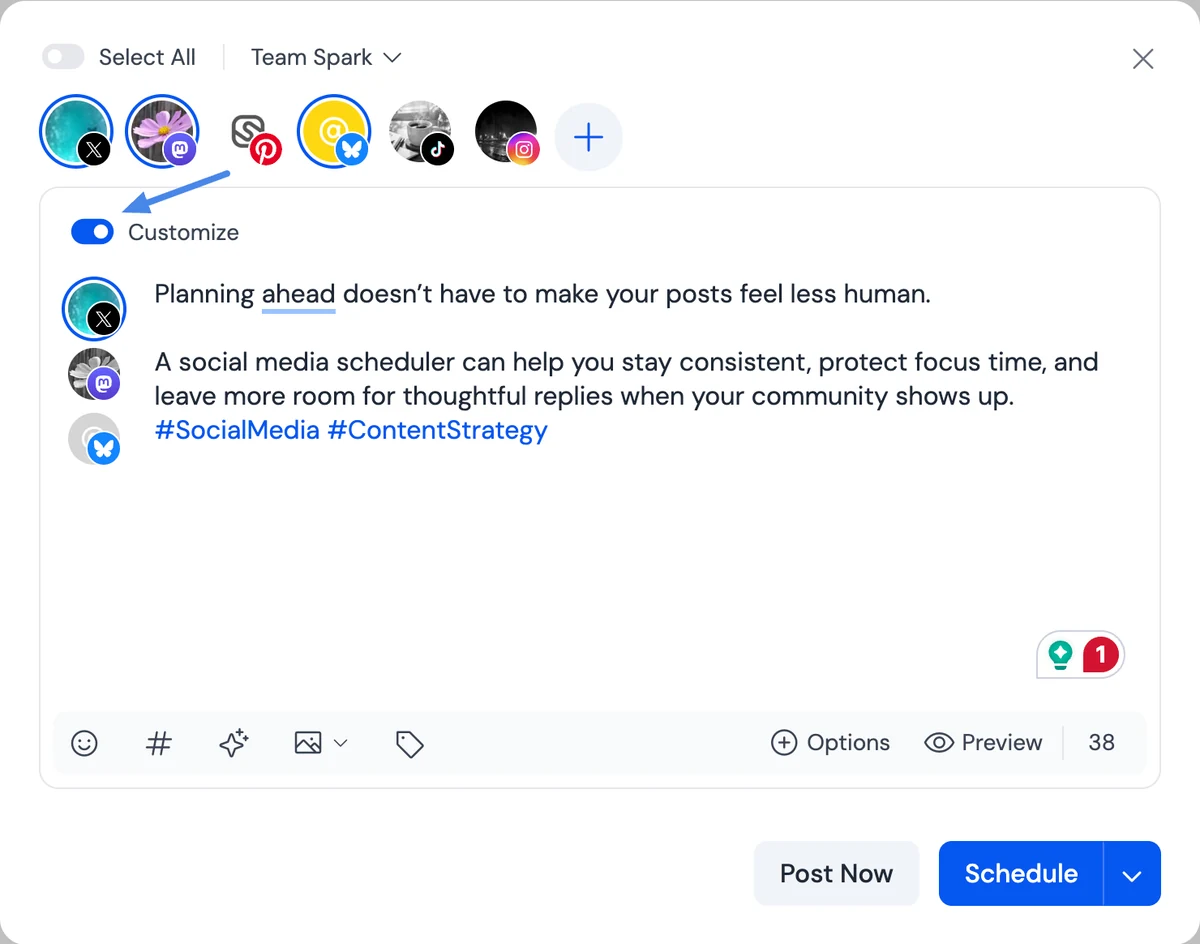
SocialBu Post Composer with selected social accounts, per-account customization, and scheduling controls

Write it once, then tailor it to each account

Start with the same idea for every account. Give Instagram a Reel, Facebook a photo and link, and your Google Business Profile a booking button.

Preview each version, then publish now or choose a time. Add a first comment, alt text, or thread replies where supported.

See how to customize a post

Example campaign for a bike shop

Instagram

Hear that squeak? It might be time for a tune-up. Spring bookings are open.

Reel with a workshop video and custom thumbnail

Facebook

Spring tune-up bookings are open. We’ll check your brakes, gears, and tires. See what’s included and choose a time.

Page post with a shop photo and booking link

Google Business Profile

Book a spring bike tune-up at the shop. Pick a drop-off time that works for you.

Business Profile update with a Book button

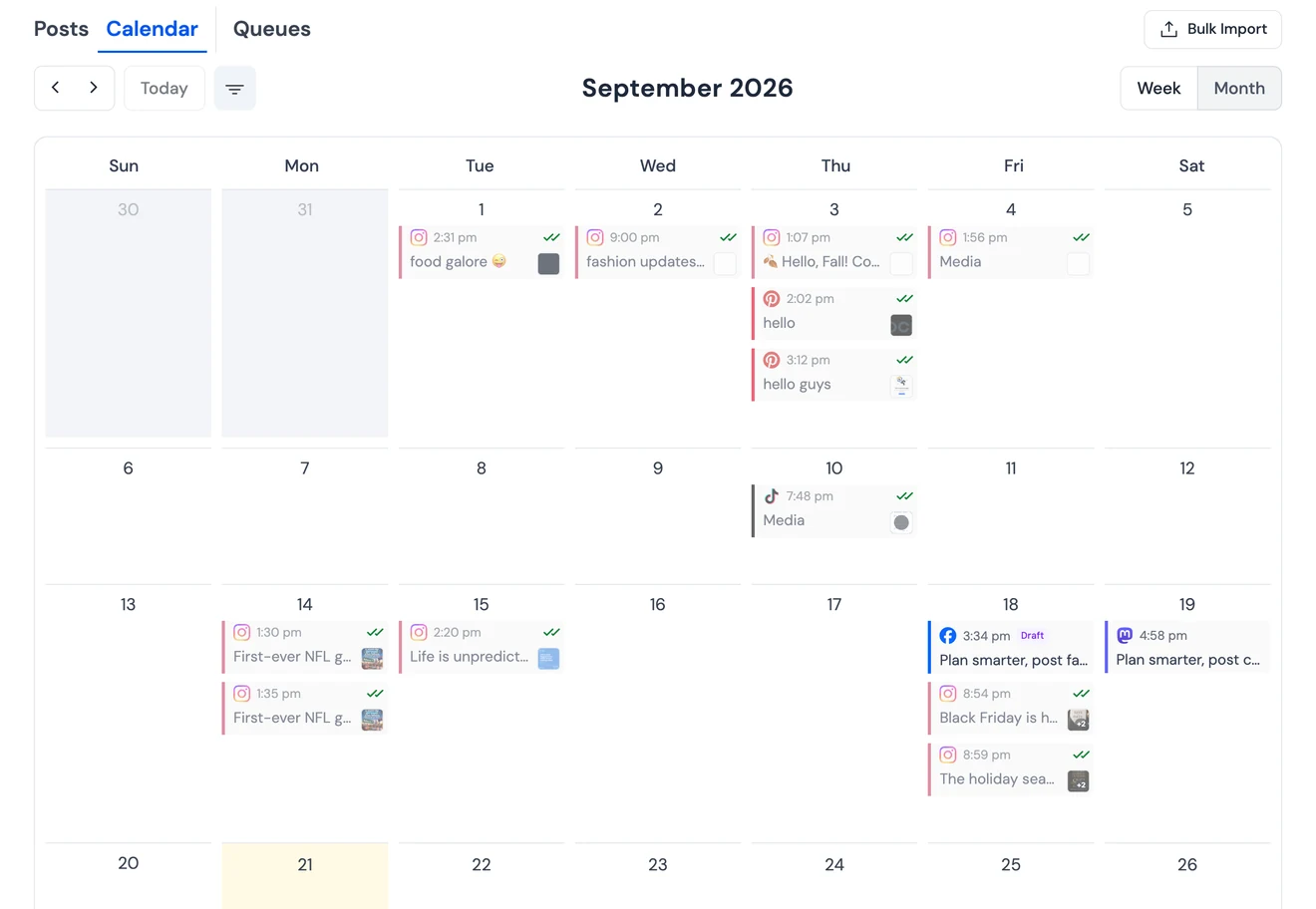
Plan the week in one social media calendar

See drafts, posts awaiting approval, scheduled posts, and published posts together. Switch between week and month views to spot gaps and plan around launches.

  • Filter by account, team, or tag.
  • Start a post from any current or future date.
  • Drag an editable post to reschedule it.
Explore the calendar
SocialBu’s monthly content calendar with posts and drafts from several social accounts

Schedule a batch or fill a recurring queue

Bulk schedule posts from a CSV

Upload the captions, accounts, and media links you’ve already collected in a spreadsheet. Give each post a date and time or send it to a named queue.

Starter allows 200 rows per upload, Growth 500, and Agency 2,000.

See the CSV template and import steps

Set recurring times for regular posts

Pick weekly or monthly slots once. Add posts to the queue and SocialBu publishes them in order. Pause or reorder the queue when plans change.

Set how many times queued posts publish. For a one-off repeat, use Republish to edit and schedule a copy.

See how to set up a queue

Get sign-off before a post goes live

When a post needs a second look, send it for approval in SocialBu. Your reviewer can check the caption, media, account, and scheduled time in the same place.

See team permissions and approvals

See how Lido Nation plans a month of posts across LinkedIn, Facebook, and X.

  1. Draft Save work in progress and pick it up later.
  2. Awaiting approval Approve the post or send it back with a reason.
  3. Scheduled Approved posts with a future publish time go on the schedule.

Draft and schedule from ChatGPT or Claude

Connect a compatible assistant through SocialBu’s MCP integration. Create a draft, check your schedule, or schedule a post for a connected account from the conversation.

Example prompt
“Draft a spring tune-up announcement for our Facebook Page. Save it as a draft in SocialBu so I can check the caption and add a photo.”

Draft in the composer with the AI writing assistant, share an article from Curate, or start a post with the browser extension. For recurring workflows, use RSS automation or the SocialBu API.

Scheduling questions

Can I schedule one post for multiple accounts?

Yes. Select the accounts in Post Composer and schedule them together. Turn on Customize to give individual accounts different captions, media, or supported settings.

Can I change a post after scheduling it?

Yes. Open an editable post in List or Calendar to update the content or time. You can also drag it to a new time in Calendar.

Does SocialBu publish directly to my accounts?

Yes, for supported formats on connected accounts. If you choose Upload as Draft to TikTok, finish publishing the draft in TikTok.

What if a post is approved after its scheduled time?

SocialBu can publish it after approval. Check the time before approving a time-sensitive post.

What happens if a scheduled post fails?

Open the failed post to check the error. Fix the issue, then retry or reschedule. If the account disconnected, reconnect it before retrying. You can also get notifications in the mobile app.