
If you are trying to figure out how to post on Instagram in 2026, the process is simple. Tap the ‘+’ button, select a photo, video, or Reel, edit it, add a caption, and hashtags. Then share it on your feed or Stories in just a few taps.
After reading this guide, you will know how to post photos, videos, Reels, and stories on Instagram from mobile and desktop.
Quick Answer
To post on Instagram:
Tap ‘+’ → select photo/video → edit → write caption → add hashtags → tag people → add location → share.

What are the Different Types of Instagram Posts?
Before jumping into steps, know what you are posting. Each format has a different purpose.
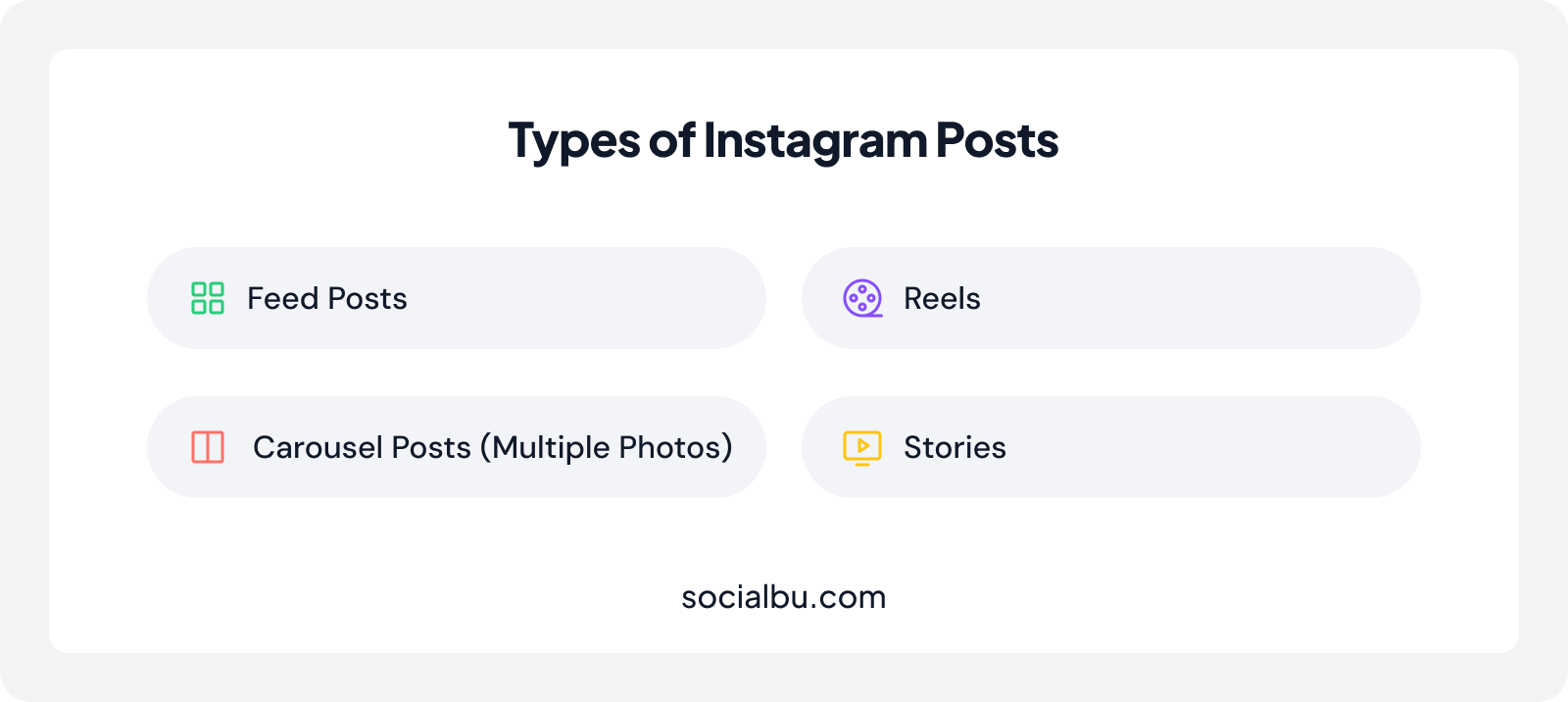
1. Feed Posts
Feed posts stay permanently on your profile and appear in your followers’ feeds. They are best for sharing high-quality images, product photos, or personal updates.
2. Carousel Posts (Multiple Photos)
Carousel posts allow you to upload up to 10 images or videos in a single post. They work well for tutorials, before-and-after results, or multi-slide storytelling. Carousels drive higher saves and shares than single-image posts.
3. Reels
Reels are short videos built for discovery. The Instagram reel script generators make scripting easier. In 2026, the Instagram algorithm prioritizes Reels with high watch time, shares, and saves.
4. Stories
Stories disappear after 24 hours and are perfect for quick updates, polls, behind-the-scenes moments, or keeping your audience active.
Now, let’s move to the most important part – how to post on Instagram step by step.
How to Post on Instagram From Mobile? (Step-by-Step)
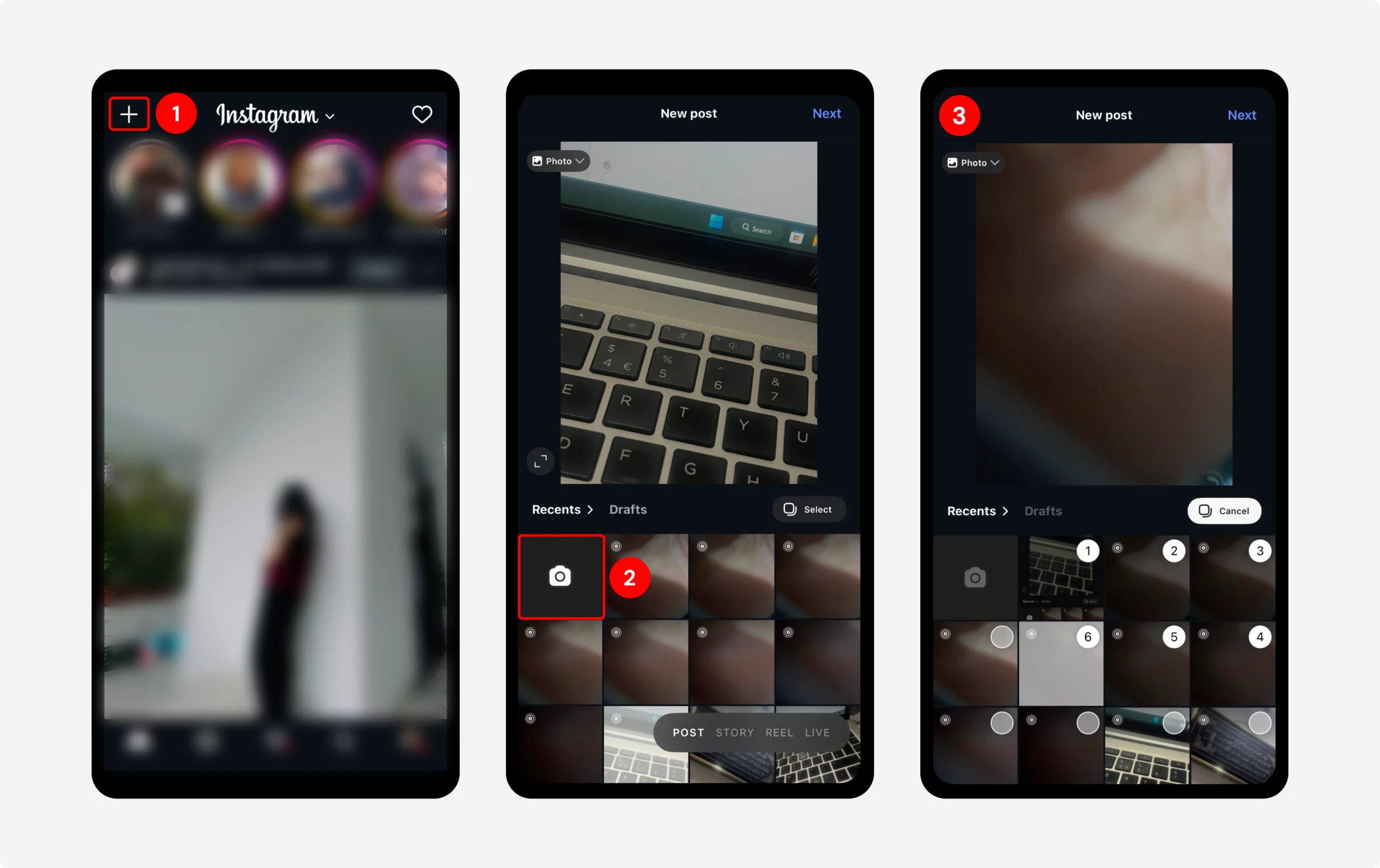
Step 1: Open Instagram App
Open the Instagram app on your phone and log in. Tap the ‘+’ icon at the top left of the screen.
Step 2: Choose Photo or Video
Select media from your gallery or capture a new one. This is how you easily upload photos on Instagram.
Step 3: Select Multiple Photos
Tap ‘Select Multiple’ and choose up to 10 images. Arrange them in order for a carousel post.
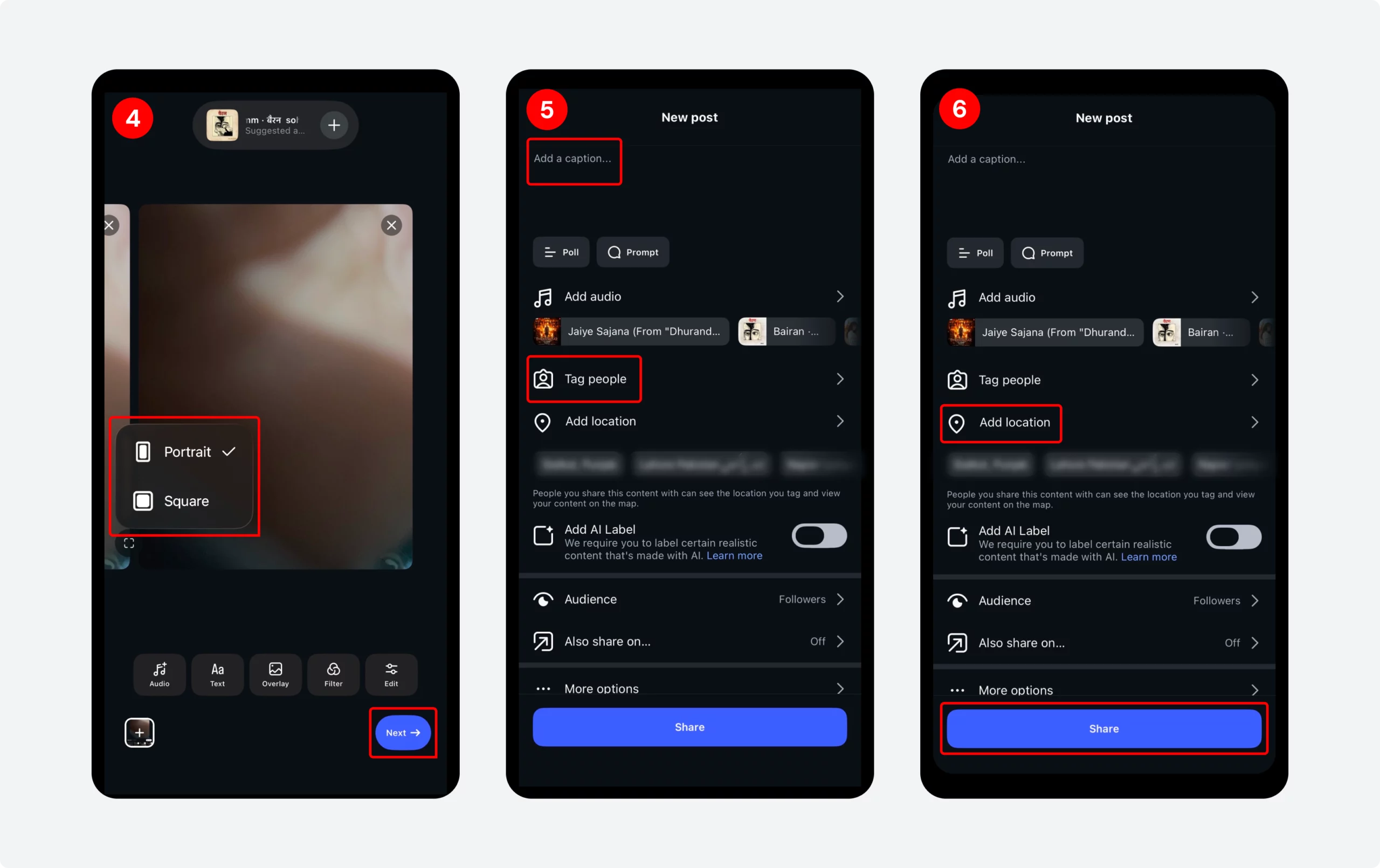
Step 4: Edit Your Image
Adjust size to square or portrait. Adjust brightness, contrast, and colors. Tap on ‘Next’ to make further changes.
Step 5: Write Captions
Start with a strong first line. Keep it short or detailed based on your content. Use Instagram caption generator to write captions in seconds. Add a clear call-to-action like ‘Comment your thoughts’ or ‘Save this post’.
Then tap ‘Tag People’ or ‘Add tag’ to mention them using @username. Add a location to reach nearby audiences.
Step 6: Share Your Post
Tap ‘Share’ to publish your post.
This is the easiest way to upload photos on Instagram from your phone.
How to Post on Instagram from a Computer?
Instagram’s desktop version supports full post creation. Here’s how:
- Go to Instagram on your browser.
- Enter your account details.
- Click the ‘Create’ button.
- Select photos or videos from your computer.
- Adjust format and apply filters.
- Add the caption and hashtags using the Instagram hashtag generator, then publish.
You can post pictures on Instagram using the same steps above
How to Post Reels on Instagram Step by Step?
Reels are the highest reach format on Instagram right now. Here’s how to post one:
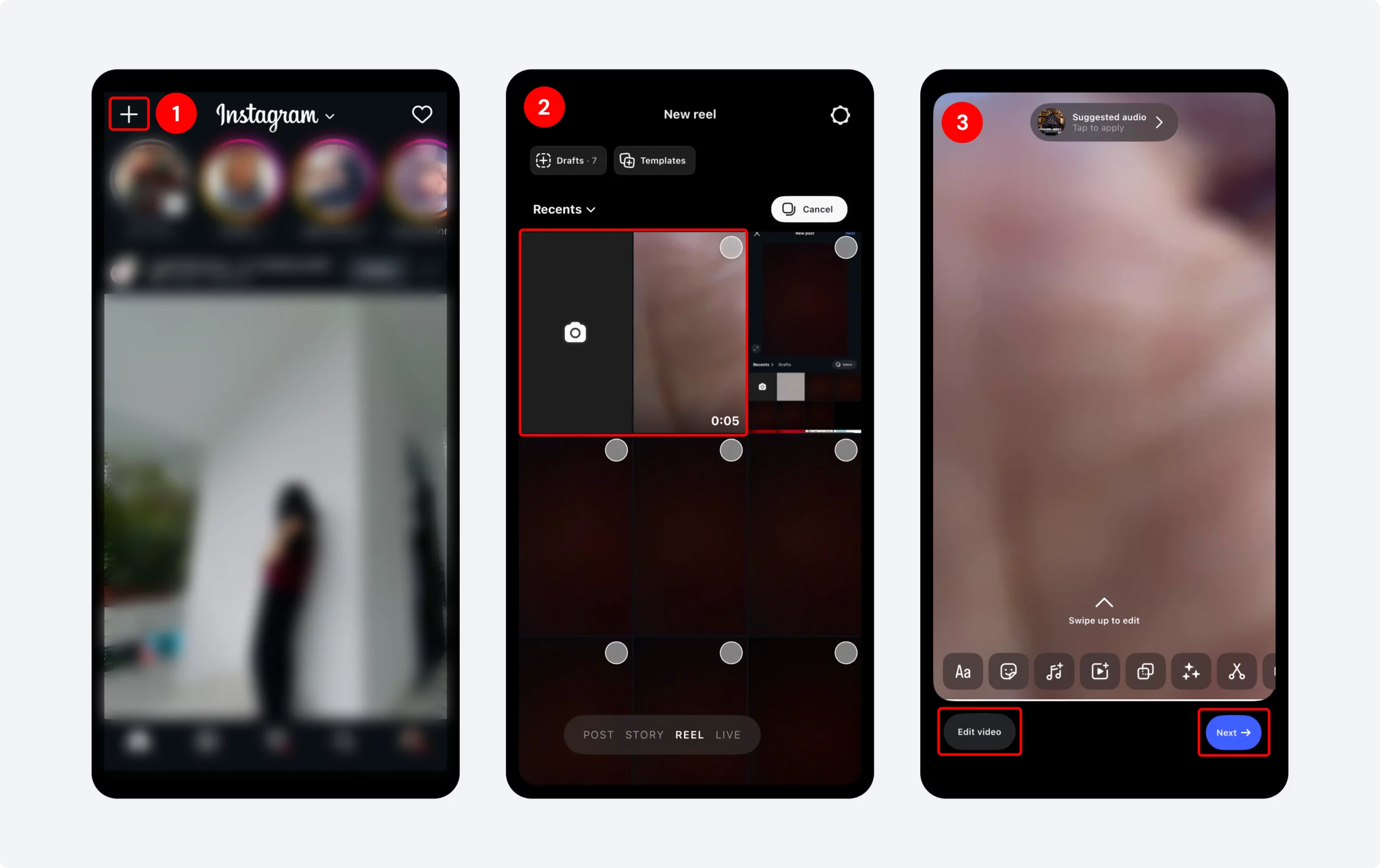
Step 1: Tap the + icon and select Reel to start.
Step 2: Record a new video or upload one from your phone. Then tap ‘Next’ to continue.
Step 3: Tap ‘Edit Video’ to add text, emojis, music, or effects. Trim unwanted sections. Tap ‘Next.’
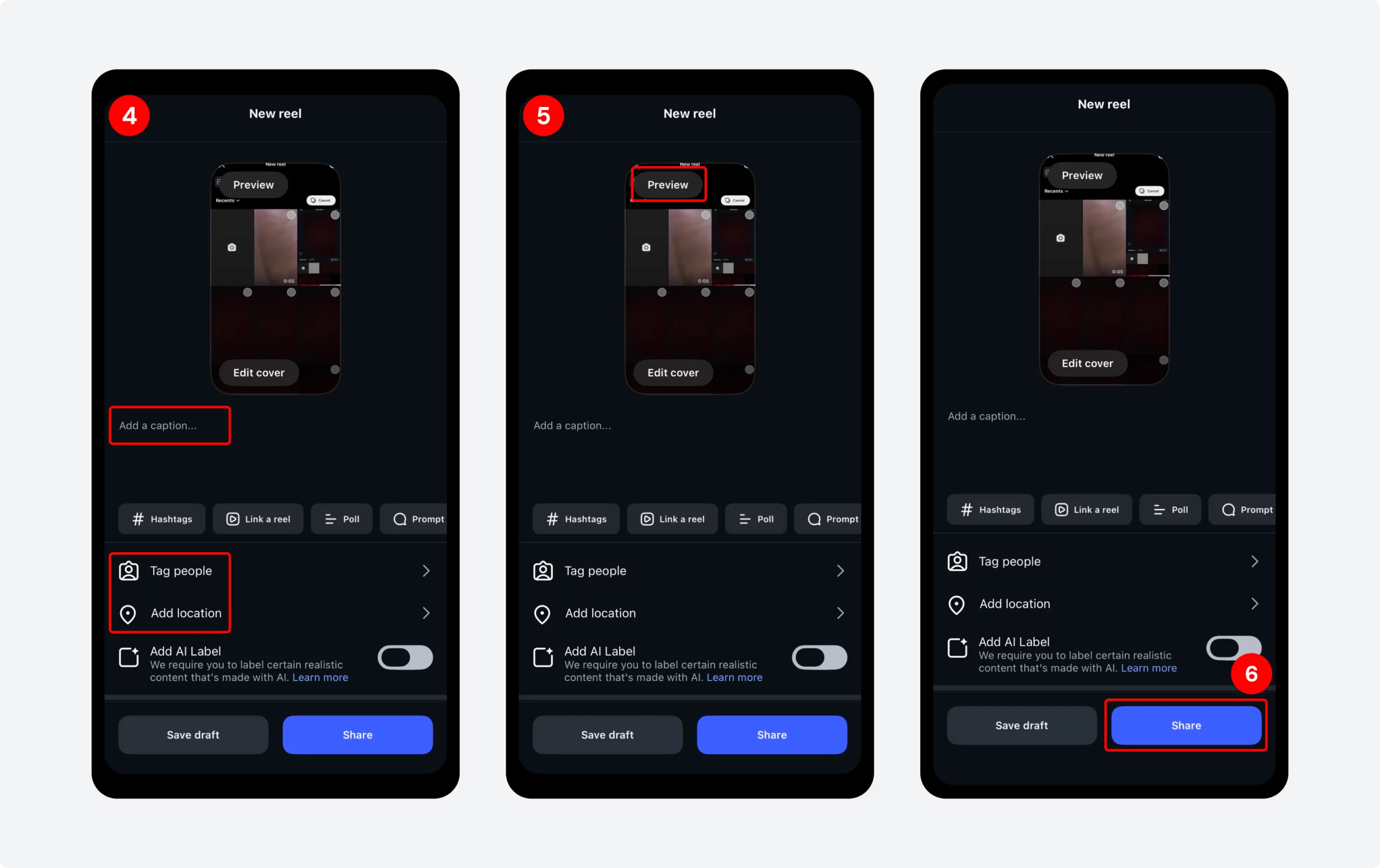
Step 4: Write your caption. Add hashtags, tag people, and include a location to improve discoverability.
Step 5: Tap ‘Preview’ to see how your Reel looks to the audience
Step 6: Tap ‘Share’ to publish it.
Reels are a great way to grow using a smart Instagram growth strategy.
How to Post an Instagram Story?
Posting an Instagram Story is quick and easy. This is how you make a post on Instagram in 2026:
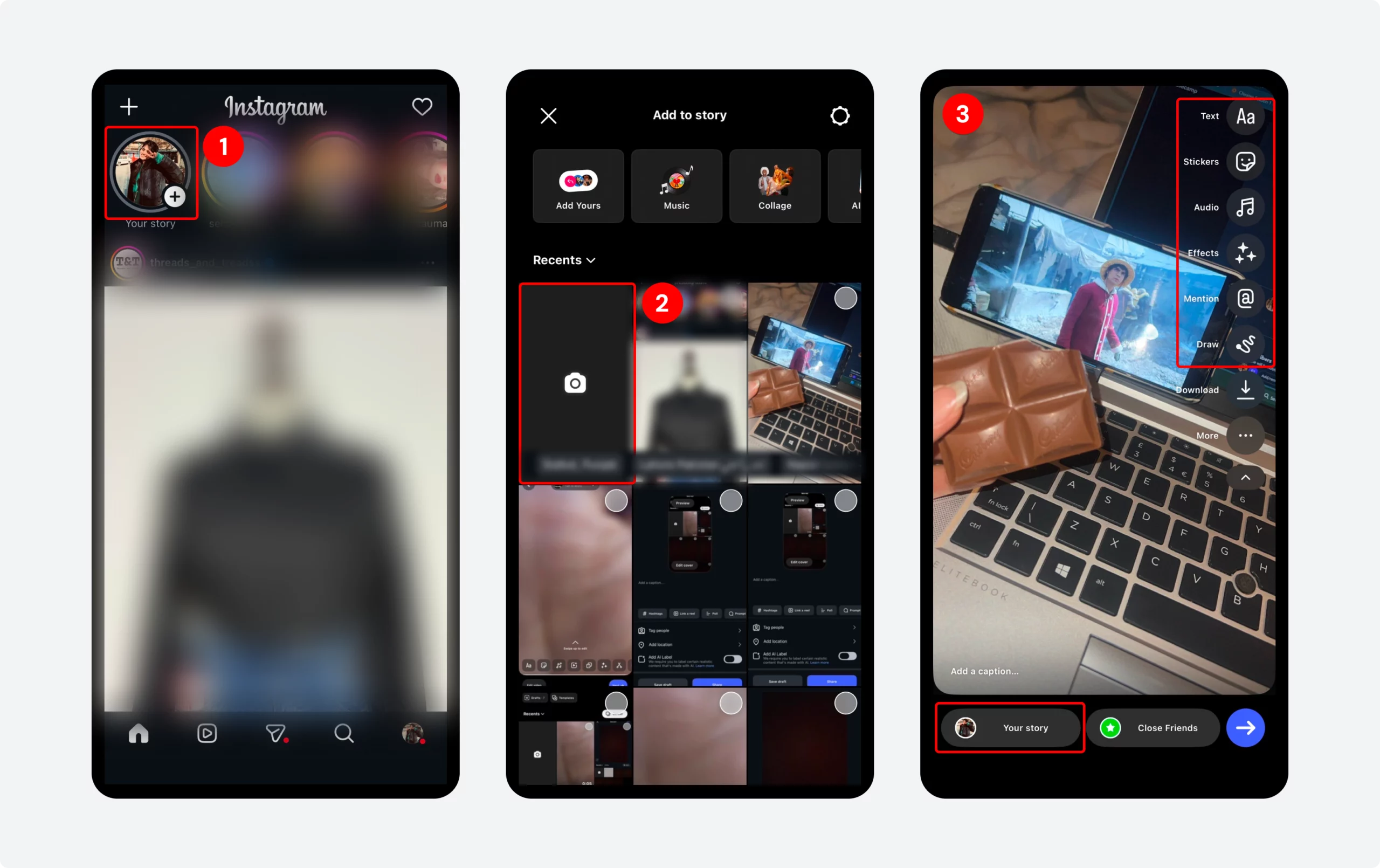
Step 1: Tap on your profile picture to start.
Step 2: Capture a photo/video or upload content from your gallery.
Step 3: Add stickers, GIFs, text, music, or mention people. Tap ‘Your Story’ to share it.
Stories reset every 24 hours. Posting daily keeps your account visible at the top of your followers feeds.
How to Schedule Instagram Posts?
Scheduling lets you plan content in advance and publish automatically. The workflow is simple: create your post, write a caption and hashtags, pick a date and time in your scheduling tool, and it publishes automatically.
Tools like SocialBu connect directly to your Instagram account and let you:
- Schedule feed posts, Reels, and Stories in advance
- Generate captions and hashtags with AI in seconds
- See what’s working and double down on it
- Manage all your platforms from one clean dashboard
This is useful if you are posting 3-5 times per week and can’t be online at optimal times.
How to Post on Instagram Using SocialBu?
Native posting works well if you post once or twice a week. But if you’re managing multiple accounts, posting consistently across time zones, or trying to hit the best time to post on Instagram without being online at 9 AM every day, manual posting breaks down fast.
This is where SocialBu changes the workflow entirely.
What Problems Does SocialBu Actually Solve?
Manual posting sounds simple until you try to stay consistent over time. This is where most people struggle.
The Real Problems
- Posting manually every day becomes inconsistent
- Missing peak posting times reduces reach
- Managing multiple accounts leads to constant login switching and mistakes
- No content planning results in random, unstructured posting
- Checking analytics manually wastes time and breaks your workflow
These issues don’t show immediately, but over time, they reduce your growth, consistency, and overall performance.
How SocialBu Fixes This?
Now flip the situation:
- SocialBu schedules your posts automatically, so you stay consistent without daily effort
- Your posts go live at optimal times, improving reach and engagement
- All your accounts are managed in one dashboard, so there’s no switching between profiles
- A built-in content calendar gives you a clear, structured posting plan
- Analytics are available in one place, helping you make faster, data-driven decisions
This is the difference between posting randomly and running Instagram like a system.
What SocialBu Lets You Do That Instagram Can’t?
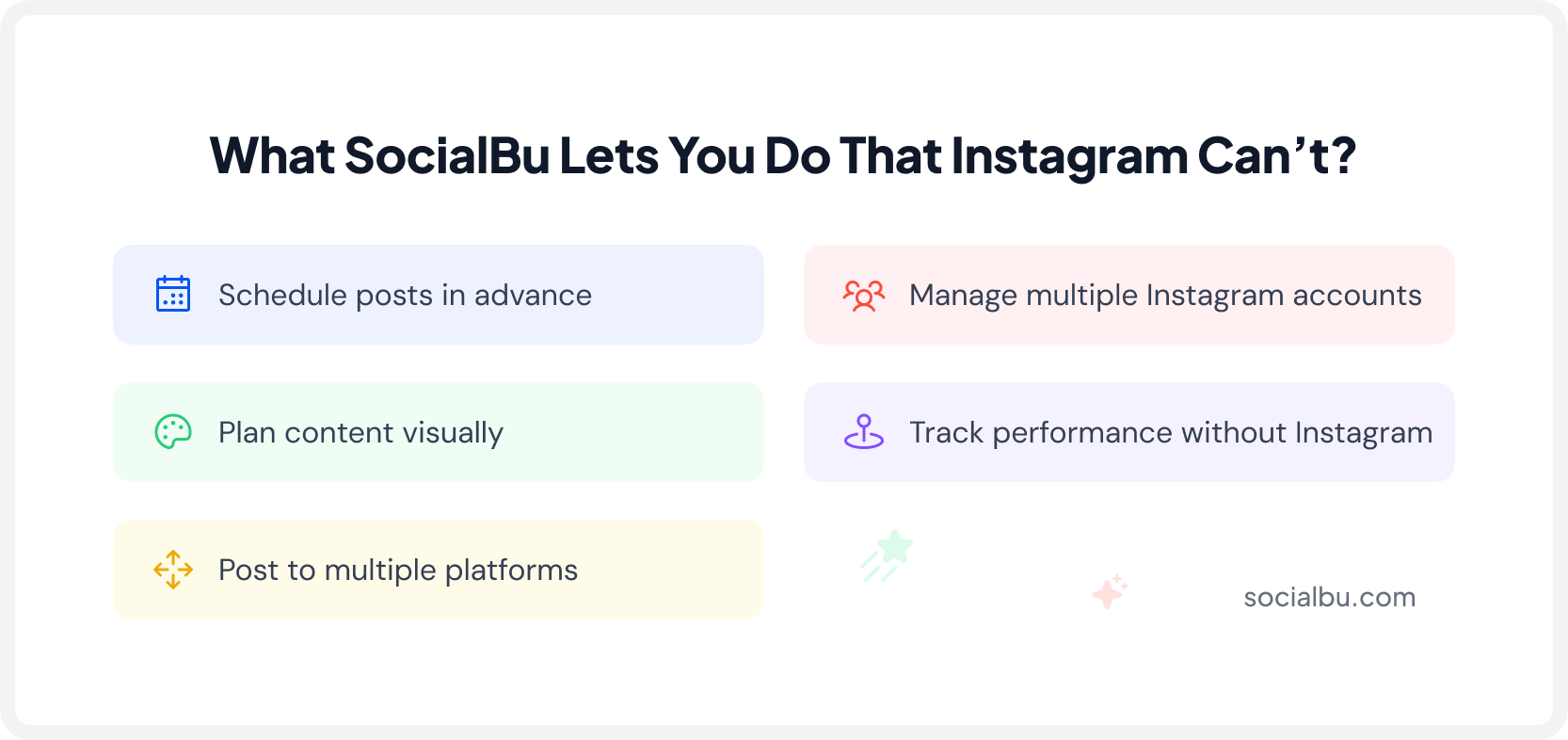
- Schedule posts in advance. Create your post in SocialBu, set a date and time, and it publishes automatically. You don’t need to be on your phone. You can plan a full week of content in one sitting.
- Manage multiple Instagram accounts from one dashboard. If you handle more than one account, your own plus a client’s, or multiple brand pages. Switching between Instagram logins is slow and error-prone. SocialBu puts every account in one place.
- Plan content visually with a calendar view. SocialBu’s content calendar shows you exactly what’s going out and when. You can spot gaps, move posts around, and maintain a consistent schedule without keeping a separate spreadsheet.
- Post to multiple platforms at once. If you’re also posting to Facebook, LinkedIn, or Twitter alongside Instagram. SocialBu lets you publish everywhere from a single post creation screen.
- Track performance without opening Instagram. SocialBu pulls your engagement data, likes, comments, reach, and saves into one dashboard. So you can see what’s working without bouncing between apps.
How to Schedule an Instagram Post Using SocialBu?
Scheduling Instagram posts helps you stay consistent, save time, and plan your content in advance. With SocialBu, you can easily create, organize, and publish posts automatically at the best time for your audience. This guide will show you a simple way to schedule Instagram posts using SocialBu step by step.
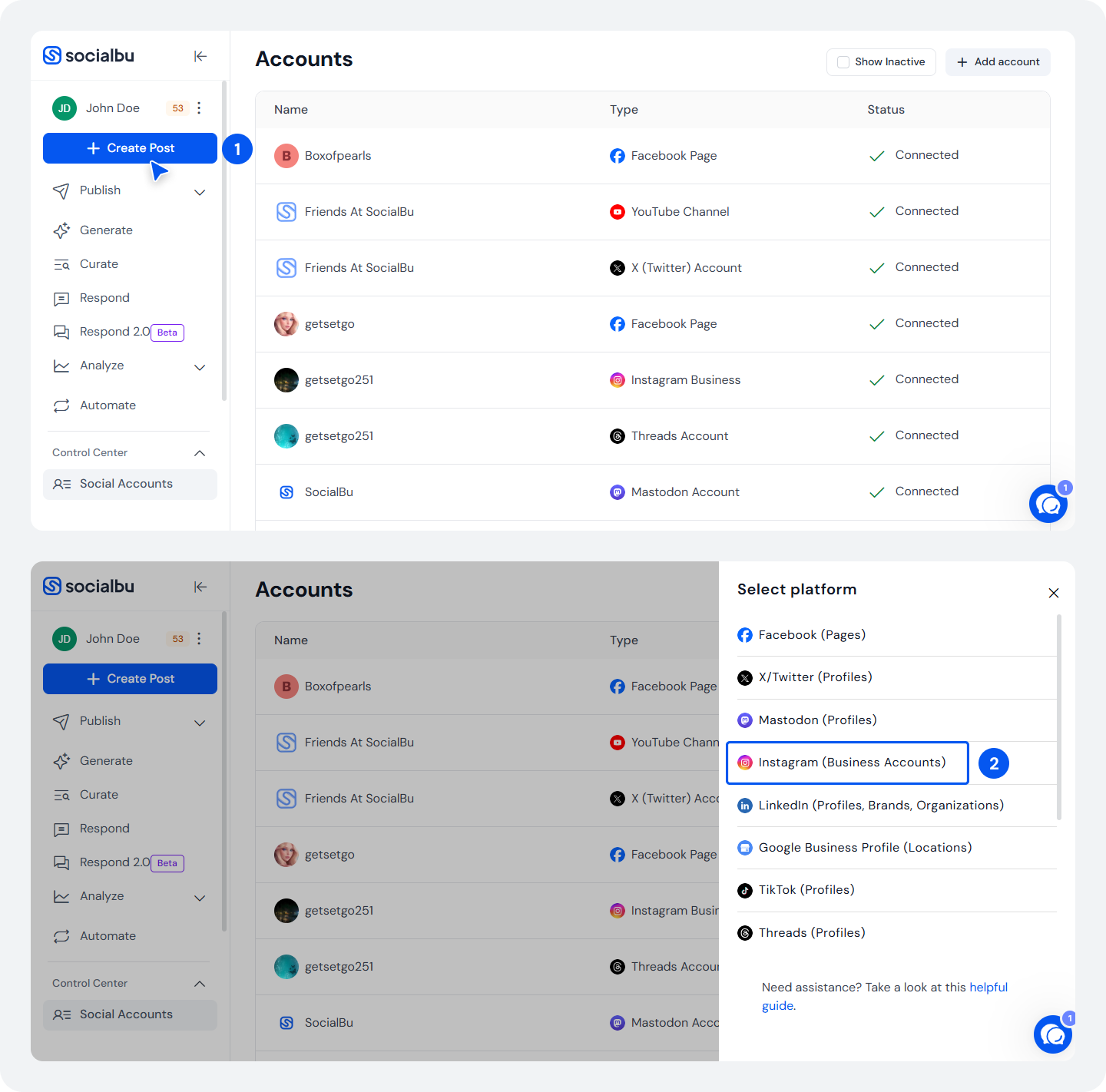
Step 1: Log in to your SocialBu account and connect your Instagram profile. Click ‘Create Post’
Step 2: Select Instagram as the platform from the list
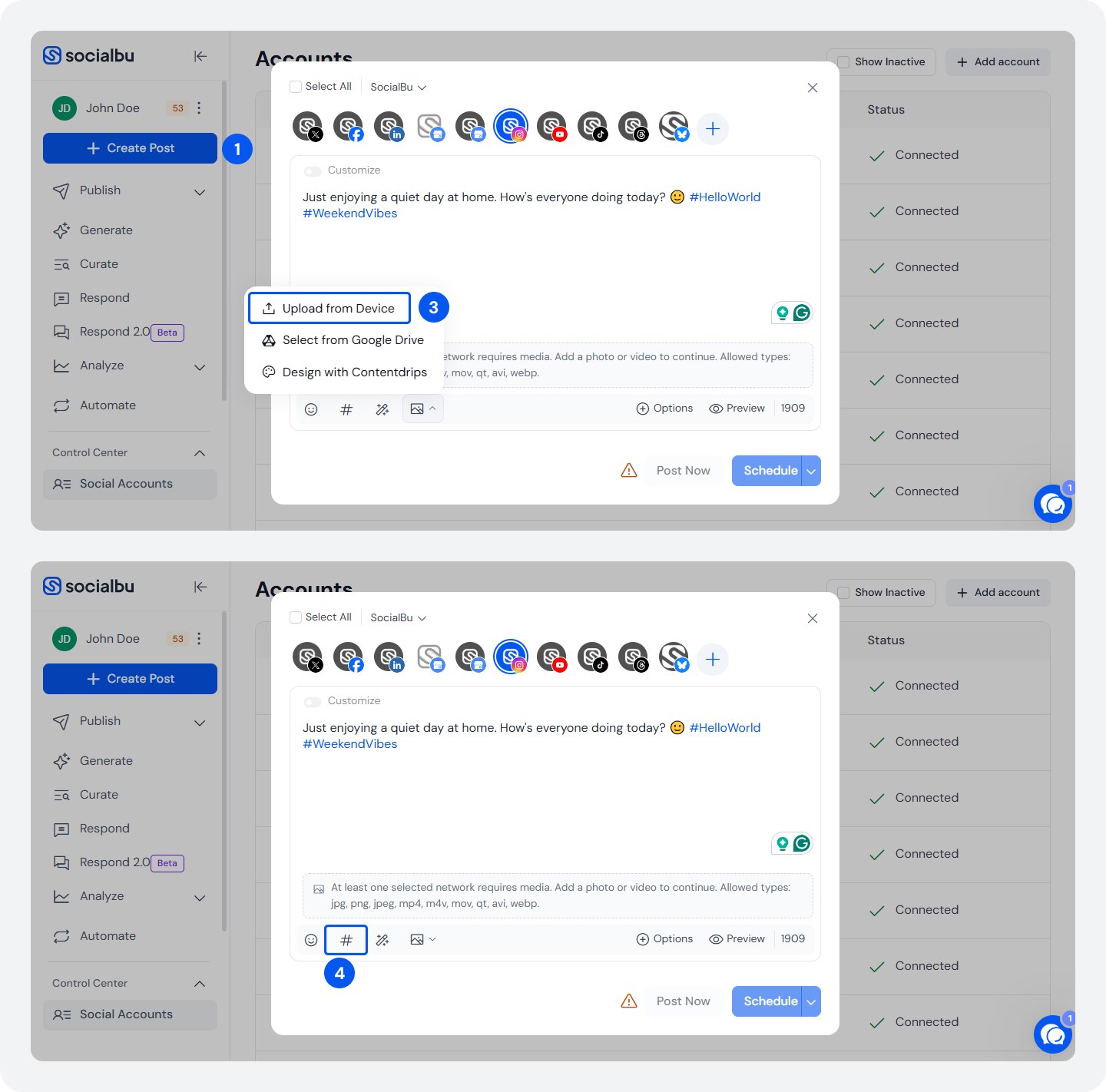
Step 3: Upload your image or video.
Step 4: Write your caption and add hashtags.
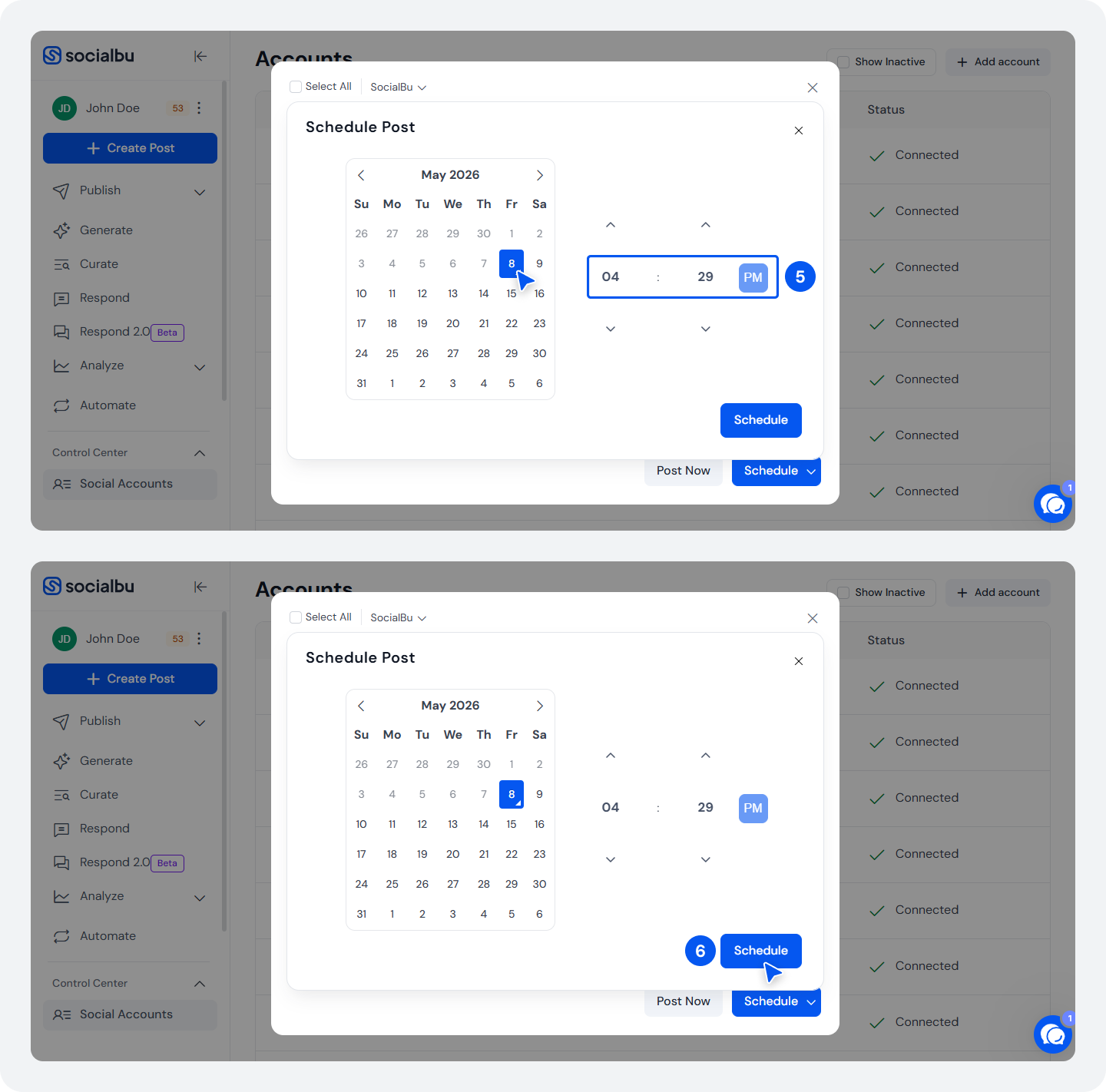
Step 5: Choose your date and time, or let SocialBu suggest the best time based on your audience activity.
Step 6: Click ‘Schedule.’ Done.
Your post goes live automatically at the time you set. No reminders, no manual publishing.
A Quick Comparison Between Native Instagram and SocialBu
Native Instagram App | SocialBu | |
Schedule posts in advance | ╳ | ✓ |
Manage multiple accounts | Limited | Unlimited |
Content calendar view | ╳ | ✓ |
Post to multiple platforms at once | ╳ | ✓ |
Analytics dashboard | Basic | Detailed |
Best time suggestions | ╳ | ✓ |
Publish without being online | ╳ | ✓ |
- Native Instagram works well when you post occasionally.
- And SocialBu works best when consistency, timing, and growth matter.
The difference is not in the features. It’s control over your workflow.
Who Needs SocialBu?
Anyone posting more than 3 times a week, managing more than one account, or trying to stay consistent without spending hours on their phone. If you post casually once a week, the native app is fine.
If Instagram is part of how you grow a brand or business, manual posting is costing you time.
In a nutshell:
- If posting is random, use Instagram
- If posting is part of growth, use SocialBu
And if posting is part of your growth, switching to a scheduling tool is not optional. It’s how you can stay consistent without wasting time.
Plan a Week of Instagram Posts in Minutes
SocialBu lets you schedule feed posts, Reels, and Stories in advance, generate captions with AI, and track what’s working, all from one dashboard.
What are the Tips and Strategies to Improve Engagement on Instagram?
Instagram engagement is not a single thing. It depends on how your content looks, when you post, what format you use, and how you interact with your audience.
Treat this as one system.
What Are the Best Instagram Image Sizes and Dimensions 2026?
Format | Recommended Size | Aspect Ratio |
Square | 1080 * 1080 px | 1:1 |
Potrait | 1080 * 1350 px | 4:5 |
Landscape | 1080 * 566 px | 1.91:1 |
Stories/ Reels | 1080 * 1920 px | 9:16 |
Quick Tips For Sharp Images
- Always export at 1080px width
- Use JPEG for photos, PNG for graphics or text overlays
- Keep file sizes reasonable
What is the Best Time to Post On Instagram in 2026?
Best times to post on Instagram are:
- Morning: 9 AM – 11 AM
- Evening: 6 PM – 9 PM
What are the Best Days to Post on Instagram?
Tuesday, Wednesday, and Thursday
These are starting points, not rules. The only way to find your best time is to check Instagram insights after 2-4 weeks.
Real Examples: How to Post on Instagram?
These examples make everything clearer. Here’s how different types of users actually post.
How to Post on Instagram as a Creator? (Fitness Niche)
Use short Reels with a strong hook and a ‘Save’ CTA to increase reach.
- Goal: Reach new people
- Format: Reel
- Hook: ‘No gym? Try this at home.’
- Caption: Short and clear
- CTA: Save this for later
Why Does This Work?
Reels with high watch time and saves are pushed to a wider audience.
How to Post on Instagram as a Small Business? (Clothing Brand)
Use carousel posts with multiple slides and a question-based caption to increase comments and engagement.
- Format: Carousel
- Slides: New collection. Product close-up. Price + offer
- Caption: ‘New summer drop is here. Which one is your favorite?’
Why Does it Work?
Carousels keep users engaged longer, and questions encourage comments.
How to Post on Instagram as a Local Business? (Cafe)
Post stories daily with interactive elements to stay visible and build consistent engagement.
- Format: Stories
- Behind-the-scenes clips
- Customer Reactions
- Poll: ‘Coffee or Tea’
Why Does it Work?
Stories keep your account at the top of followers feeds and increase interaction through quick actions.
How to Share a Post on Instagram?
To share a post on Instagram, tap the paper airplane icon below a post, choose a friend or “Add to Story,” and share it instantly.
Here’s how each method works:
How to Share a Post Via DM (Direct Message)?
Send any post privately to friends using the DM. Here are the steps:
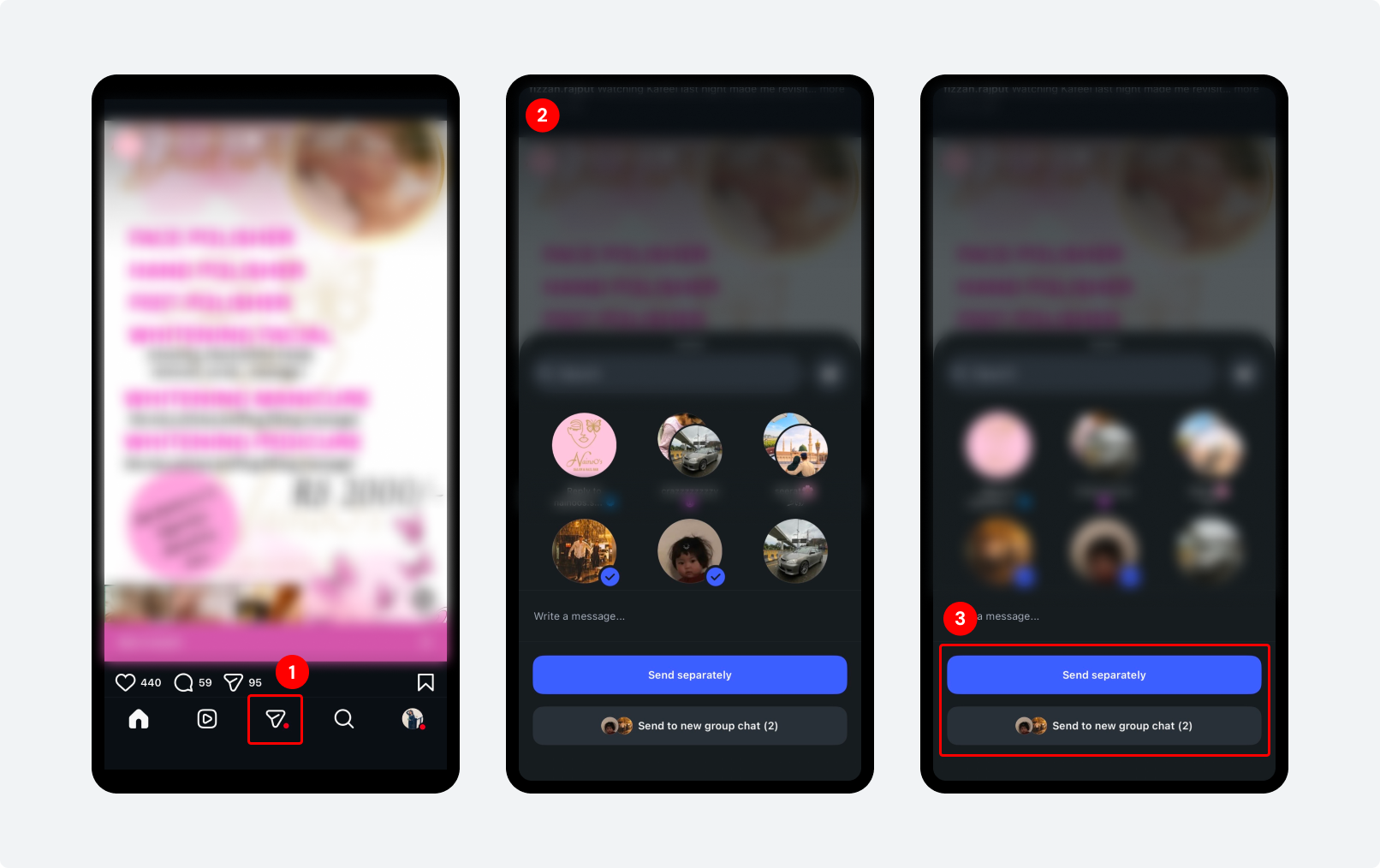
Step 1: Open the Instagram App and find the post you want to share. Tap the paper airplane icon below the post.
Step 2: Select a friend or multiple friends
Step 3: Choose if you want to ‘send separately’ or in a ‘group’.
The post is shared privately in chat, and the other person can view it instantly.
How to Share a Post to Your Story?
Repost any public post to your Story to show it to all your followers.
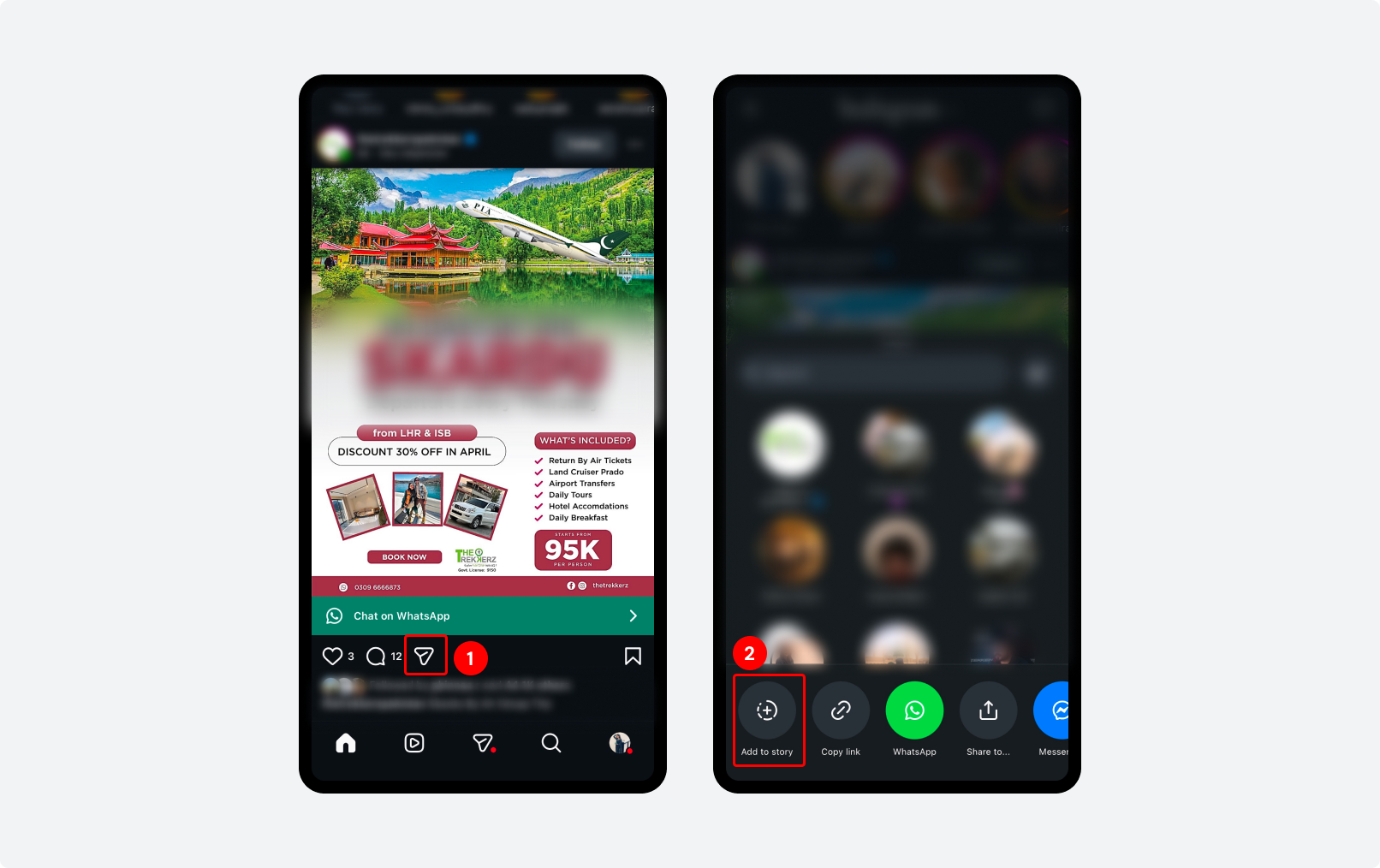
Step 1: Open Instagram. Tap the paper airplane icon below the post.
Step 2: Select ‘Add to your Story’
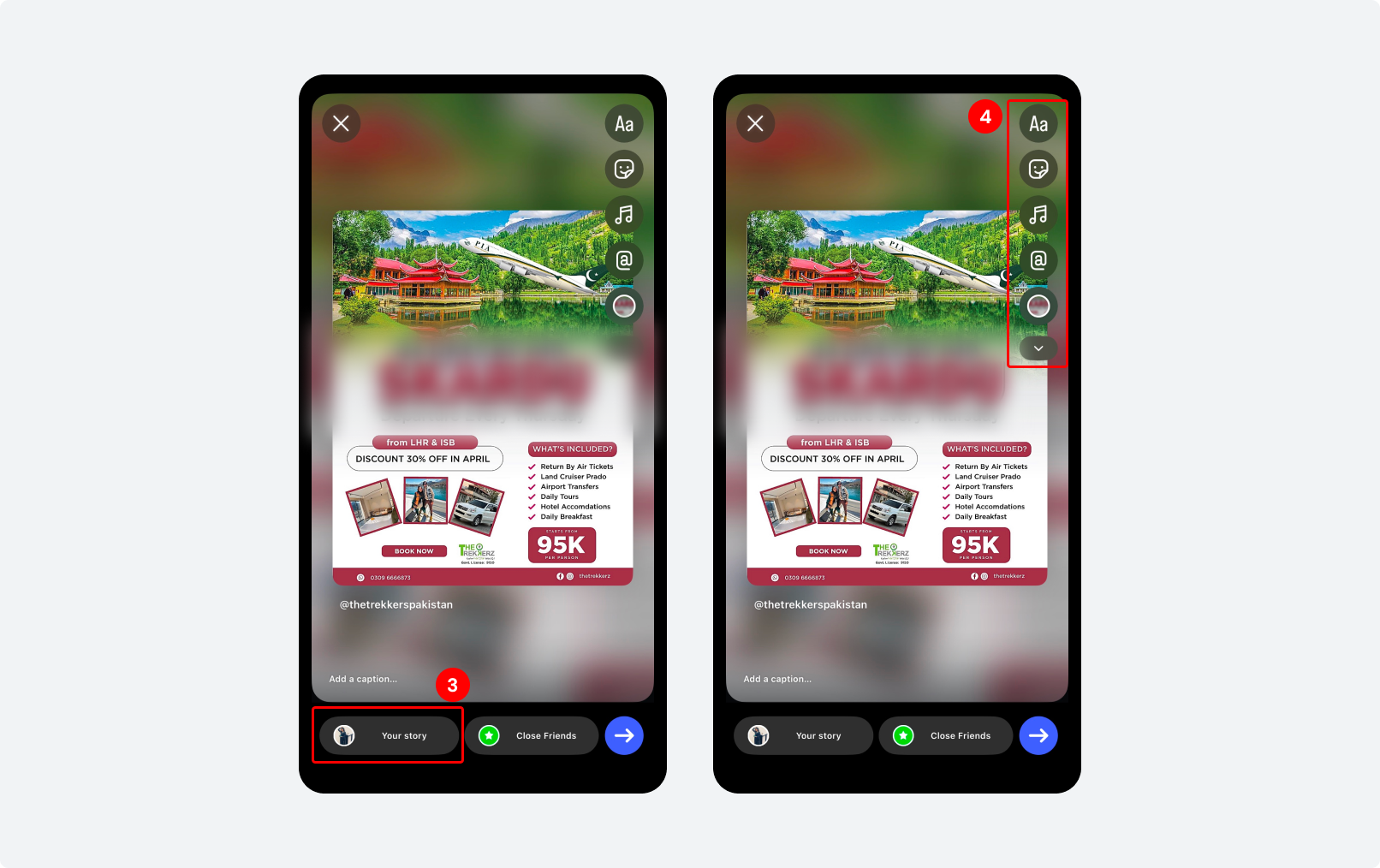
Step 3: Customize it by adding stickers, emojis, GIFs, and text. Resize the image or Text.
Step 4: Tap ‘Your Story’ to publish.
You can only share posts from public accounts. Private account posts can not be reshared to stories.
What are the Best Practices for Posting on Instagram?
- Post Consistently. Three to five times per week is a strong baseline.
- Prioritize content Quality. Good lighting and sharp images outperform graphics every time. Follow the image dimensions.
- Mix your Formats. Don’t post only photos. Rotate between feed posts, reels, carousels, and stories.
- Write captions that earn engagement. Ask questions. Use a clear call-to-action. The caption is where you turn a view into a comment.
- Use hashtags strategically. Five to fifteen relevant hashtags are the sweet spot in 2026. Hashtags still help discoverability.
- Reply to comments. Engagement is a two-way signal. Replying to Instagram comments, it counts as an additional activity on your post.
- Track performance. Use Instagram insights to see which posts drive the most shares, saves, and follows.
What are the Common Instagram Posting Mistakes to Avoid?
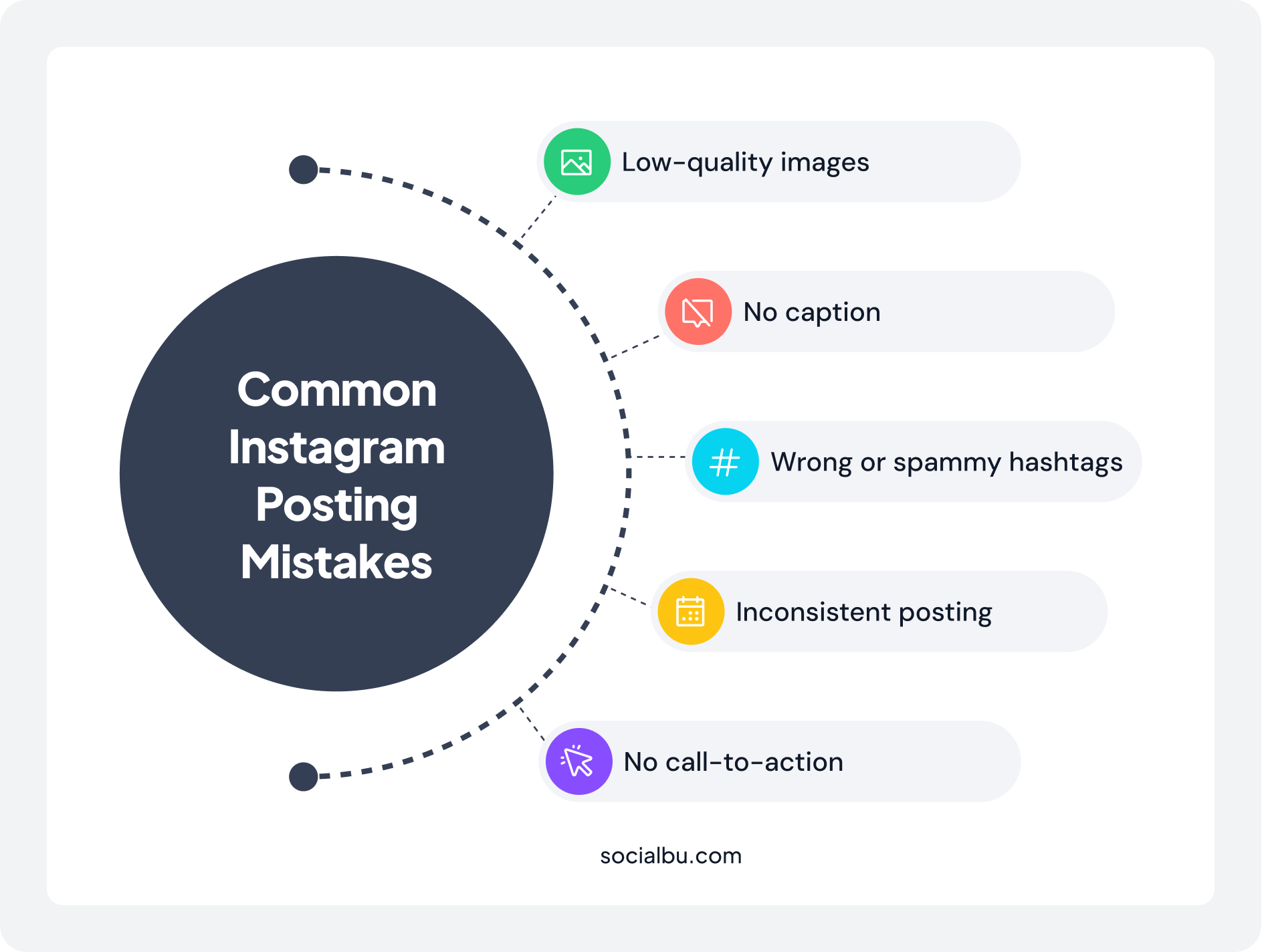
- Low-quality images. Blurry or poorly photographed images immediately reduce credibility. Use natural light when possible.
- No caption. A blank caption is a missed opportunity. Even one strong line beats nothing.
- Wrong or spammy hashtags. Irrelevant hashtags don’t help. Use hashtags that your actual target audience follows.
- Inconsistent posting. Posting five times a week, then going silent for two weeks, hurts your reach.
- No call-to-action. If you don’t ask people to comment, save, or share, most won’t.
Pre-Post Checklist
Before hitting Share, run through this quickly:
- Caption written clearly with a strong opening line
- Call-to-action included
- Hashtag added (5-15 relevant ones)
- People tagged where relevant
- Location added
- Image exported at correct dimensions
Wrap Up
You now know how to post on Instagram. From choosing the right format to nailing the caption and timing.
The next step is consistency. Posting manually every day at optimal times is hard to maintain. That’s where scheduling tools earn their place. SocialBu lets you plan, queue, and auto-publish your Instagram posts so you stay consistent without being online all the time.
Pick your next three posts, schedule them for this week, and see what your analytics look like after seven days. That’s where the real learning starts.
FAQs
Q. How do you post on Instagram step by step?
A. To post on Instagram, tap the ‘+’ icon, select a photo or video, edit it, write a caption, add hashtags, and tap ‘Share.’
Q. How do I post on Instagram for the first time?
A. Create an account, tap the ‘+’ icon, upload a photo or video, write a caption, and tap ‘Share’ to publish your first post.
Q. Can I post on Instagram from my computer?
A. Yes, Instagram allows you to upload posts directly from its desktop website using the ‘Create’ button.
Q. How do I upload multiple photos on Instagram?
A. Tap ‘Select Multiple’ when creating a post, then choose up to 10 photos or videos to create a carousel.
Q. How do you post a Reel on Instagram?
A. Tap the ‘+’ icon, select ‘Reel,’ record or upload a video, edit it, add a caption, and tap ‘Share Reel.’
Q. How do you post an Instagram Story?
A. Tap your profile picture, capture or upload content, add text or stickers, and tap ‘Your Story’ to post.
Q. What is the best time to post on Instagram?
A. The best time to post is typically between 9–11 AM and 6–9 PM, but you should test and track your audience activity for accuracy.
Q. How many hashtags should I use on Instagram?
A. Use 5-15 relevant hashtags to improve reach without appearing spammy.
Q. Do hashtags still work on Instagram in 2026?
A. Yes, hashtags still help improve discoverability when they are relevant to your content and audience.
Q. How do I write a good Instagram caption?
A. Start with a strong hook, keep the message clear, and include a call-to-action like ‘Comment’ or ‘Save this.’
Q. How do I tag someone in an Instagram post?
A. Tap ‘Tag People’ before posting or mention them in the caption using @username.
Q. How do I add a location to an Instagram post?
A. Tap ‘Add Location’ before sharing your post to include a place tag.
Q. What size should Instagram posts be?
A. Use 1080 pixels width with recommended aspect ratios like 1:1 (square) or 4:5 (portrait) for best quality.
Q. How often should I post on Instagram?
A. Posting 3–5 times per week is a good starting point for consistent growth.
Q. Can I schedule Instagram posts in advance?
A. Yes, you can schedule posts using social media management tools that publish automatically.
Q. Why is my Instagram post not getting engagement?
A. Low engagement is usually caused by poor timing, weak captions, low-quality visuals, or a lack of interaction with your audience.