You’re in the middle of a Claude conversation, planning next week’s content. You have a good idea. Then you stop, open a new tab, log into SocialBu, navigate to the right page, do what you need to do, and by the time you are back, you’ve lost your train of thought.
It’s not a big deal on its own. But it happens constantly. And every switch costs you more than just time.
Now there’s a better way.
The Problem with Switching Between Tools
Most social media managers already use AI to help with content. They write captions, plan strategies, and brainstorm content ideas with AI in Claude. But the moment they need to actually do something, i.e., schedule a post, check what’s performing, toggle an automation, they have to leave.
That gap between thinking and doing is where the flow breaks down. You end up doing two jobs in two places, and neither feels seamless.
SocialBu now connects to Claude via MCP
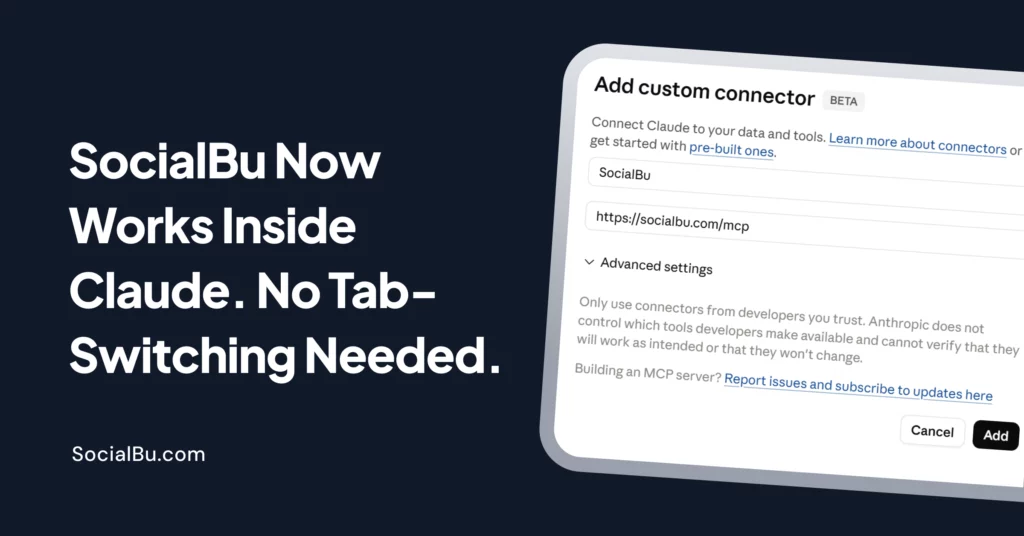
We’ve added SocialBu as an MCP server. In simple terms: Claude can now talk directly to your SocialBu account.
Once you connect it, you can ask Claude things like:
- Schedule this post for Tuesday at 9 am.
- Show me my top-performing posts this month.
- Turn off the automation for this account.
- Claude handles it without you having to open a single extra tab.
How to Set It Up?
It only takes a minute to connect. If you’re new to SocialBu altogether, our step-by-step SocialBu tutorial is a good place to start before connecting Claude.
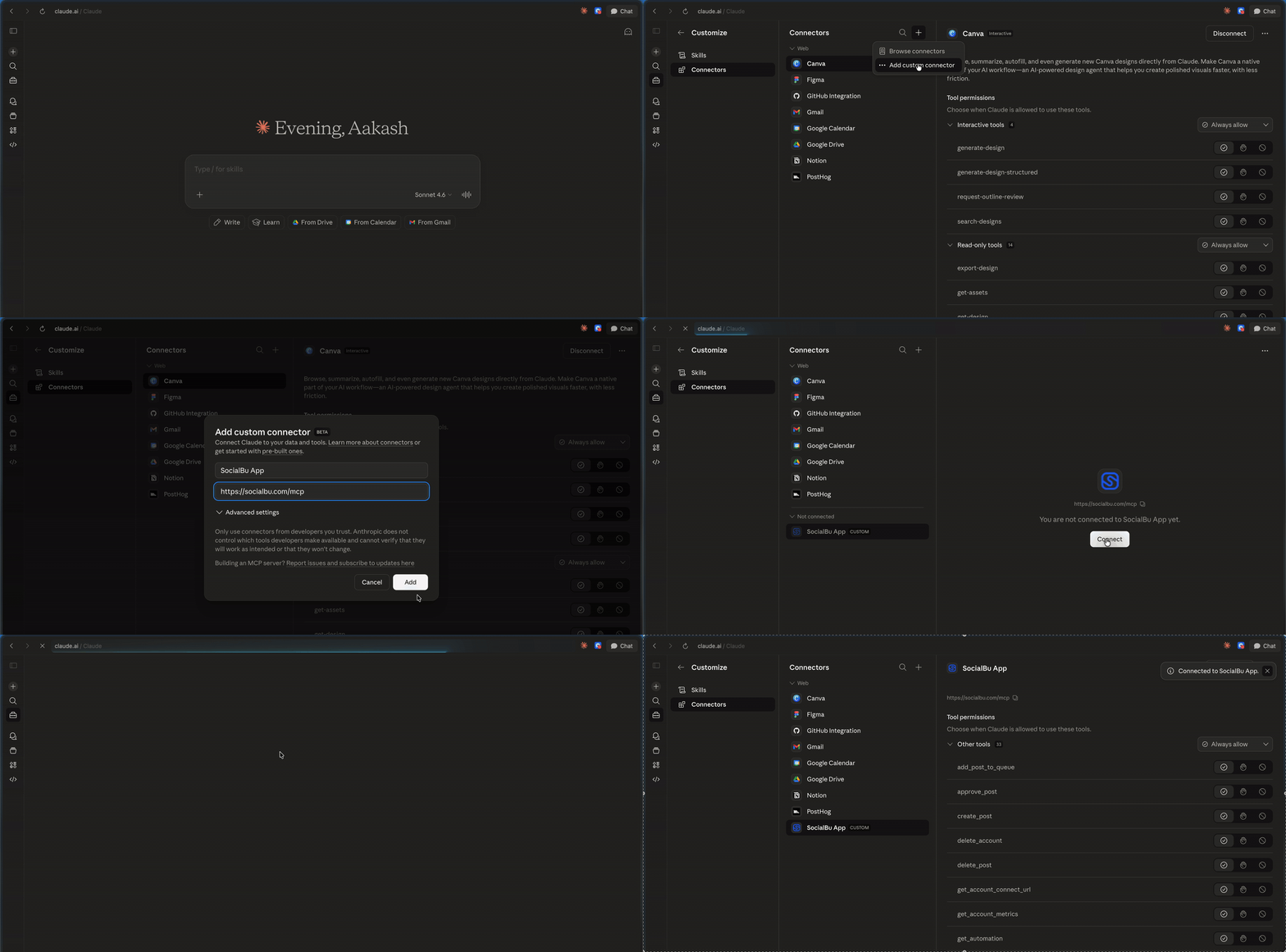
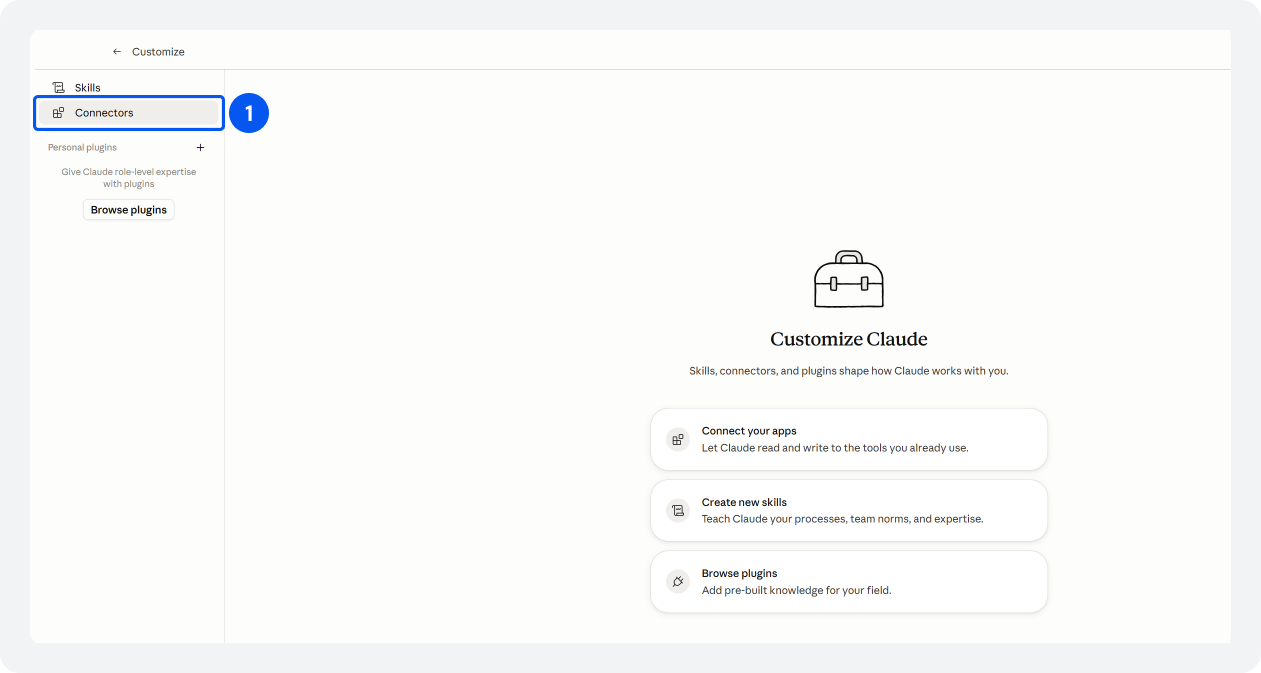
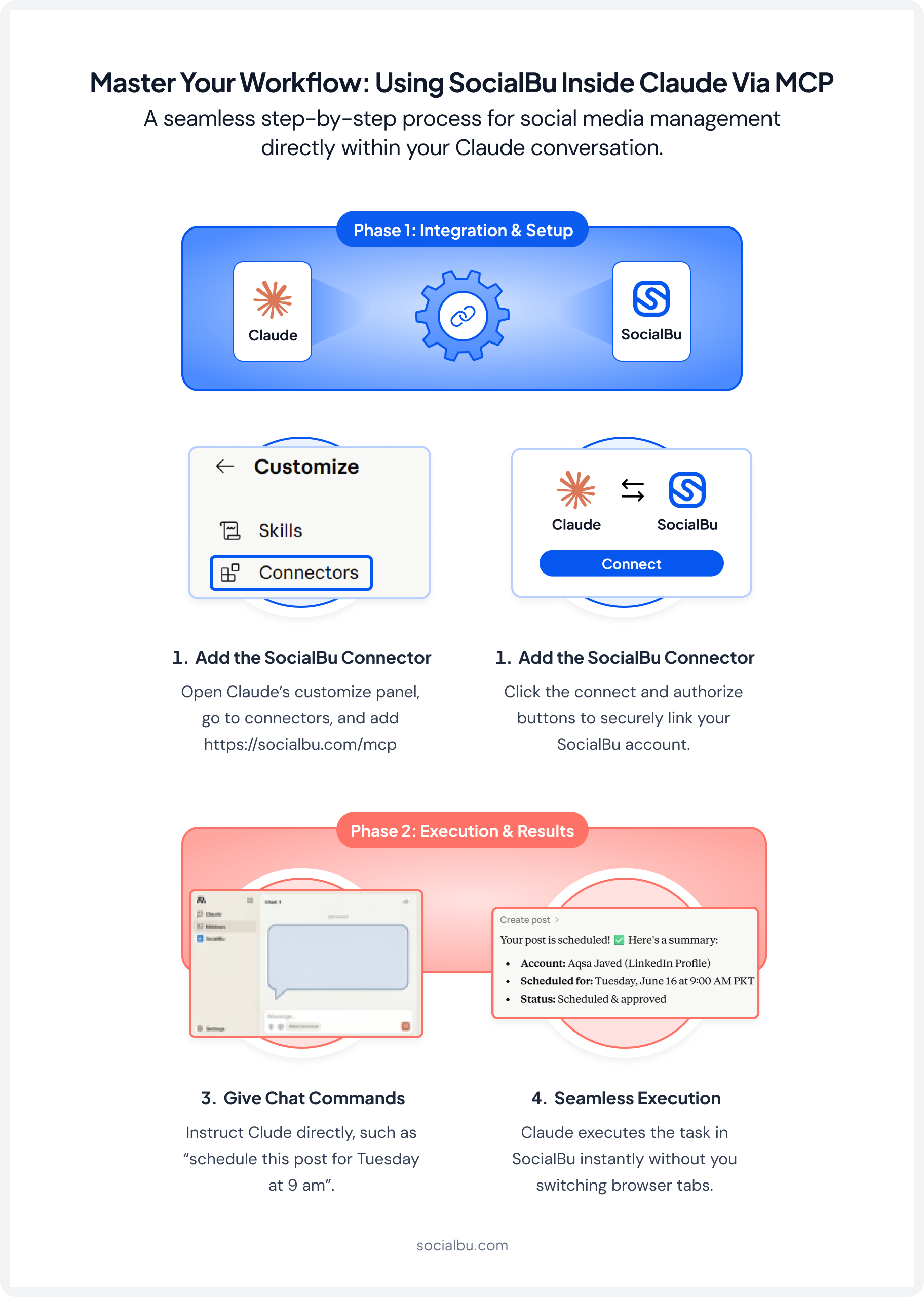
Open the Customize panel in Claude and go to the Connectors tab.
Click the + button to add a customer connector.
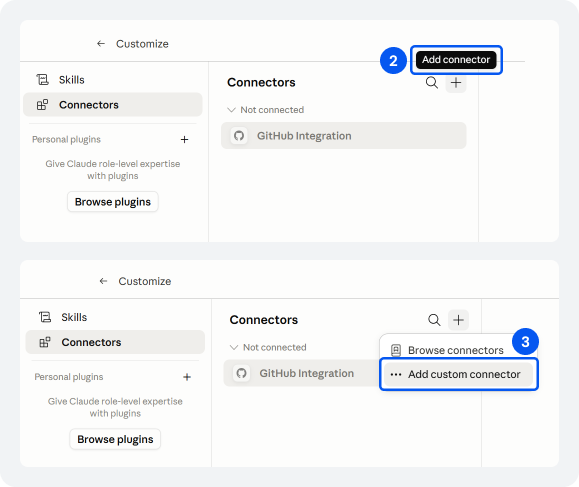
Enter a name and add https://socialbu.com/mcp as the MCP server URL, then click Add.
Once SocialBu appears as a connector, click Connect and Authorize.
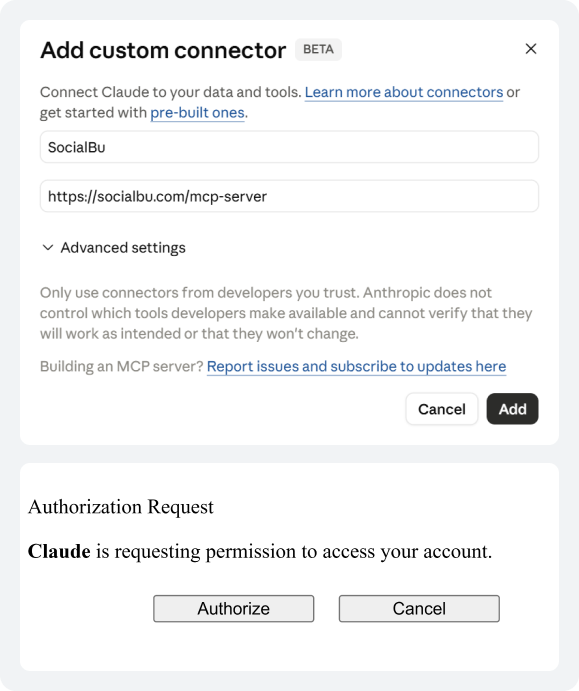
That’s it. Once connected, Claude can access your SocialBu account and act on it directly from the conversion.
What You Can Do With It?
Here are some of the things you can handle without leaving Claude:
1. Schedule and Draft Posts
Tell Claude what you want to post and when. It will schedule it directly in SocialBu, or save it as a draft if you’re not ready to commit. This works the same way as SocialBu’s content calendar, just without needing to open the dashboard yourself.
2. Check Your Stats
Ask for a quick performance summary, see which posts are doing well, or pull up the stats for a specific account. No need to open the analytics dashboard. Claude pulls the same data our social media analytics guide walks through, just delivered conversationally.
3. Manage Automations
Toggle automations on or off, check what’s running currently, or ask Claude to pause something; all from the same conversation.
Who This Is For?
This is useful for anyone who already uses Claude as part of their content workflow. If any of these sound like you, it’s worth trying:
- You plan and write social media content using Claude.
- You manage multiple accounts and spend a lot of time switching between tools.
- You want to go from idea to scheduled post without breaking your flow.
- You’re already using AI for strategy and just want execution to feel just as easy.
Why This Matters
The best workflow is one where you don’t have to think about the tools. You focus on the work, and everything else just falls into place.
Connecting SocialBu to Claude is a step in that direction. You’re not just using AI to write; you’re using it to manage, schedule, and track, all in one place.
And we’re just getting started. As MCP support grows, more of what you do in SocialBu will be available right inside your AI conversations.
Try It Now!
If you use Claude, you can set this up in under a minute. Head to the Connectors tab, add https://socialbu.com/mcp, and connect your account.
Your next scheduled post is one conversation away.