You can add a thumbnail to scheduled Instagram Reels by uploading a custom cover image inside your scheduling tool or directly in the Instagram app before posting. This ensures your Instagram Reels thumbnail looks clean and professional across your profile.
Here’s a step-by-step guide on how to add a cover photo to Instagram Reels.
Why Your Instagram Reels Thumbnail Actually Matters?
Before we get into the how, let’s talk about the why.
Instagram Reels cover photo matters because they shape the first impression of your profile. It tells viewers what to expect before they tap.
As discussed in Reddit creator communities, thumbnails aren’t just design details. They act as preview cards for your content and affect how your entire grid looks at first glance.
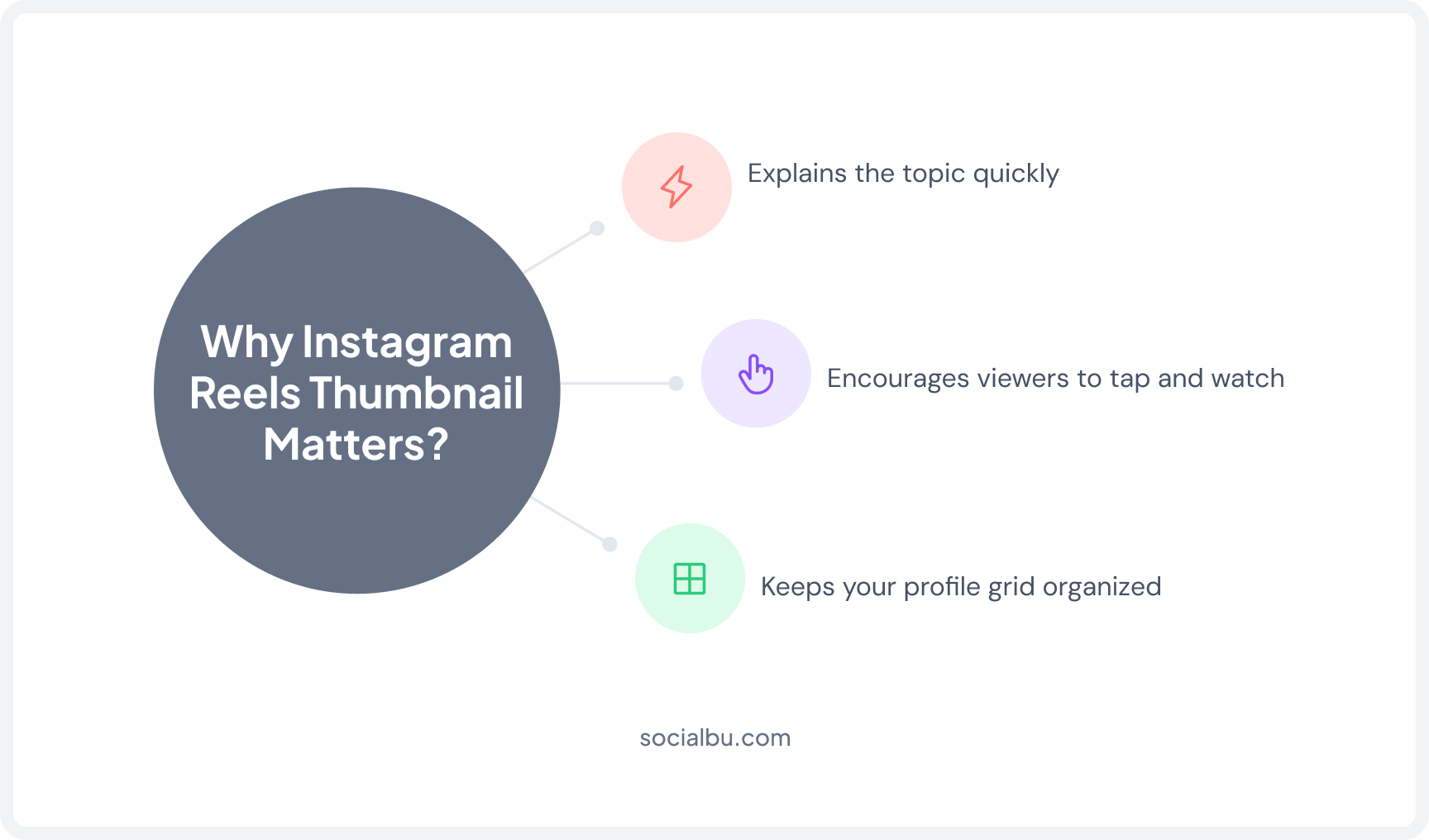
A strong thumbnail does three things at once:
- It tells viewers what the Reel is about
- Keeps your grid looking clean
- Gives your content a better shot at getting clicked.
How to Add a Thumbnail to Scheduled Instagram Reels?
The process of adding a thumbnail to Instagram Reels depends on whether you’re scheduling directly through Instagram or using a scheduling platform.
How to Add a Thumbnail Before Scheduling an Instagram Reel?
This is the simplest way to set your Instagram Reels thumbnail before scheduling.
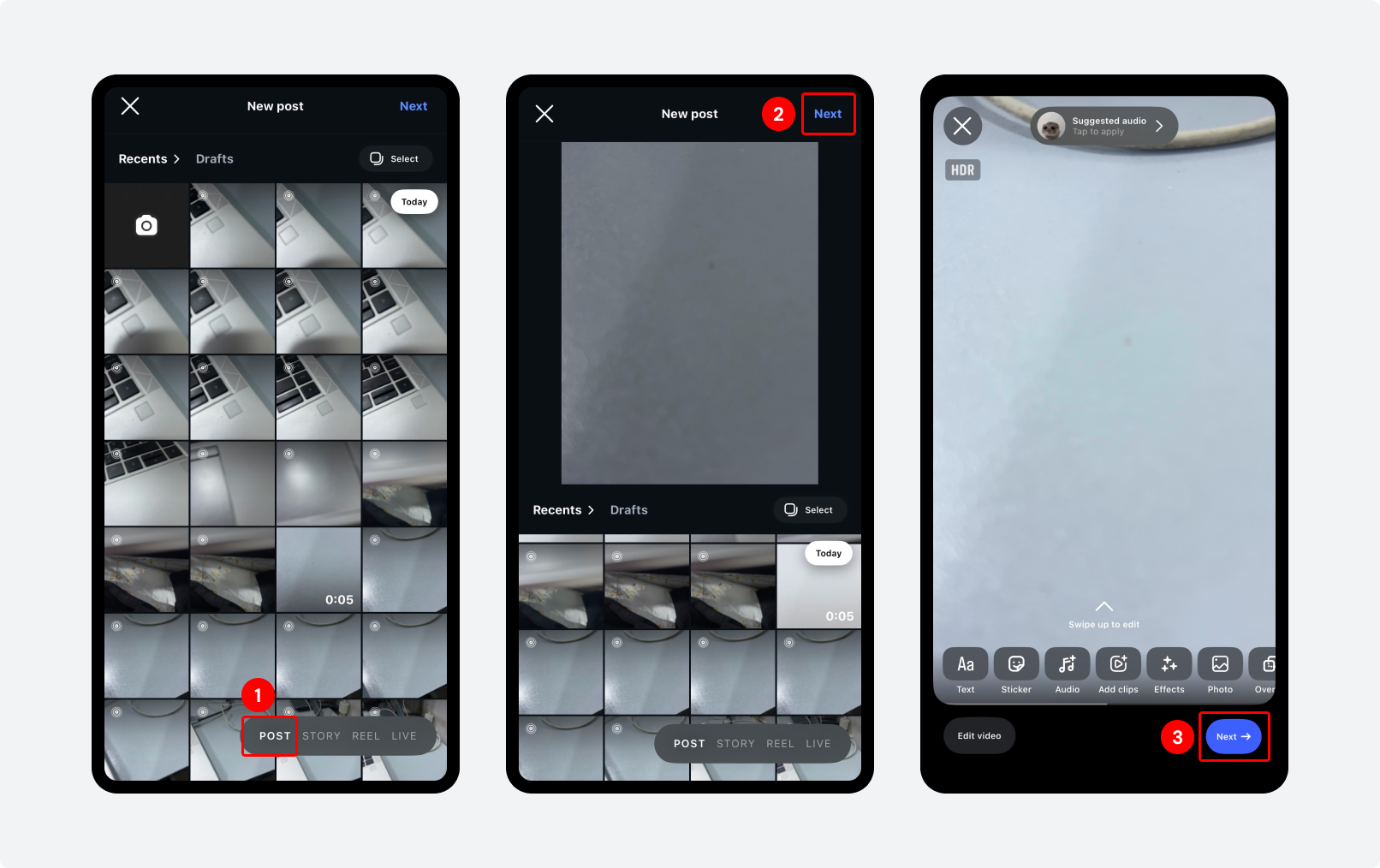
Step 1: Open Instagram and tap the ‘Post’ option. Select your video from the camera roll.
Step 2: Tap ‘Next’ to move to the editing screen.
Step 3: On the preview screen, you’ll see your Reel playing. Edit your video, then click ‘Next’.
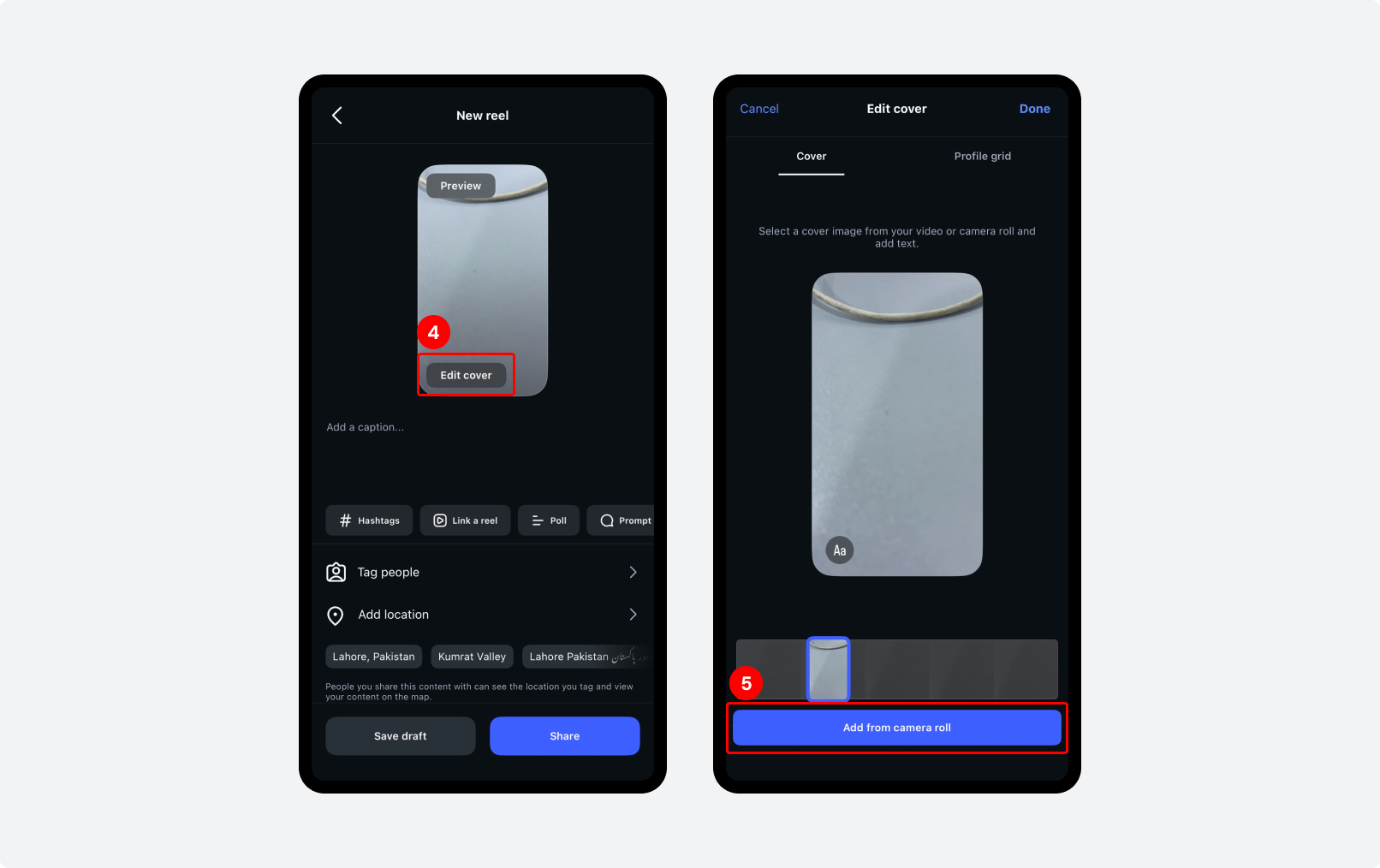
Step 4: On the share screen, tap ‘Edit Cover’ on the Reel thumbnail preview at the top left of the screen.
Step 5: Instagram gives you two options here:
- Pick a frame from the video: Use the slider to scroll through the video and stop on the frame that looks best.
- Upload a custom image: Tap ‘Add from Camera Roll’ and choose a pre-designed thumbnail from your phone gallery.
The second option is what most serious creators use. A custom-designed cover looks more polished and lets you add text, branding, or a teaser that makes people want to watch.
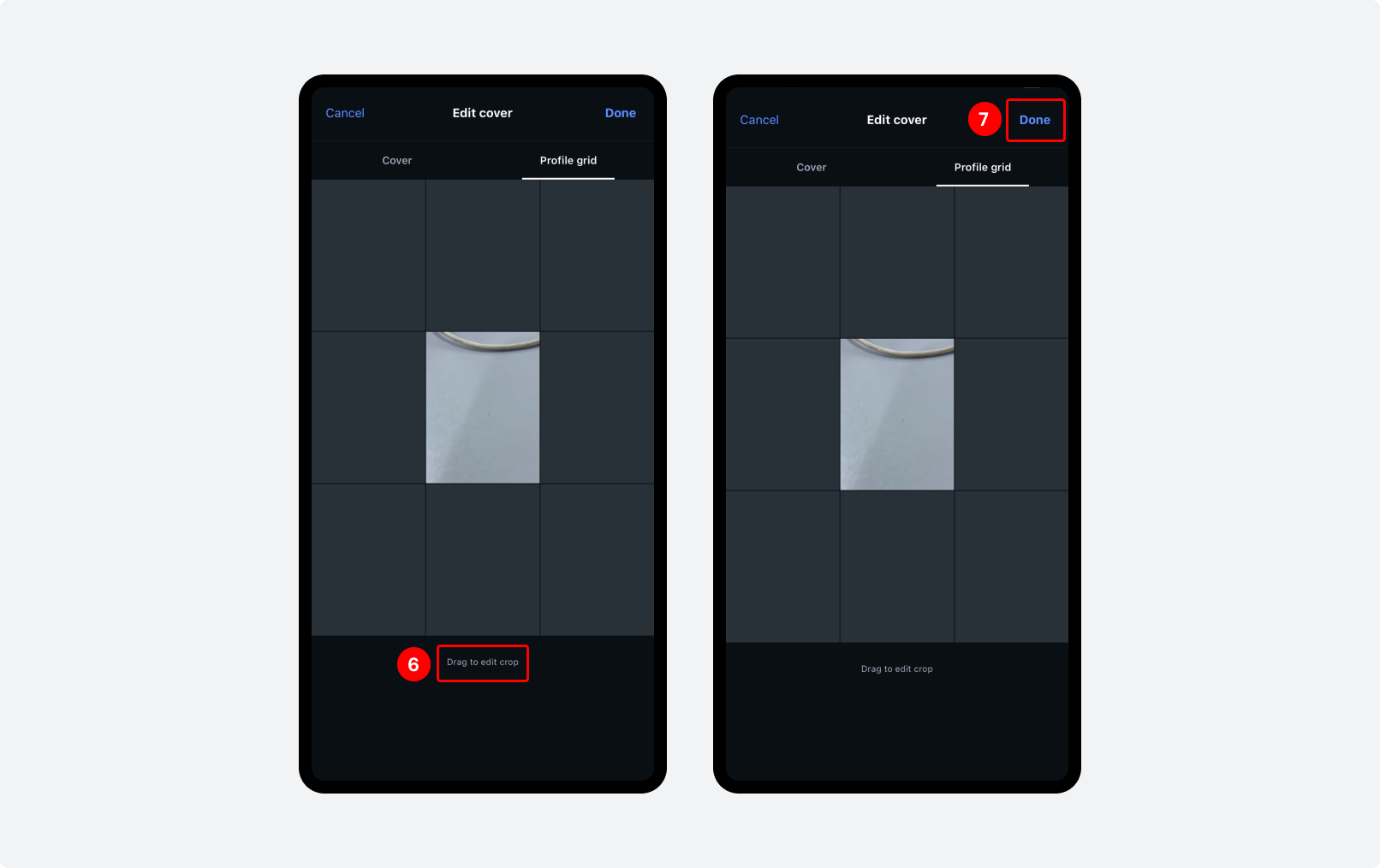
Step 6: After selecting your cover, you’ll see a ‘Profile Grid’ option. Tap it to preview how the thumbnail will look in your grid layout. Drag and reposition it so nothing important gets cut off.
Step 7: Once you’re happy with how it looks, tap ‘Done’. Your custom cover photo will appear on your profile immediately.
This is the most reliable method for setting the Instagram Reels thumbnail properly.
How to Change an Instagram Reels Thumbnail After Posting?
You can still change the Instagram Reels cover image after publishing:
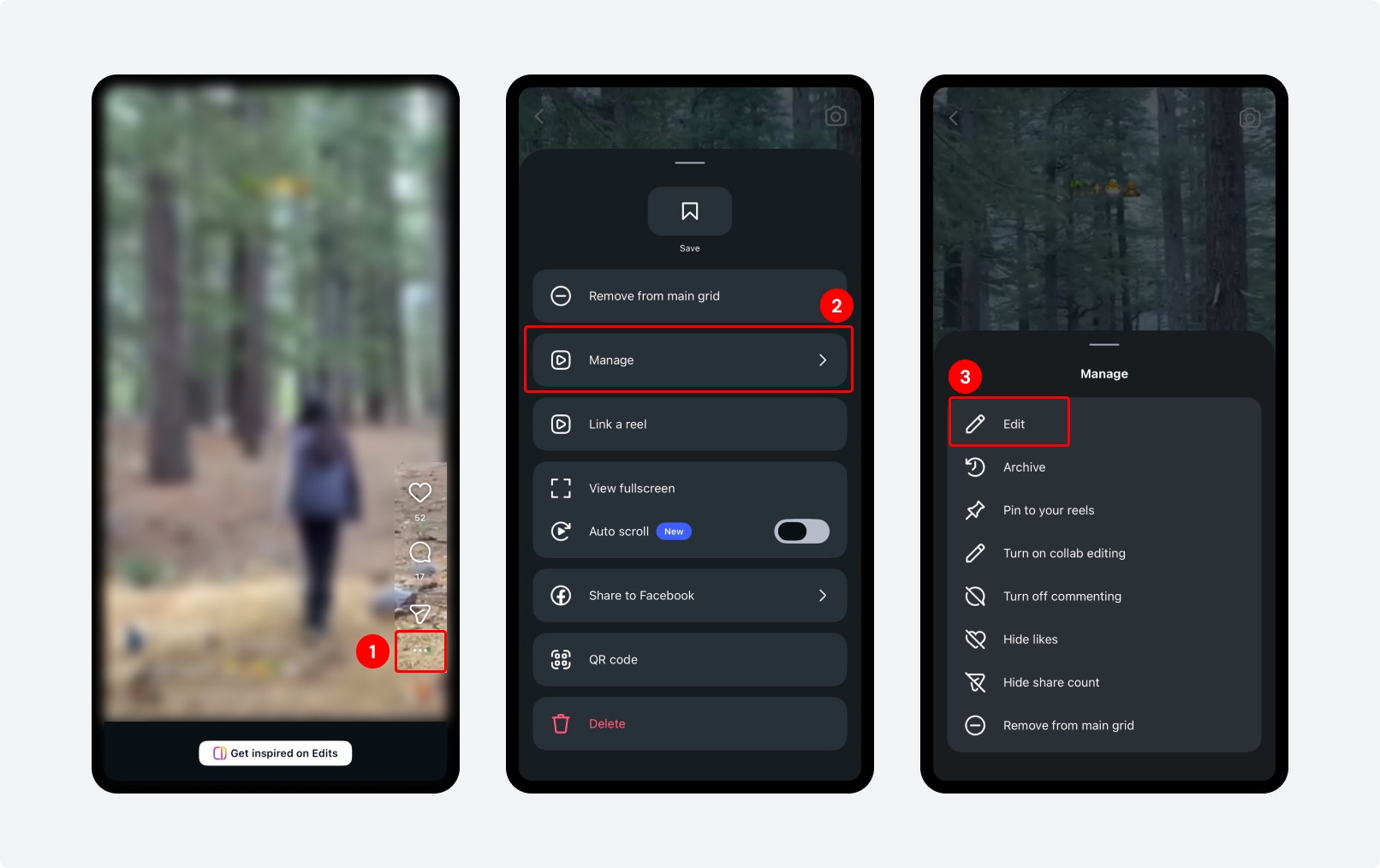
Step 1: Go to the Reel on your profile, tap the three dots in the corner
Step 2: Select ‘Manage’
Step 3: Select ‘Edit.’ On the edit screen, tap ‘Cover’ on the video preview to update the cover image.
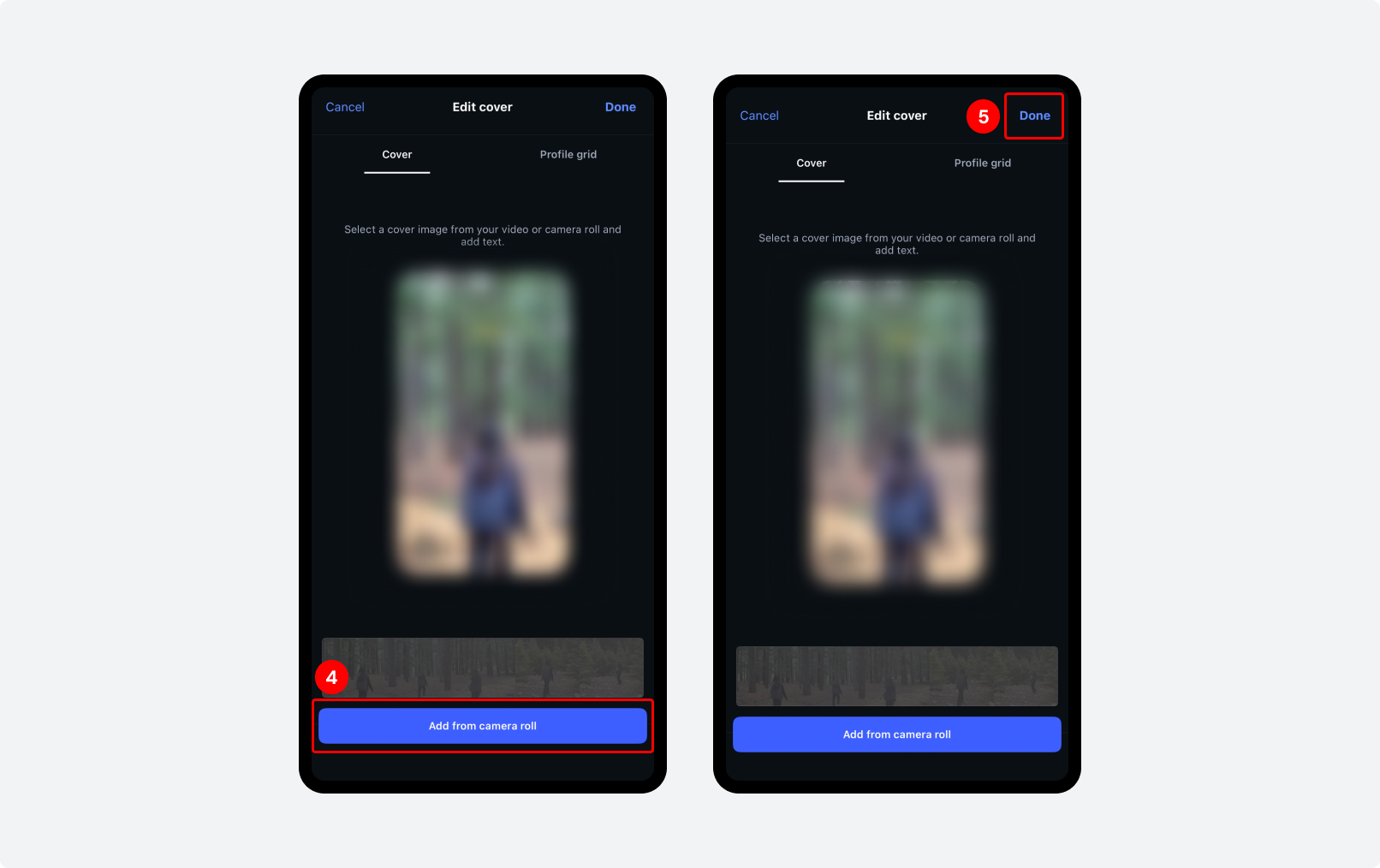
Step 4: You can add a new cover photo from Camera Roll.
Step 5: Once you are satisfied, click ‘Done’.
This is part of basic Instagram Reels editing tips and does not affect performance.
If you’re scheduling content weeks in advance, it’s much easier to set your thumbnail before the Reel goes live. Most social media scheduling tools now let you upload a custom cover image when scheduling your Reel.
How to Add an Instagram Thumbnail Using a Scheduling Tool?
If you want to schedule Instagram Reels in advance, social media scheduling tools make it easier to manage your scheduled Reels and set up Instagram thumbnails.
With platforms like SocialBu, Hootsuite, and Later, you can easily handle social media content scheduling.
SocialBu helps you schedule Instagram Reels, prepare your captions, and manage your content calendar from one place. Instead of relying on Instagram to pick a random video frame, you can upload a custom cover image. This maintains a consistent look across your profile.
The workflow usually looks like this:
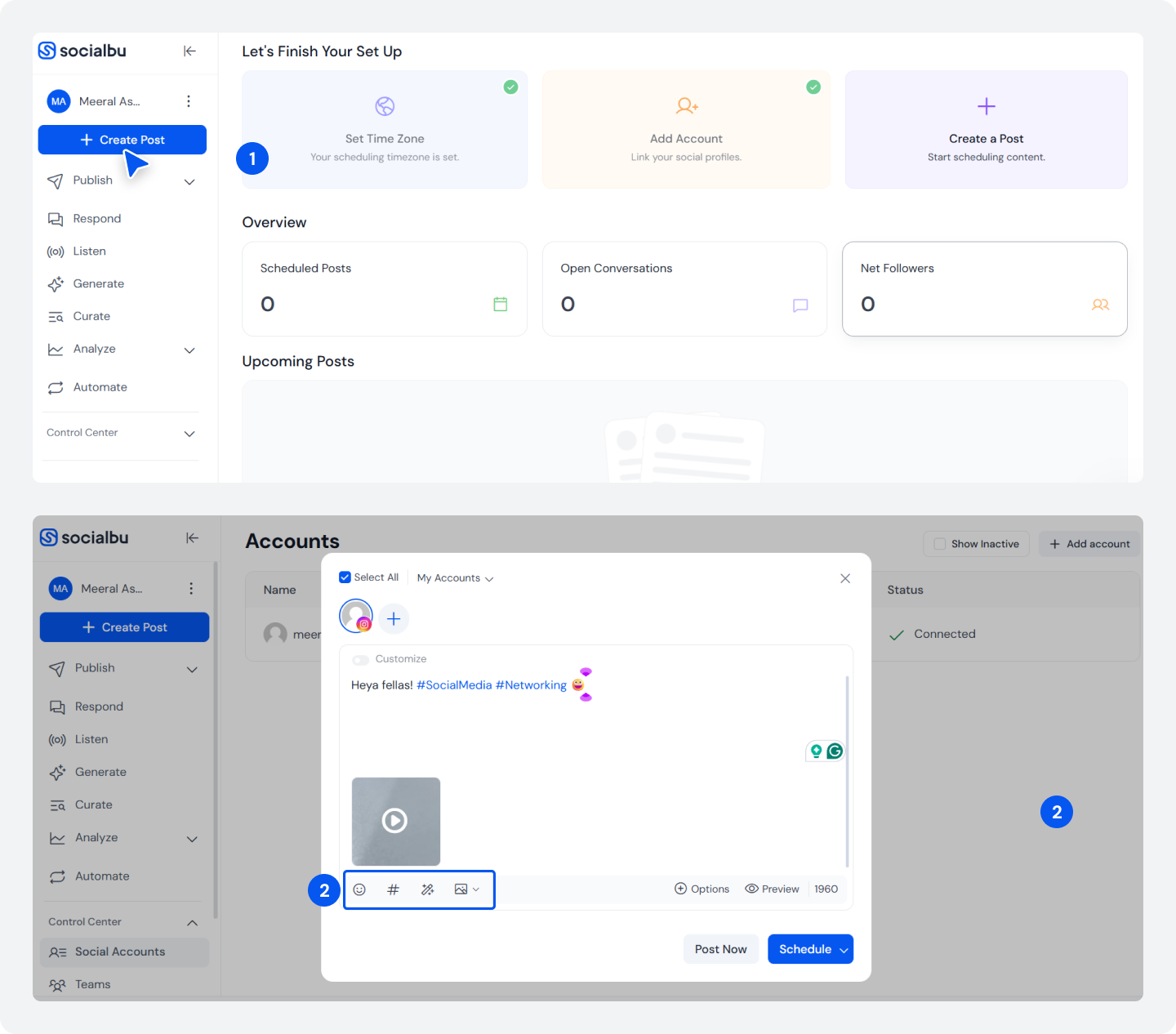
Step 1: Log in to SocialBu and connect your Instagram Business or Creator account. From your dashboard, click ‘Create Post’ and select Instagram as the destination platform.
Step 2: Upload the Reel you want to publish. Add your caption, hashtags, and any other post details.
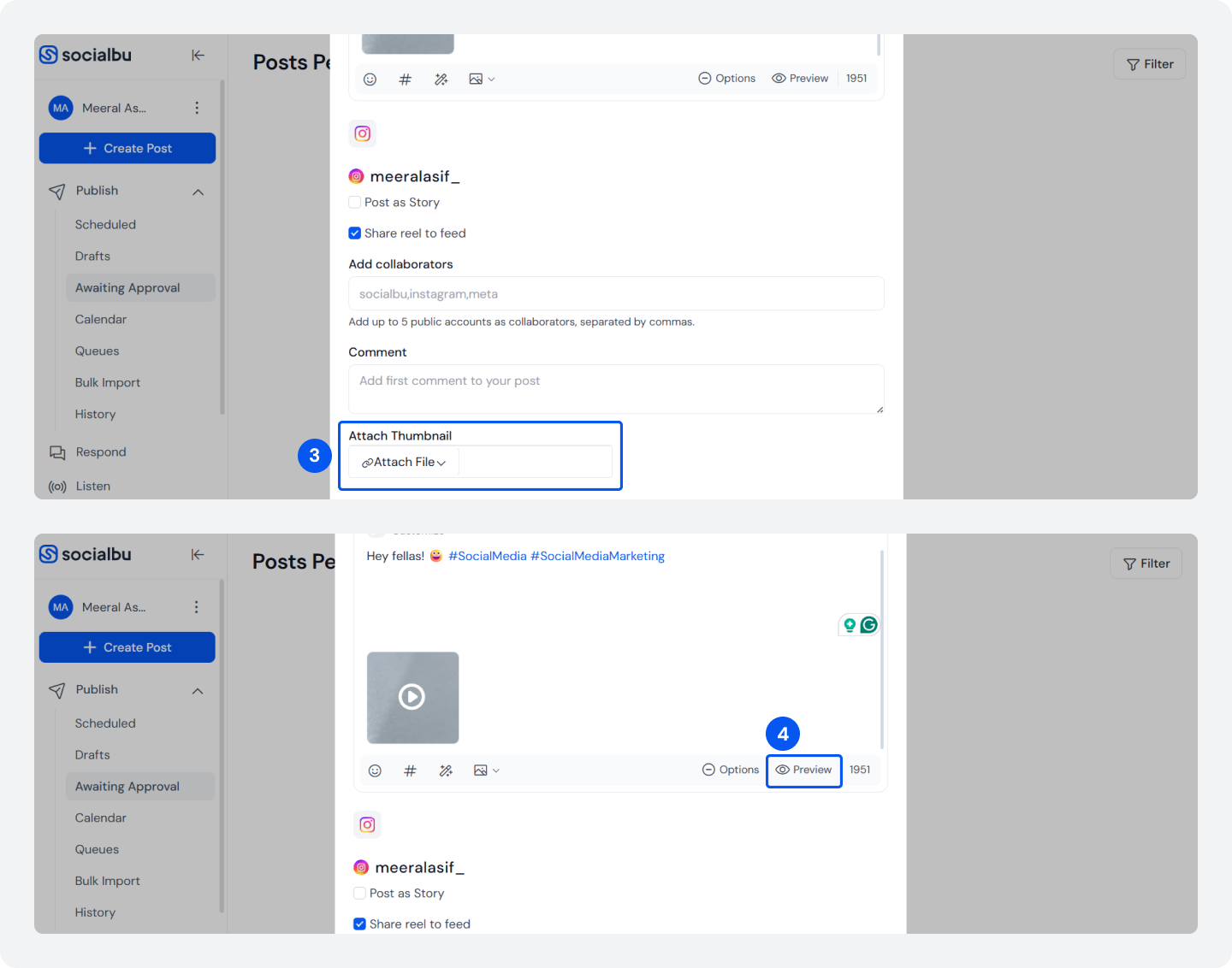
Step 3: This is the step where you set your Instagram Reels thumbnail before posting.
Before scheduling the Reel, select your preferred cover image. Click on the ‘Attach Thumbnail’ to add the required Reel cover.
Step 4: Review how the Instagram Reels cover photo will appear on your profile grid.
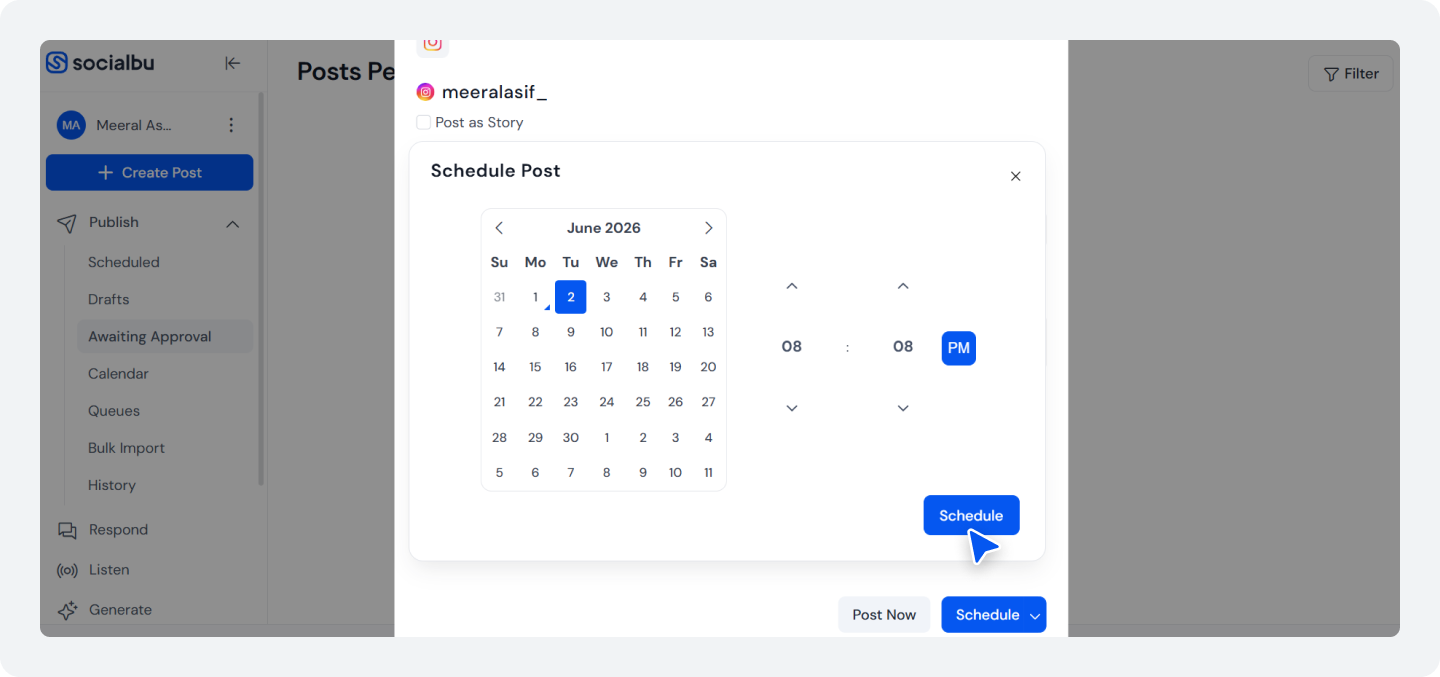
Step 5: Choose your preferred publishing date and time, then schedule the Reel. Once scheduled, your Reel will be published with the selected cover image attached.
Are Random Reel Thumbnails Ruining Your Profile?
SocialBu lets you schedule Instagram Reels, attach custom thumbnail images, and publish with confidence.
Instagram Reel Thumbnail Size and Dimensions
To avoid issues like Instagram Reels thumbnail not showing, use proper social media image sizes:
- 1080 × 1920 px (9:16 ratio) for full Reel design
- Keep key elements inside a center-safe zone (roughly 1080 × 1350 px area)
- Avoid placing text too close to edges, especially the top and bottom UI areas
Even if Instagram scales differently across devices. If you stick to this ratio, your custom cover image social media design displays correctly.
Best Tools to Create Instagram Reel Thumbnails
You can improve consistency and design quality using simple tools:
- Canva: Best for quick templates and Instagram-ready designs
- Adobe Photoshop: Best for advanced custom branding and precision edits
- CapCut: Useful for creating matching video + thumbnail styles
- Figma: Great for reusable thumbnail systems and brand kits
Quick Instagram Reel Thumbnail Tips
Follow these Instagram Reels cover photo tips:
- Use high-contrast text
- Keep important elements near the center
- Match your brand colors and style
- Avoid placing text near the edges
- Use a clear headline that explains the Reel
These simple Instagram Reels cover photo tips can help create a cleaner feed. This makes your content look more organized as part of your 2026 Instagram content strategy.
Thumbnail Problems When Scheduling Instagram Reels
Adding a thumbnail is usually easy. A common issue is Instagram Reels thumbnail does not show after upload.
Thumbnail Looks Cropped After Publishing
One of the most common complaints among Instagram creators is that Reel cover thumbnails don’t always display correctly after publishing.
Creators often face problems with scheduled Reels thumbnail Instagram issues, like cropping or random frame replacement.
For example:
- A creator reported that their custom Reel cover disappeared after publication and was replaced by a random video frame
- The cover photos of many of my reels are cropped and zoomed in on my profile grid.
These reports suggest that thumbnail display issues can occur even when creators follow Instagram’s recommended dimensions.
How to Fix Instagram Reels Thumbnail Issues?
Here’s how to fix it in simple steps so your Instagram Reels cover photo stays exactly the way you set it.
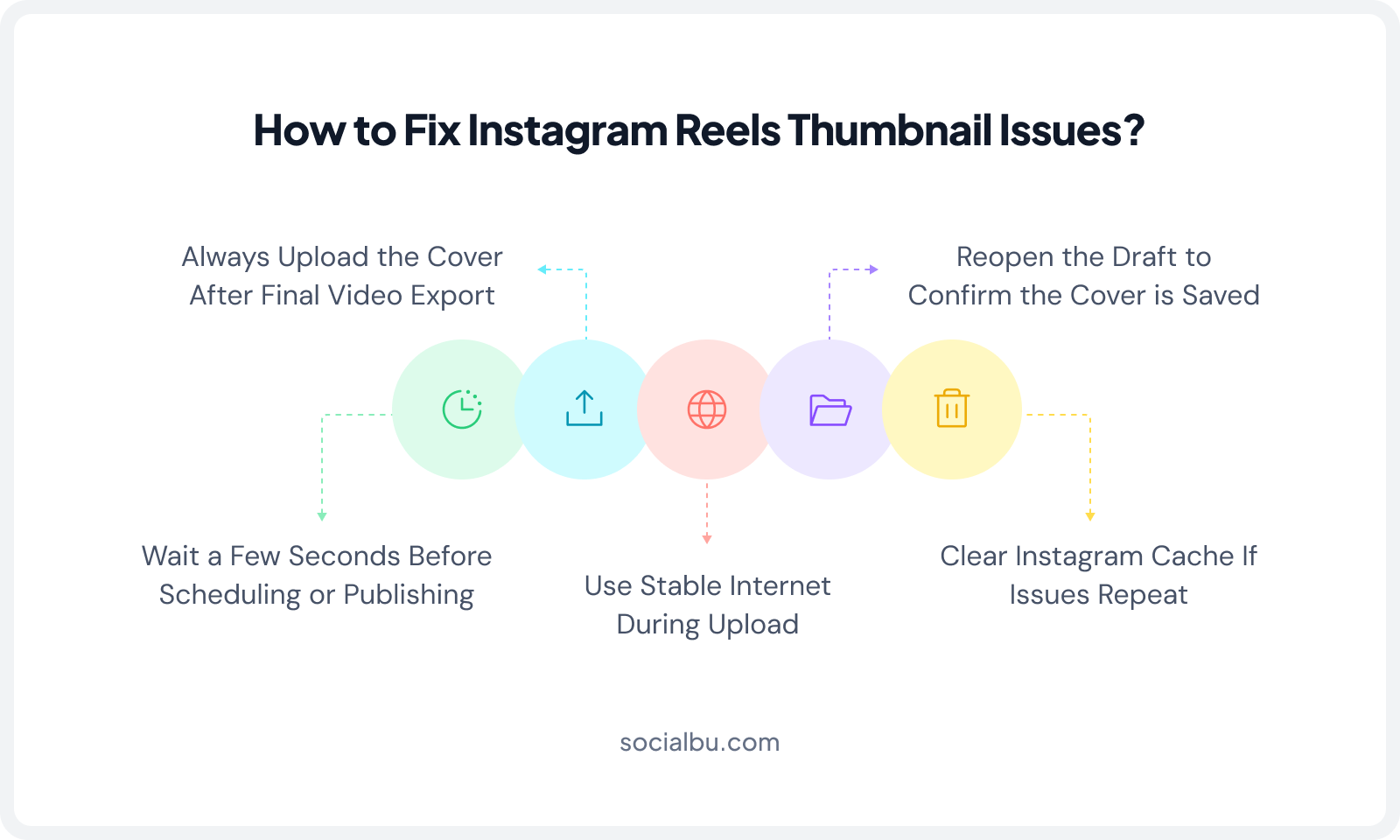
1. Always Upload the Cover After Final Video Export
When learning how to add a thumbnail to Instagram Reels, one important step is to upload your final video first.
If you change your video after adding a cover, Instagram may reset your Instagram Reels custom thumbnail.
2. Wait a Few Seconds Before Scheduling or Publishing
After uploading your cover image or selecting a frame, don’t rush. Instagram sometimes needs a few seconds to properly save your Instagram Reels cover image.
This reduces errors like Instagram Reels thumbnail not showing or defaulting back to a random frame. Once your cover is set, focus on creating engaging content that can help increase views on Instagram Reels.
3. Reopen the Draft to Confirm the Cover is Saved
Before you publish or schedule, always double-check your draft. This is a key step in setting the Instagram Reels thumbnail properly. If you’re using pre-designed Instagram Reel templates. Make sure the cover image is still correctly attached after editing and saving your draft.
4. Use a Stable Internet During Upload
A weak internet connection can break the upload process and cause your cover to reset. This reduces upload errors in social media content scheduling.
5. Clear Instagram Cache If Issues Repeat
If the problem of your Instagram Reels thumbnail not showing keeps happening, your app cache might be the reason.
Don’t overthink it, but don’t ignore it either. A 10-minute investment in designing a clean, consistent thumbnail template pays dividends across every Reel you post.
Why These Fixes Matter? (Quick Insight)
Your Instagram Reels thumbnail directly affects:
- Click-through rate
- Profile grid appearance
- Instagram Reels reach and impressions
- Engagement and watch time
A strong Instagram video cover image improves your chances of getting more views.
Checklist Before You Schedule a Reel
Before scheduling your Reel, confirm:
- Thumbnail is high-resolution
- Text is readable on mobile
- Center-safe design is used
- Cover matches video content
- Preview checked in grid mode
- No important elements near edges
Conclusion
If you want consistent performance, treat your Instagram Reels cover photo tips like part of your branding system. A clean, eye-catching thumbnail improves your Instagram feed aesthetics and increases overall Instagram Reels views.
If you’re scheduling Reels in bulk, tools like SocialBu let you add thumbnails during scheduling.
FAQs
Q. Can I add a thumbnail to an Instagram Reel after it’s already been posted?
A. Yes. Go to the Reel on your profile, tap the three dots, select ‘Manage’ then ‘Edit,’ and update the cover photo. Your views and engagement will not be affected.
Q. What is the best size for an Instagram Reels thumbnail?
A. The recommended size is 1080 x 1920 pixels, which matches the Reel’s own aspect ratio.
Q: What is the best thumbnail for Instagram Reels?
A. The best Instagram Reels thumbnail is one that has:
- Clear and bold text
- High contrast colors
- Simple design
- Center-aligned elements
- A message that explains the video quickly
Good thumbnails improve Instagram Reels engagement and profile aesthetics.
Q. Why is my Instagram Reels thumbnail not showing after I set it?
A. This is usually an app cache issue or a delay on Instagram’s end. Try closing and reopening the app.
Q. Which scheduling tools let you add a custom thumbnail to Instagram Reels?
A. Tools that support this include SocialBu, ContentStudio, Later, Hootsuite, and Meta Business Suite.
Q. Can I upload a custom image as a Reel thumbnail, or does it have to be a frame from the video?
A. You can upload any image from your camera roll. It doesn’t have to be a frame from the video.
Q. How do I make my Instagram Reels thumbnails look consistent across my profile?
A. Create a Canva template with your brand colors and font. Use the same template for every Reel cover, swapping out the text or main image each time. This makes your grid look cohesive.