
You’re writing a post. It’s almost done. Then comes the routine: switch to Google Docs for the CTA, dig through your phone notes for the brand disclaimer, copy-paste the sign-off from last week’s post, change the formatting, and finally hit publish.
Sounds familiar?
Now multiply that by 20 posts a week. Across three clients. Every single week.
That’s not a content problem. It’s a workflow problem.
The Hidden Cost of Repetitive Text
Social media managers and content teams spend a surprising amount of time on text that never changes, i.e., calls-to-action, signature lines, brand disclaimers, campaign copy, and legal notices.
The workarounds pile up fast: sticky notes, phone notes, a shared Google Doc that nobody can find, a Slack message you keep scrolling back to. None of it lives where you actually create content. So every session starts with an endless hunt.
If you’re managing this across a team, the problem compounds fast, which is exactly why having a clear content approval workflow in place matters just as much as having the right text ready to go.
Introducing Snippets
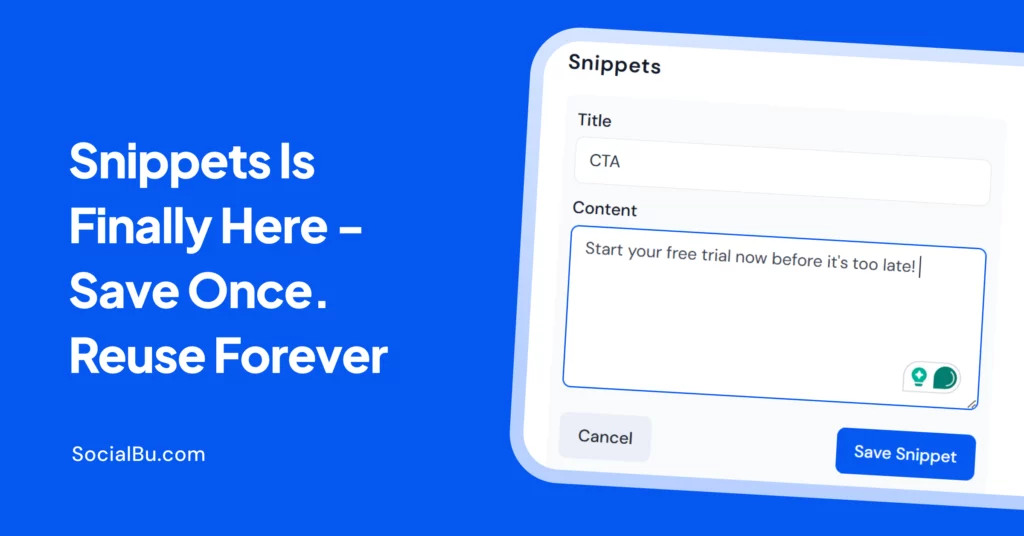
That’s why we built Snippets, a built-in library inside SocialBu where you can save and reuse your most-used pieces of text, without ever leaving the platform.
Create it once. Use it everywhere. No tab-switching required.
How Does It Work?
Here’s a step-by-step breakdown of how the new Snippets feature inside SocialBu works.
1. Build Your Snippets Library
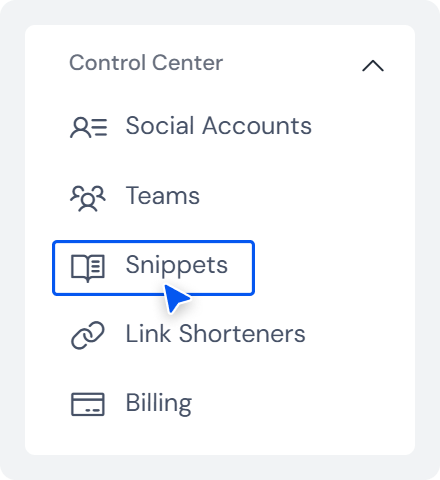
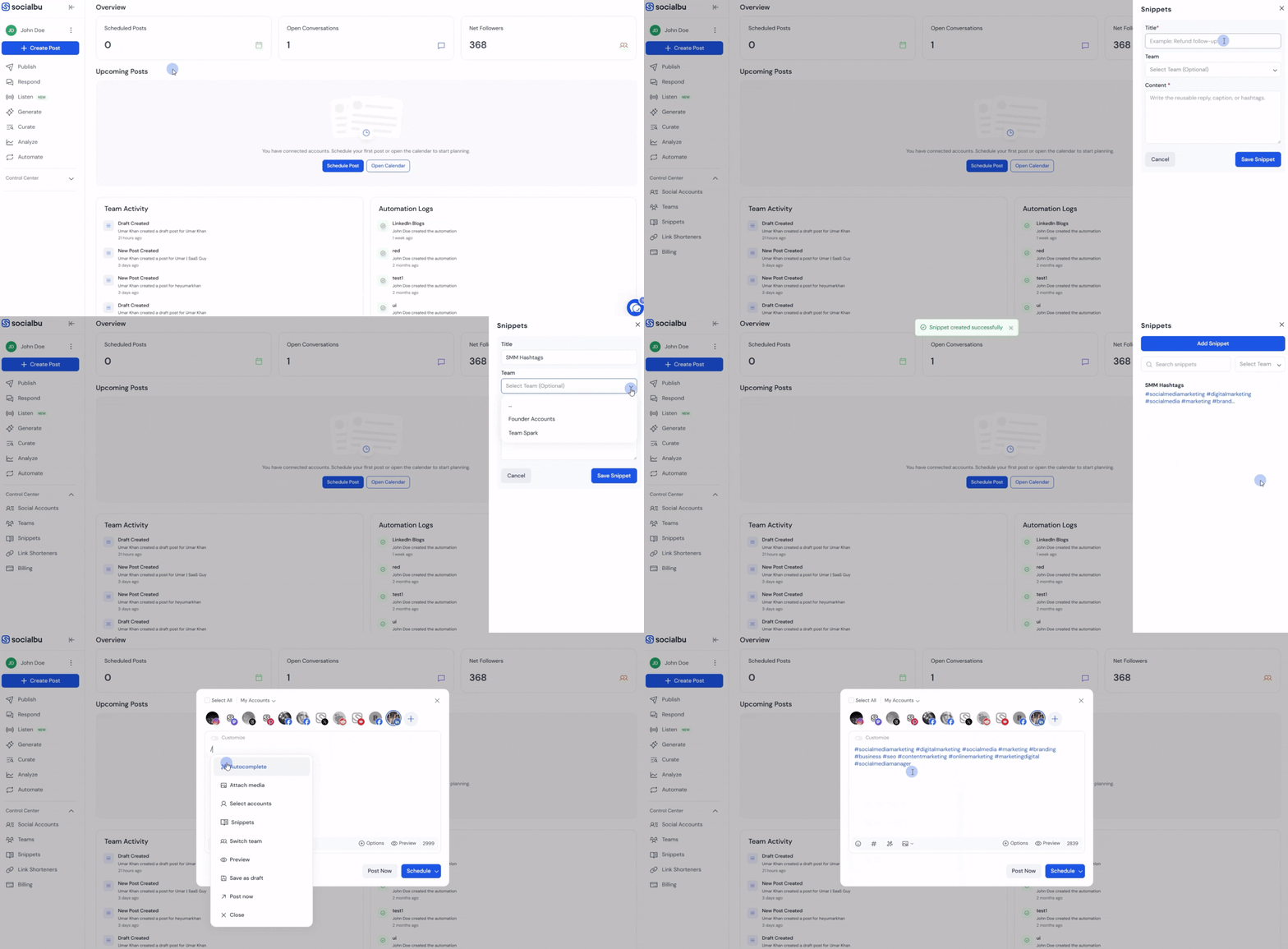
Go to the Snippets section in your sidebar (under Control Center) and the Snippets window will open on the right.
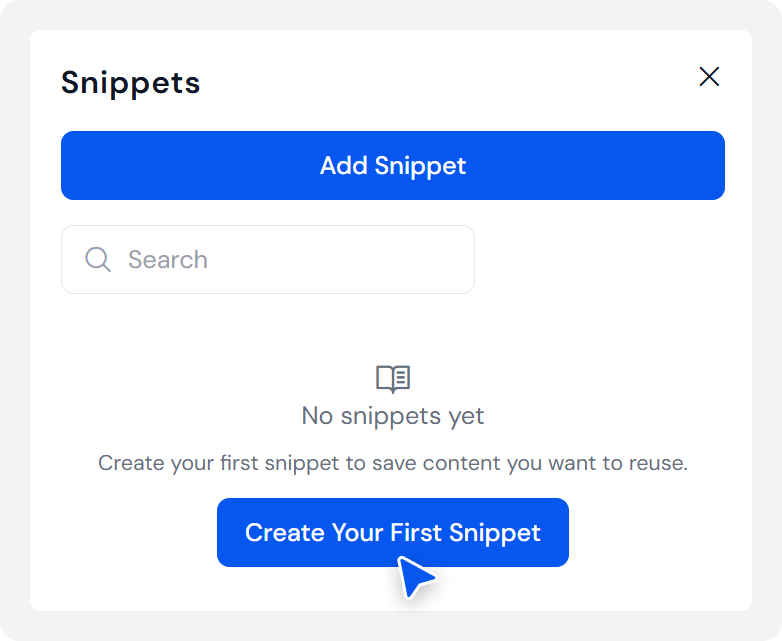
If this is your first time creating a Snippet, select “Create Your First Snippet.”
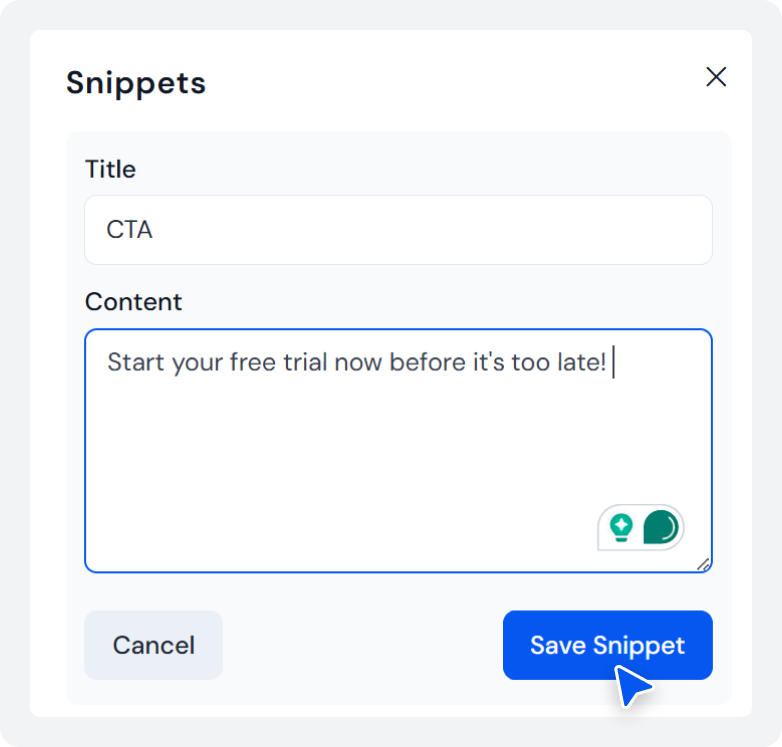
Create a snippet and give it a name so it’s easy to find. Once done, select “Save Snippet.”
If you’re working with a team or managing multiple clients, you can organize Snippets by team, keeping everyone’s reusable text ready and accessible. This pairs well with the broader social collaboration tools your team may already use to keep everyone aligned.
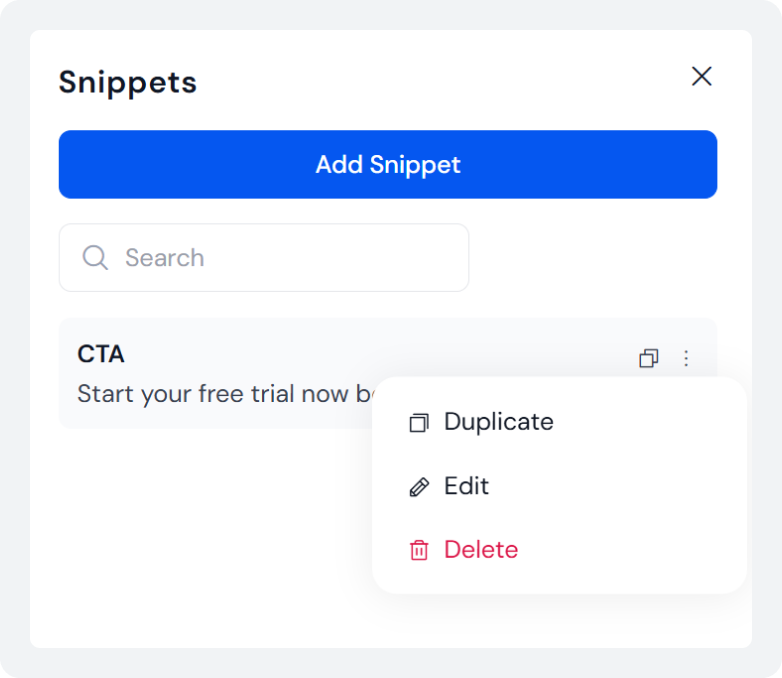
You can even edit, duplicate, or delete a Snippet by selecting the “three-dots” next to the copy icon.
2. Insert Instantly While Writing
While composing a post, type / to pull up your Snippets. Find what you need and drop it in with one click, right where your cursor is, without breaking your flow.
No copy-paste. No switching apps. Just faster writing.
What You Can Save As a Snippet?
Snippets work for anything you type more than once:
- Calls-to-action: Save your go-to CTAs, such as “Book a free demo,” “Link in bio,” and “DM to get started,” etc. If you want to sharpen these further, our guide on writing engaging social media captions covers how to pair a strong CTA with the rest of your caption.
- Brand disclaimers: Legal copy, affiliate disclosures, and regional notes, etc.
- Signature lines: Team sign-offs, author bios, contact info.
- Brand voice lines: Recurring intros, Outros, or phrases unique to your brand tone.
- Customer support replies: FAQs, fixed responses, policy links.
In short, you can use our Snippets for literally anything that appears monotonous and takes up a lot of your time.
Who This Is For?
If any of these sound familiar, Snippets was made for you.
- You manage multiple brand accounts, each with its own CTAs, disclaimers, and messaging.
- You write the same CTA at the end of almost every post.
- You keep a Notes app or Google Doc open just for reusable text.
- You’ve ever had to ask a teammate, “Can you send me that disclaimer again?”
Why It Lives Inside SocialBu?
The best tools don’t make you leave to get something done. Your CTAs, brand disclaimers, and lines should live where you write, not scattered across three different apps.
Snippets keeps everything in one place, accessible the moment you need it, without interrupting your creative process; much like how SocialBu’s content calendar keeps your entire posting schedule in a single view instead of spread across spreadsheets.
And this is just the beginning. We’re planning to bring Snippets into more areas of SocialBu, so stay tuned.
Try Snippets Today!
The best part? Snippets is now live inside SocialBu for you to try and save your time. So, open your composer, type /, and see it in action.
If you’ve been copy-pasting the same content for months, today’s a good day to stop.